
Aiwa XP-R210
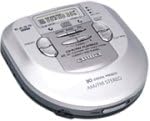
Aiwa XP-R210 Portable CD Player with FM/AM Radio User Manual
Model: XP-R210
Introduction
This user manual provides comprehensive instructions for the operation, maintenance, and troubleshooting of your Aiwa XP-R210 Portable CD Player with FM/AM Radio. Please read this manual thoroughly before using the device to ensure proper functionality and to maximize your listening experience.
The Aiwa XP-R210 is a versatile portable audio device combining a CD player with an integrated FM/AM radio receiver, designed for on-the-go entertainment.
Product Overview
The Aiwa XP-R210 features a robust design with essential controls for both CD playback and radio tuning. Key features include:
- Portable CD player with CD-R/RW compatibility.
- Integrated FM/AM radio with 30 preset stations.
- Electronic Anti-Shock System (EASS) offering up to 48 seconds of skip protection.
- 24-track programmable CD playback function.
- Includes AC adapter and rechargeable batteries for convenience.
- Features such as Hold, Resume, Bass Boost, Repeat, and Random playback.
Setup
- Power Source Connection:
- Using Batteries: Open the battery compartment on the underside of the unit. Insert two (2) AA batteries, ensuring correct polarity (+/-). The player supports both standard and rechargeable AA batteries.
- Using AC Adapter: Connect the supplied AC adapter to the DC IN 3V jack on the unit and plug the other end into a standard wall outlet. When the AC adapter is connected, the unit will automatically use AC power and charge rechargeable batteries if inserted.
- Headphone Connection: Insert the stereo headphones (supplied) into the headphone jack on the side of the unit.
- Initial Power On: Press the POWER button to turn on the unit. The display will illuminate.
Operating Instructions
CD Playback
- Loading a CD: Gently open the CD compartment lid. Place a CD (label side up) onto the spindle, ensuring it clicks into place. Close the lid firmly.
- Playing a CD: Press the PLAY/PAUSE (►/∥) button to start playback. Press again to pause.
- Skipping Tracks: Press the SKIP (►►|) button to advance to the next track. Press the SKIP (◄◄|) button to go to the beginning of the current track, or press twice to go to the previous track.
- Searching: Press and hold the SKIP (►►|) or SKIP (◄◄|) button during playback to fast-forward or fast-reverse through the track.
- Programmable Playback:
- In stop mode, press the PROGRAM button.
- Use the SKIP buttons to select the desired track number.
- Press PROGRAM again to confirm and add the track to the program list. Repeat for up to 24 tracks.
- Press PLAY/PAUSE to start programmed playback.
- Repeat and Random Play: Press the MODE button repeatedly to cycle through Repeat One, Repeat All, and Random playback modes.
- Anti-Shock System (EASS): The electronic anti-shock system prevents skips during movement. You can select between 12-second, 48-second memory, or disable the feature. Refer to the display for the current setting.
- Bass Boost: Press the BASS BOOST button to enhance bass frequencies. Press again to turn off.
FM/AM Radio Operation
- Switching to Radio: Slide the function switch to FM or AM.
- Tuning: Use the TUNING buttons (often combined with SKIP buttons) to manually tune to desired radio stations.
- Preset Stations:
- Storing Presets: Tune to a desired station. Press and hold the MEMORY button, then use the PRESET buttons to select a preset number (1-30). Press MEMORY again to save.
- Recalling Presets: Press the PRESET buttons to cycle through your stored stations.
- Antenna: For FM reception, extend the headphone cord as it acts as the antenna. For AM reception, rotate the unit for best reception.
General Controls
- Volume Control: Adjust the VOLUME dial or buttons to your desired listening level.
- Hold Function: Slide the HOLD switch to prevent accidental button presses during transport. The display will show "HOLD".
- Resume Function: If the unit is turned off during CD playback, it will resume from the last played point when turned back on.
Maintenance
- Cleaning the Unit: Use a soft, dry cloth to clean the exterior of the player. For stubborn dirt, slightly dampen the cloth with water. Do not use abrasive cleaners or solvents.
- CD Lens Care: Avoid touching the CD lens inside the compartment. If cleaning is necessary, use a specialized CD lens cleaner disc.
- Battery Care:
- Remove batteries if the unit will not be used for an extended period to prevent leakage.
- If using rechargeable batteries, ensure they are fully charged before long trips.
- Storage: Store the unit in a cool, dry place away from direct sunlight, extreme temperatures, and excessive dust.
Troubleshooting
| Problem | Possible Cause | Solution |
|---|---|---|
| No power | Batteries are dead or incorrectly inserted; AC adapter not connected properly. | Replace batteries or check polarity; ensure AC adapter is securely plugged in. |
| CD skips or does not play | CD is dirty, scratched, or inserted incorrectly; Anti-Shock System off or insufficient. | Clean CD with a soft cloth; ensure CD is seated properly; check EASS setting. |
| Poor radio reception | Weak signal; antenna not positioned correctly. | Extend headphone cord (FM); rotate unit (AM); try moving to a different location. |
| No sound | Volume too low; headphones not connected; headphones faulty. | Increase volume; ensure headphones are fully inserted; try different headphones. |
| Unit does not respond to buttons (HOLD) | HOLD function is activated. | Slide the HOLD switch to the OFF position. |
Specifications
| Model Name | XP-R210 |
| Manufacturer | Aiwa |
| Connectivity Technology | Auxiliary |
| Special Feature | Portable |
| Color | Silver |
| Item Weight | 5.6 ounces |
| Package Dimensions | 5 x 4.9 x 1.3 inches |
What's in the Box
Upon opening your Aiwa XP-R210 package, you should find the following items:
- Aiwa XP-R210 Portable CD Player
- AC adapter
- Rechargeable batteries (2x AA)
- Stereo headphones
- User's manual (this document, or a printed version)
Warranty and Support
For detailed warranty information, please refer to the warranty card included with your product or visit the official Aiwa website. Keep your purchase receipt as proof of purchase for any warranty claims.
For technical support or service inquiries, please contact Aiwa customer service through their official channels. Contact information is typically available on the manufacturer's website or in the full product documentation.
Ask a question about this manual
Ask about setup, troubleshooting, compatibility, parts, safety, or missing instructions. Manuals+ will review the question and use this page’s manual context to help answer it.