
1. Introduction
This manual provides essential instructions for the safe and efficient use of your Nikon Super Coolscan 4000 ED Film Scanner. This device is designed for high-resolution scanning of various film formats, including 35mm, film strips, slides, and Advanced Photo System (APS) film. It features a 4,000 dpi optical resolution and 48-bit color depth, utilizing an IEEE 1394 FireWire interface for connectivity.

Figure 1: Front view of the Nikon Super Coolscan 4000 ED Film Scanner.
2. Safety Information
Please read and understand all safety precautions before operating the scanner.
- Power Source: Connect the scanner only to a power outlet that matches the voltage specified on the scanner's label.
- Ventilation: Ensure adequate ventilation around the scanner to prevent overheating. Do not block ventilation openings.
- Liquid Exposure: Keep the scanner away from water or other liquids. Do not operate with wet hands.
- Cleaning: Disconnect the power cord before cleaning. Use a soft, dry cloth. Avoid abrasive cleaners or solvents.
- Servicing: Do not attempt to service the scanner yourself. Refer all servicing to qualified personnel.
3. Package Contents
Verify that all items are present in your package:
- Nikon Super Coolscan 4000 ED Film Scanner Unit
- Power Cable
- IEEE 1394 FireWire Interface Card (for PC/Mac compatibility)
- FireWire Cable
- Film Holders (e.g., FH-3 Strip Film Holder, MA-20 Slide Mount Adapter, SA-21 Strip Film Adapter, IA-20 APS Film Adapter)
- Nikon Scan 3.0 Driver Software CD
- User Manual (this document)
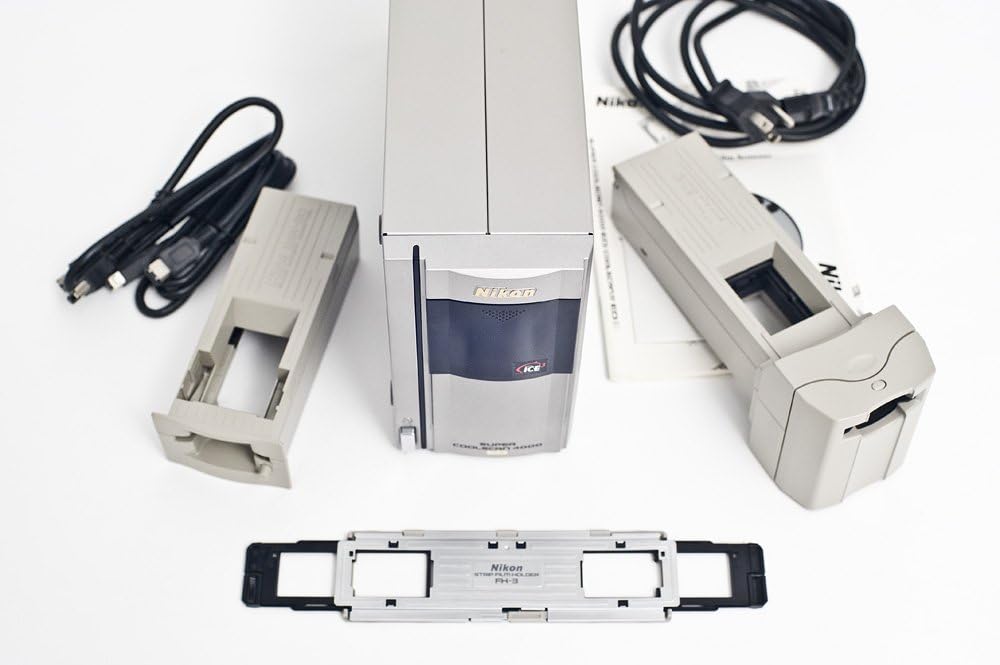
Figure 2: The Nikon Super Coolscan 4000 ED scanner unit with included accessories, including film holders, cables, and software.

Figure 3: Various film holders for the Super Coolscan 4000 ED, designed for different film formats.
4. Setup
4.1 Hardware Connection
- Install FireWire Card: If your computer does not have a FireWire (IEEE 1394) port, install the provided FireWire interface card into an available PCI slot on your computer. Refer to your computer's manual for PCI card installation instructions.
- Connect Power: Connect the power cable to the scanner and then to a grounded electrical outlet.
- Connect FireWire Cable: Connect one end of the FireWire cable to the scanner's FireWire port and the other end to the FireWire port on your computer or the newly installed FireWire card.
- Power On: Turn on the scanner using the power switch. The indicator light should illuminate.
4.2 Software Installation
- Insert Software CD: Insert the Nikon Scan 3.0 Driver Software CD into your computer's CD-ROM drive.
- Run Installer: Follow the on-screen instructions to install the Nikon Scan 3.0 software and drivers. It is recommended to restart your computer after installation.
- System Requirements: Ensure your operating system meets the minimum requirements. The scanner is compatible with various Windows and Mac OS versions, though support for newer operating systems may require third-party software.
5. Operating Instructions
5.1 Loading Film
The Super Coolscan 4000 ED supports various film formats using specific film holders.
- 35mm Film Strips: Use the SA-21 Strip Film Adapter. Carefully insert the film strip into the adapter, ensuring it is flat and correctly aligned.
- Mounted Slides: Use the MA-20 Slide Mount Adapter. Place individual mounted slides into the adapter.
- Advanced Photo System (APS) Film: Use the IA-20 APS Film Adapter. Insert the APS film cartridge into the adapter.
Once the film is loaded into the appropriate adapter, insert the adapter into the scanner's film slot.
5.2 Scanning Process
- Launch Software: Open the Nikon Scan 3.0 application on your computer.
- Select Film Type: In the software interface, select the type of film you are scanning (e.g., color negative, color positive, black and white).
- Preview Scan: Initiate a preview scan to adjust cropping, rotation, and other settings.
- Adjust Settings:
- Resolution: Set the desired scanning resolution, up to 4,000 dpi.
- Color Depth: The scanner supports 48-bit color for rich detail.
- Digital ICE: Enable Digital ICE (Image Correction and Enhancement) for automatic removal of dust, scratches, and surface blemishes.
- Multi-sample Scanning: Utilize multi-sample scanning technology to reduce noise and improve image quality.
- Final Scan: Once settings are finalized, initiate the full scan. A high-resolution scan typically takes approximately 38 seconds.
- Save Image: Save the scanned image to your desired location and format on your computer.
6. Maintenance
6.1 Cleaning the Scanner
- Exterior: Wipe the exterior of the scanner with a soft, dry, lint-free cloth. Do not use liquid cleaners or sprays directly on the unit.
- Film Path: Periodically inspect the film path for dust or debris. Use a can of compressed air (held upright to prevent propellant discharge) to gently blow away dust from the film slot and adapters. Avoid touching optical surfaces.
- Film Holders: Clean film holders with a soft cloth. Ensure they are free of dust or fingerprints before loading film.
6.2 Storage
When not in use, store the scanner in a clean, dry environment, away from direct sunlight and extreme temperatures.
7. Troubleshooting
If you encounter issues with your Nikon Super Coolscan 4000 ED, refer to the following common solutions:
| Problem | Possible Cause / Solution |
|---|---|
| Scanner not recognized by computer. |
|
| Nikon Scan software crashes or does not launch. |
|
| Scanned images have dust or scratches. |
|
| Poor color accuracy or faded images. |
|
8. Specifications
| Feature | Detail |
|---|---|
| Model Name | Super Coolscan 4000 ED |
| Scanner Type | Film, Photo (Slide & Negative) |
| Optical Resolution | 4,000 dpi |
| Color Depth | 48-bit |
| Connectivity | IEEE 1394 FireWire |
| Light Source | LED |
| Scanning Speed | Approx. 38 seconds for high-resolution scans |
| Scanning Area | 25mm x 38mm |
| Focus | Automatic or Manual |
| Dimensions (H x W x D) | 3.66 x 12.4 x 6.65 inches (approx.) |
| Weight | 6.61 pounds (approx.) |
| Image Correction | Digital ICE (Image Correction and Enhancement) |
| Film Formats Supported | 35mm film strips, mounted slides, Advanced Photo System (APS) film |
9. Warranty and Support
For information regarding warranty coverage, please refer to the warranty card included with your original purchase or visit the official Nikon website.
As this is an older model, direct manufacturer support, including parts availability and software updates for modern operating systems, may be limited. Users may need to explore third-party software solutions for continued compatibility with current computer systems. For the most up-to-date support information, please visit the Nikon support website or contact their customer service department.
Legal Disclaimer: Please note that this product may be subject to a legal disclaimer regarding its functionality, as indicated by the manufacturer or seller at the time of purchase. Specifically, some units may be sold as non-functioning due to damage that may or may not be repairable. Verify the condition of your specific unit upon receipt.


