
1. Product Overview
The Avery Easy Peel Printable Address Labels with Sure Feed (Model 5161) are designed for efficient and reliable printing of address labels using laser printers. This product provides 2,000 white labels, each measuring 1 inch by 4 inches, across 100 sheets. Featuring Sure Feed Technology, these labels are engineered to prevent misalignments and jams during printing, ensuring a smooth and hassle-free experience. The Easy Peel design allows for quick and effortless application, making them ideal for bulk mailing, organization, and various labeling needs.

Figure 1: Avery Easy Peel Address Labels, Model 5161, packaging.
2. Key Features
- Sure Feed Technology: Engineered to provide a more reliable feed through your laser printer, significantly reducing misalignments and jams. This ensures consistent and accurate printing, minimizing wasted labels.
- Easy Peel Design: Labels can be quickly and easily removed from the backing sheet without tearing or ripping. Simply bend the label sheet to expose the Pop-up Edge, peel off your label, and apply.
- Permanent Adhesive: Equipped with UltraHold permanent adhesive, these labels provide superior adhesion, ensuring they stick securely and stay in place on various surfaces.
- Optimized for Laser Printers: Designed to deliver clear text and crisp graphics, preventing smearing or smudging, for professional-looking results.
- Versatile Use: Ideal for creating bulk mailing labels, organization labels, classroom labels, personalized gift tags, shipping labels, filing, and general organization in office or home environments.

Figure 2: Labels feature UltraHold permanent adhesive for secure attachment.
3. Setup and Printing
3.1 Preparing Your Labels
Before printing, ensure your labels are stored flat and away from extreme temperatures or humidity to prevent curling or damage. Each sheet contains 20 labels, arranged in a standard layout for easy printing.
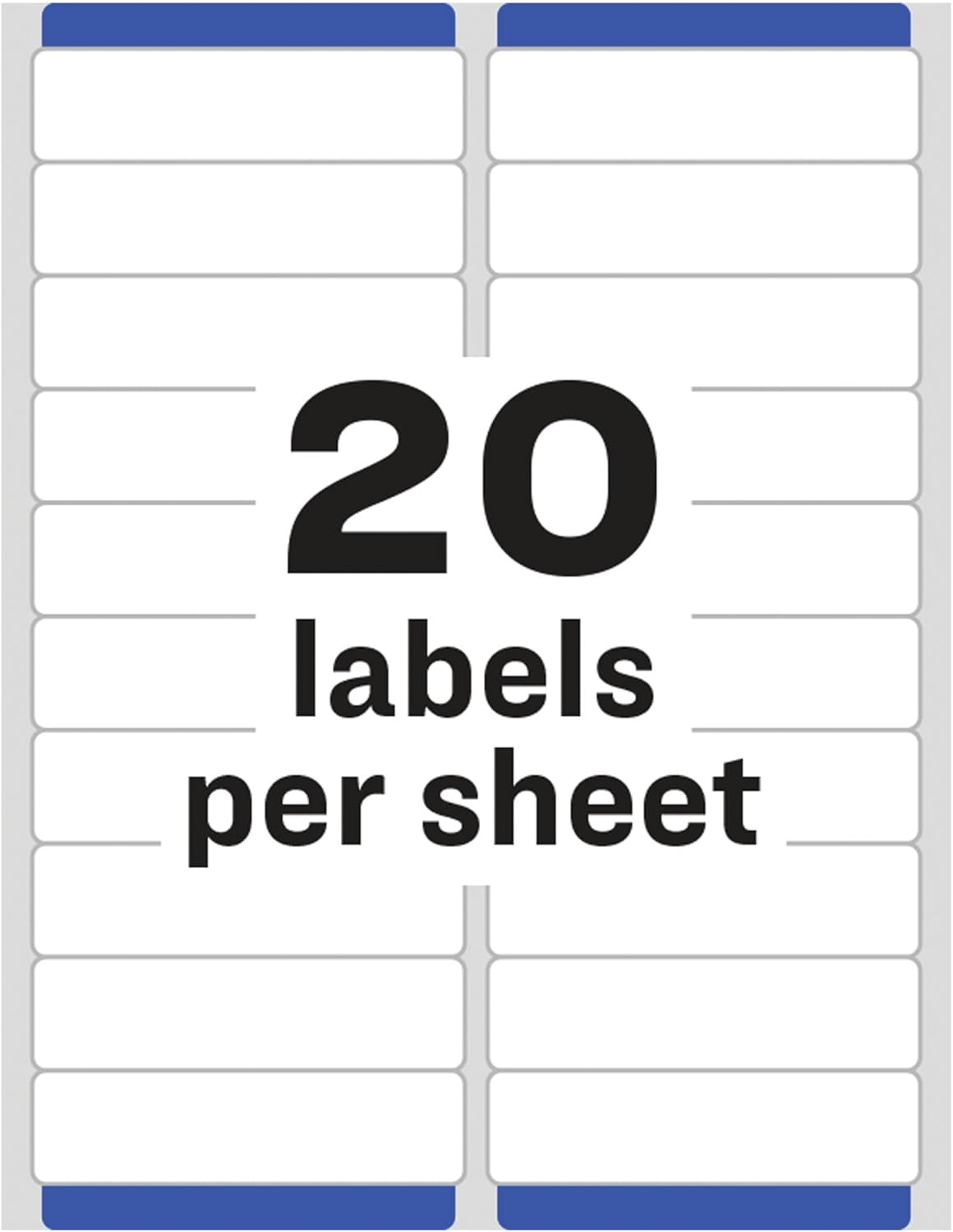
Figure 3: Layout of 20 labels per sheet.
3.2 Using Avery Design & Print Online
Avery provides a free online tool, Avery Design & Print, to help you customize and print your labels. This tool offers thousands of free designs and templates, making it easy to create professional-looking labels without needing to download software.
- Access the Tool: Visit Avery.com/templates.
- Find Your Template: Enter your product number (5161) to find the correct template for your labels.
- Customize Your Design: Use the online editor to add text, images, and graphics. You can change fonts, colors, and layout.
- Print: Once your design is complete, follow the on-screen instructions to print your labels using your laser printer.

Figure 4: Avery Design & Print online software for customizing labels.
Video 1: Learn how to customize Avery products using Avery templates and design tools. This video demonstrates the process of finding templates, customizing designs, and preparing for print using the Avery Design & Print online platform.
4. Operating Instructions
4.1 Printing Labels
- Load the Avery label sheets into your laser printer according to your printer's instructions. Ensure the correct side is facing up for printing.
- Use the Avery Design & Print software or your preferred design program with the correct template to print your labels.
- The Sure Feed Technology helps guide the sheets through the printer precisely, minimizing misalignments and jams.
Video 2: This video highlights the benefits of Avery Labels with Sure Feed Technology, demonstrating how they prevent misalignments and jams during printing, ensuring a smooth and efficient labeling process.
4.2 Peeling and Applying Labels
- Once printed, gently bend the label sheet along the perforations to activate the Easy Peel Pop-up Edge. This will slightly lift the edges of the labels, making them easier to grasp.
- Carefully peel off each label from the sheet.
- Apply the label to your desired surface, pressing firmly to ensure full adhesion. The UltraHold permanent adhesive ensures a strong bond.

Figure 5: Applying labels to envelopes.

Figure 6: Labels applied to a blue mailer for shipping.

Figure 7: Labels used for organizing items in storage.
5. Maintenance and Storage
To maintain the quality and performance of your Avery labels, follow these guidelines:
- Storage: Store unused label sheets in their original packaging in a cool, dry place, away from direct sunlight and excessive humidity. This helps prevent curling, adhesive degradation, and paper discoloration.
- Handling: Handle label sheets by the edges to avoid transferring oils or dirt from your hands to the printable surface or adhesive.
- Printer Care: Regularly clean your laser printer's paper path and rollers as per the manufacturer's instructions to ensure optimal feeding and print quality.
6. Troubleshooting
If you encounter issues while using your Avery labels, consider the following common problems and solutions:
| Problem | Possible Cause | Solution |
|---|---|---|
| Labels are misaligned or text is cut off. | Incorrect printer settings, wrong template, or labels not feeding straight. |
|
| Printer jams frequently. | Labels are curled, damaged, or printer rollers are dirty. |
|
| Ink/Toner smudges or smears. | Incorrect printer settings or incompatible printer type. |
|
| Labels do not stick well. | Surface is dirty, oily, or labels are old/damaged. |
|
Video 3: This video compares Avery White Address Labels in Matte vs. Glossy finishes, which can help in understanding different label properties and choosing the right type for specific applications.
Video 4: A short preview demonstrating how Avery Labels with Sure Feed Technology help avoid wasting labels and time by preventing printer jams and misalignments, ensuring efficient printing.
7. Specifications
| Attribute | Detail |
|---|---|
| Brand | Avery |
| Model Number | 5161 |
| Label Dimensions | 1 inch x 4 inches |
| Color | White |
| Labels Per Sheet | 20 |
| Sheets Per Pack | 100 |
| Total Labels | 2,000 |
| Printer Compatibility | Laser Printers |
| Adhesive Type | UltraHold Permanent Adhesive |
| Material Type | Paper |
| Item Weight | 2.28 pounds |
| Product Dimensions | 11.31 x 8.81 x 0.97 inches |

Figure 8: Product dimensions for Avery labels.
8. Warranty and Support
8.1 Jam-Free Guarantee
Avery labels come with a Jam-Free Guarantee when used with laser printers, ensuring reliable performance and minimizing printing issues. This guarantee reflects Avery's commitment to quality and user satisfaction.
8.2 Customer Support
For further assistance, technical support, or to explore more products and templates, please visit the official Avery website:
You can also find extensive resources, FAQs, and contact information for customer service on their website.