
1. Introduction
Avery 8163 TrueBlock Printable Shipping Labels are designed to simplify your mailing, shipping, organization, and identification tasks. These 2" x 4" bright white labels feature advanced technologies for superior performance and ease of use. This manual provides detailed instructions for optimal utilization of your Avery labels.
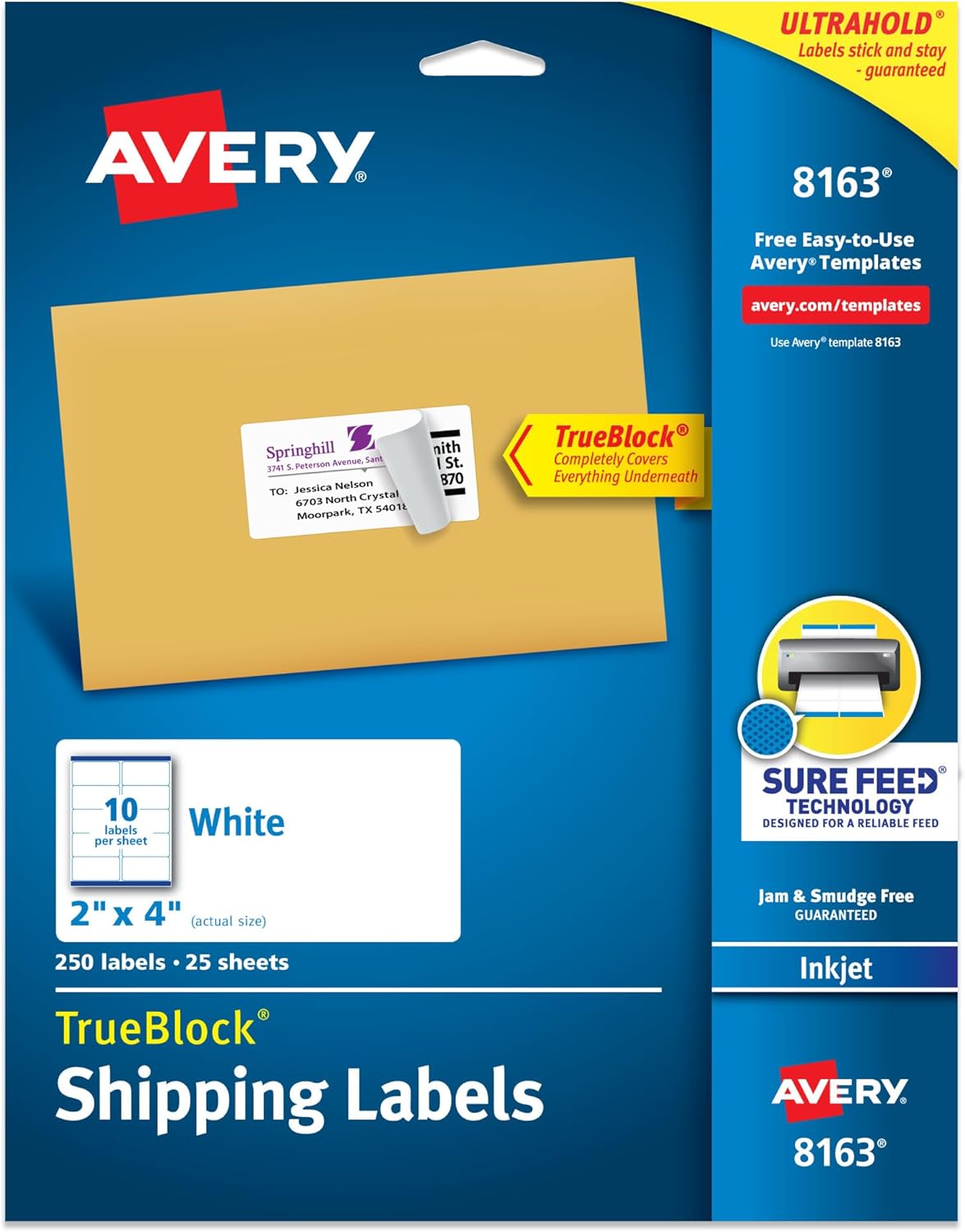
Figure 1.1: Avery 8163 Shipping Labels Product Packaging
2. Product Features
The Avery 8163 labels incorporate key features to enhance your labeling experience:
2.1 Sure Feed Technology
Patented Sure Feed technology ensures a reliable feed through your printer, significantly reducing misalignments and printer jams. This results in crisp, hassle-free printing every time.
Video 2.1: Demonstration of Avery Labels with Sure Feed Technology, showing smooth feeding through a printer.
2.2 TrueBlock Technology
TrueBlock technology completely blocks out everything underneath the label. This allows you to cover existing markings, correct errors, safeguard sensitive information, or reuse old boxes by concealing previous labels without show-through.

Figure 2.2: TrueBlock Technology in action, demonstrating how the label completely covers underlying text.
2.3 UltraHold Permanent Adhesive
The labels feature UltraHold permanent adhesive, guaranteed to stick and stay securely on most smooth surfaces, including paper, cardboard, glass, and metal. This ensures your labels remain in place during transit or storage.

Figure 2.3: Key features of Avery labels, highlighting permanent adhesive, smudge-free printing, and handwrite capability.
2.4 Versatility
These labels are highly versatile and suitable for a wide range of applications beyond just mailing and shipping. They can be used for product labeling, organizing storage, and various other identification needs.

Figure 2.4: Examples of versatile label uses, including shipping, organization, product labeling, and mailing.
3. Setup and Printing
3.1 Using Avery Design & Print Online
Avery provides a free online tool, Avery Design & Print Online, to help you customize and print your labels. This tool offers thousands of available designs, templates, and features like Mail Merge for importing data.
Video 3.1: Tutorial on how to customize Avery products using the online design tool.
To use the online tool:
- Visit the Avery Design & Print Online website (avery.com/templates).
- Enter template number 8163 to find the correct layout.
- Choose a pre-designed template or start from scratch.
- Customize your labels with text, images, and data.
- Preview your design and print. No software download is required.

Figure 3.2: The 'Design. Print. Go!' interface for Avery Design & Print Online.
3.2 Printer Compatibility
These labels are optimized for inkjet printers to help prevent smearing or smudging, ensuring clear text and crisp graphics. While they can be handwritten, for printed results, an inkjet printer is recommended.
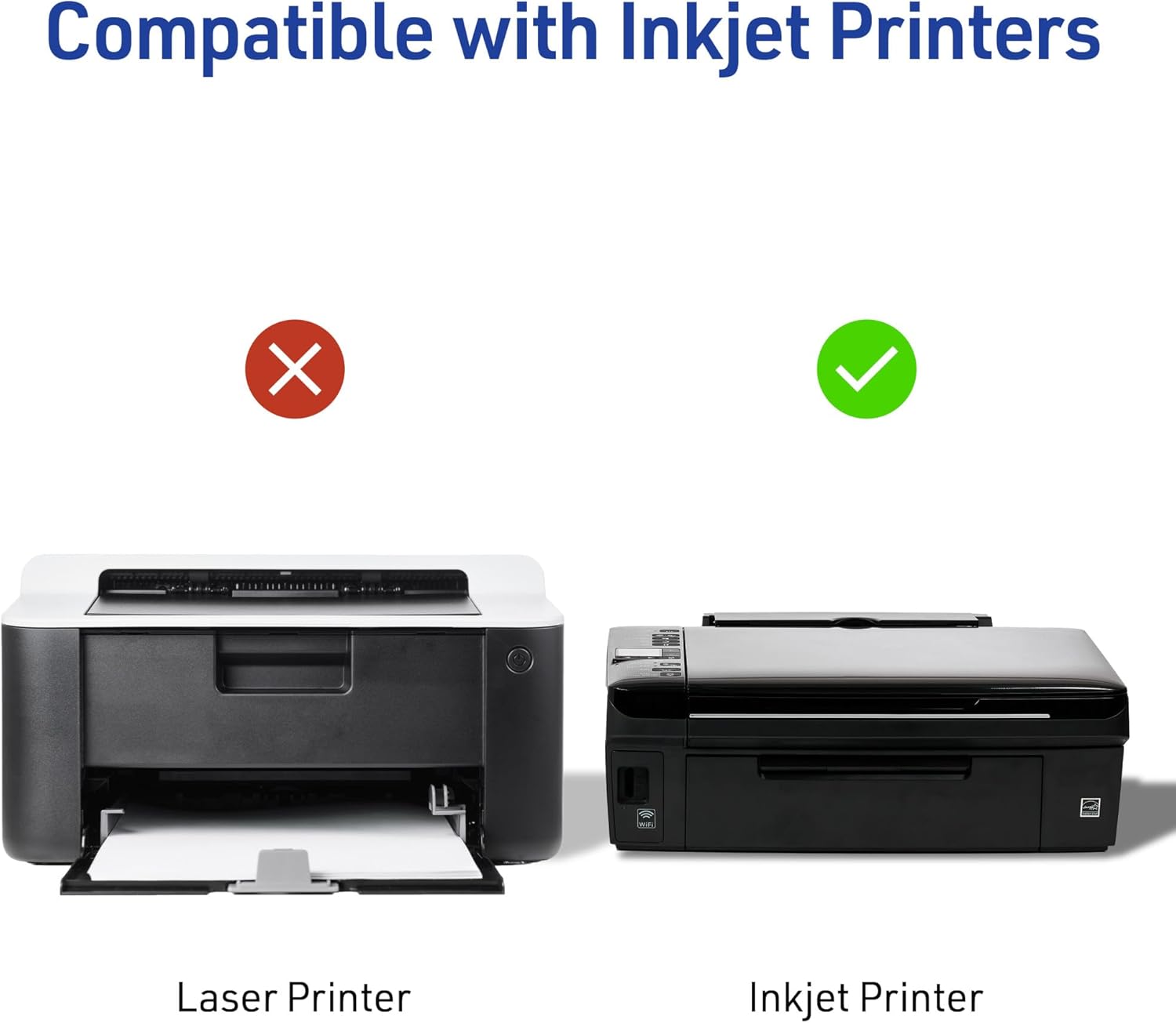
Figure 3.3: Visual representation of inkjet printer compatibility for Avery labels.
4. Operating Instructions
4.1 Loading Labels into Your Printer
Ensure your printer is set to the correct paper size (Letter, 8.5" x 11") and paper type (e.g., 'Labels' or 'Heavyweight Paper' if available). Load the label sheets into your printer's paper tray according to your printer's specific instructions for specialty media. Pay attention to the correct orientation for printing on the label side.
4.2 Printing Your Labels
After designing your labels using Avery Design & Print Online or other software, initiate the print process. Always perform a test print on a plain sheet of paper first to verify alignment before printing on the actual label sheets. This helps prevent waste and ensures accurate placement.
4.3 Applying Labels
Once printed, carefully peel the labels from the backing sheet. Apply them to a clean, dry, and smooth surface. Press firmly from the center outwards to ensure full adhesion and remove any air bubbles. Due to the UltraHold permanent adhesive, labels are designed to stick and stay, so precise placement on the first attempt is recommended.
5. Maintenance and Storage
To maintain the quality and adhesive properties of your Avery labels, store unused sheets in their original packaging in a cool, dry place away from direct sunlight and extreme temperatures. Avoid bending or creasing the sheets, as this can affect print quality and feed through the printer.
6. Troubleshooting
If you encounter issues while using your Avery labels, consider the following common problems and solutions:
| Problem | Possible Cause | Solution |
|---|---|---|
| Printer Jams / Misfeeds | Incorrect printer settings, worn printer rollers, or bent label sheets. | Ensure printer settings match label type. Inspect printer rollers for wear. Use uncreased label sheets. |
| Smudged Print | Using a laser printer, incorrect ink type, or handling labels before ink dries. | Ensure you are using an inkjet printer. Allow sufficient drying time after printing. |
| Labels Not Sticking | Surface is dirty, oily, wet, or textured; extreme temperatures. | Ensure surface is clean, dry, and smooth. Apply labels at room temperature. |
| Print Misalignment | Incorrect template, printer settings, or paper loading. | Verify template number (8163). Check printer settings for paper size and margins. Ensure labels are loaded straight. Perform a test print. |
7. Specifications
| Attribute | Detail |
|---|---|
| Model Number | 8163 |
| Label Dimensions | 2 inches x 4 inches (5.08 cm x 10.16 cm) |
| Labels Per Sheet | 10 |
| Sheets Per Pack | 25 (250 labels total) |
| Color | White |
| Material Type | Paper |
| Adhesive Type | UltraHold Permanent |
| Printer Compatibility | Inkjet Printers |
| Special Features | Sure Feed Technology, TrueBlock Technology |

Figure 7.1: Diagram illustrating the 2" x 4" label size and layout on a sheet.
8. Warranty and Support
Avery products are manufactured to high-quality standards. For specific warranty information or technical support, please visit the official Avery website or contact their customer service. You can find contact details and additional resources at www.avery.com.


