
Diamond Multimedia RIO PMP300
Diamond Multimedia Rio PMP300 Digital Player User Manual
Model: RIO PMP300
1. Introduction
The Diamond Multimedia Rio PMP300 is a portable digital music player designed to store and play MP3 audio files. This manual provides essential information for setting up, operating, and maintaining your device.
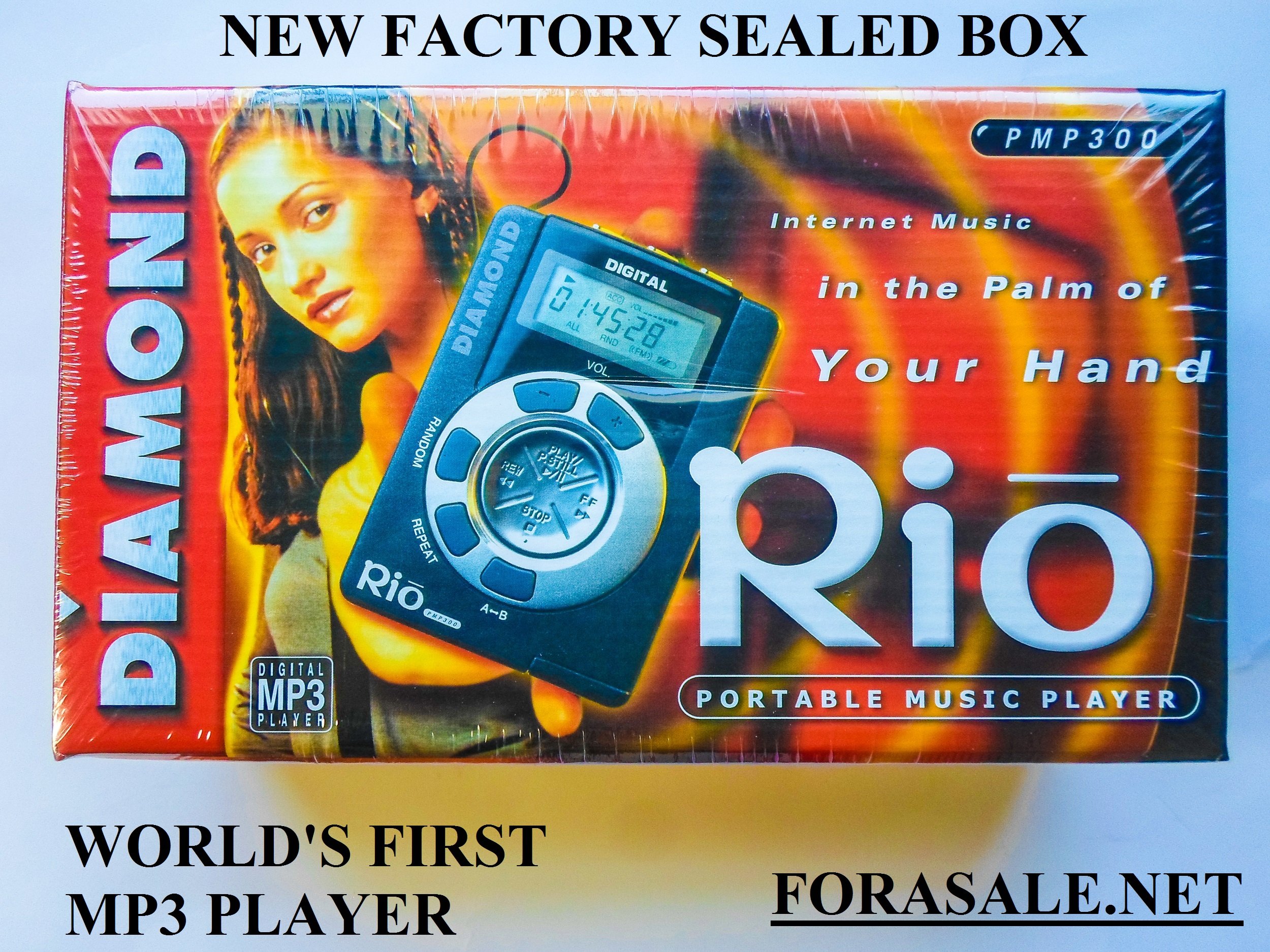
Image 1.1: Diamond Rio PMP300 Digital Player. This image shows the compact design of the player, highlighting its screen and control buttons.
2. Safety Information
- Do not expose the device to extreme temperatures, moisture, or direct sunlight.
- Avoid dropping or subjecting the device to strong impacts.
- Use only the specified battery type (1 AA battery).
- Do not attempt to disassemble or repair the device yourself. Refer to qualified service personnel.
- Listen at moderate volume levels to prevent hearing damage.
3. Package Contents
Verify that all items are present in your product package:
- Diamond Rio PMP300 Digital Player
- Stereo Headphones
- Pass-through Parallel PC Connector Cable
- Windows Software (for encoding and CD conversion)
- 1 AA Battery (for initial use)

Image 3.1: Back of the Diamond Rio PMP300 product box. This image details the features, package contents, and basic operation of the device.
4. Product Overview
4.1 Controls and Connectors
Familiarize yourself with the main components of your Rio PMP300 player:
Image 4.1: Diagram of the Diamond Rio PMP300 player. This diagram illustrates the location of the headphone connector, hold button, PC connector port, flash card slot, information display, volume control, and playback buttons (Play/Stop, Fast Forward, Rewind, Random, Repeat, A-B Functions).
- Headphone Connector: Connect your stereo headphones here.
- Hold Button: Prevents accidental button presses.
- PC Connector Port: For connecting to your computer via the parallel cable to transfer music.
- Flash Card Slot: For expanding memory with SmartMedia cards (upgrade option).
- Information Display: Shows track information, playback status, volume, and equalizer settings.
- Volume Control: Adjusts the playback volume.
- Playback Controls: Buttons for Play, Stop, Fast Forward, Rewind, Random play, Repeat, and A-B loop functions.
4.2 System Requirements
To use the Rio PMP300 with your computer, ensure your system meets the following minimum requirements:
- Microsoft® Windows 95/98 operating system or higher
- Pentium® 90 processor or higher
- 16MB available RAM (recommended)
- Parallel port

Image 4.2: Side of the Diamond Rio PMP300 product box. This image lists the system requirements and product specifications.
5. Setup
5.1 Battery Installation
- Locate the battery compartment on the device.
- Open the compartment cover.
- Insert one AA battery, ensuring correct polarity (+/-).
- Close the battery compartment cover securely.
5.2 Software Installation
The included Windows software is essential for managing your music files and transferring them to the Rio PMP300.
- Insert the provided software CD into your computer's CD-ROM drive.
- Follow the on-screen instructions to install the MusicMatch Jukebox software. This software allows you to create MP3 files from your own CDs and manage your digital music library.
5.3 Music Transfer
To transfer MP3 files to your Rio PMP300:
- Connect the Rio PMP300 to your computer using the parallel PC connector cable.
- Ensure the Rio PMP300 is powered on.
- Use the installed MusicMatch Jukebox software to select and transfer MP3 files from your computer to the player.
- Once transfer is complete, safely disconnect the device from your computer.
6. Operating Instructions
6.1 Powering On/Off
- To power on, press and hold the Play/Stop button until the display illuminates.
- To power off, press and hold the Play/Stop button until the display turns off.
6.2 Basic Playback
- Play: Press the Play/Stop button to start playback.
- Stop: Press the Play/Stop button during playback to pause or stop.
- Skip Tracks: Use the Fast Forward (FF) or Rewind (REW) buttons to skip to the next or previous track.
- Fast Forward/Rewind: Press and hold the FF or REW buttons during playback to fast forward or rewind within a track.
6.3 Volume Control
Use the Volume Up (+) and Volume Down (-) buttons to adjust the audio output level.
6.4 Playback Modes
- Random: Press the RANDOM button to play tracks in a shuffled order.
- Repeat: Press the REPEAT button to cycle through repeat modes (e.g., repeat current track, repeat all tracks).
- A-B Functions: Use the A-B buttons to establish a start and stop point for repeating a specific segment of audio.
6.5 Equalizer Settings
The Rio PMP300 includes preset equalizer settings to enhance your listening experience:
- Press the EQ button to cycle through available equalizer modes such as Rock, Classical, and Jazz.
7. Maintenance
- Cleaning: Use a soft, dry cloth to clean the exterior of the player. Do not use liquid cleaners or solvents.
- Battery Care: Remove the AA battery if the device will not be used for an extended period to prevent leakage.
- Storage: Store the player in a cool, dry place away from direct sunlight and dust.
8. Troubleshooting
| Problem | Solution |
|---|---|
| Player does not turn on. | Check if the AA battery is inserted correctly and has sufficient charge. Replace if necessary. Ensure the Hold button is not engaged. |
| No sound from headphones. | Ensure headphones are fully plugged into the jack. Check volume level. Test with another pair of headphones. |
| Music transfer fails. | Verify the parallel PC connector cable is securely connected to both the player and the computer. Ensure the Rio PMP300 is powered on. Check computer system requirements and software installation. |
| Player freezes or stops intermittently. | Remove and reinsert the battery to reset the device. Ensure memory cards (if used) are properly inserted and not corrupted. |
9. Specifications
| Feature | Detail |
|---|---|
| Model Number | RIO PMP300 |
| Dimensions | 3.5" x 2.5" x .625" (approximate) |
| Weight | 2.4 ounces (70 grams) |
| Built-in Memory | 32 MB |
| Add-On Memory Options | Removable 16 MB or 32 MB flash cards (not included) |
| Power Source | Single 1.5V standard AA alkaline battery |
| Battery Life | Up to 12 hours of continuous playback |
| Connectivity | Parallel PC connector |
| Supported Audio Formats | MP3 |
| Signal to Noise Ratio | >90dB |
| Harmonic Distortion | <0.1% |
| Maximum Output | 50mW (32 Ohms) |
| Frequency Range | 20 - 20kHz |
| UPC | 0752282016001 |
10. Warranty and Support
The Diamond Multimedia Rio PMP300 comes with a one-year limited warranty from the date of purchase. Please retain your proof of purchase for warranty claims.
For technical support or service inquiries, please refer to the contact information provided with your product packaging or visit the official Diamond Multimedia website.
Related documentsRIO PMP300


Ask a question about this manual
Ask about setup, troubleshooting, compatibility, parts, safety, or missing instructions. Manuals+ will review the question and use this page’s manual context to help answer it.