
مقدمة
This manual provides instructions for the setup, operation, maintenance, and troubleshooting of your ATTACK SHARK V5 Wireless Gaming Mouse. Please read this manual carefully before using the product to ensure optimal performance and longevity.

Image: The ATTACK SHARK V5 Wireless Gaming Mouse, highlighting its 8000Hz wireless polling rate capability.
يثبت
محتويات الحزمة
- ATTACK SHARK V5 Wireless Gaming Mouse
- جهاز استقبال USB (2.4 جيجاهرتز)
- كابل شحن/بيانات USB-C
- دليل المستخدم
أوضاع الاتصال
The ATTACK SHARK V5 mouse supports three connectivity modes: Wired, 2.4GHz Wireless, and Bluetooth.
- الوضع اللاسلكي 2.4 جيجا هرتز: Insert the USB receiver into an available USB port on your computer. The mouse will automatically connect. The transparent LED lighting on the receiver indicates connection status.
- وضع البلوتوث: Switch the mouse to Bluetooth mode. On your computer or device, search for Bluetooth devices and select "ATTACK SHARK V5" to pair.
- الوضع السلكي: Connect the mouse to your computer using the provided USB-C cable. This mode also charges the mouse.

Image: The ATTACK SHARK V5 mouse connected via its USB-C cable and showing the 2.4GHz wireless receiver, illustrating its triple-mode connectivity.
تثبيت برنامج التشغيل
The mouse supports cloud-driven technology, which automatically identifies devices upon connection. For advanced customization, independent driver software is available for download from the official ATTACK SHARK website. This software allows for optimization of response speed, accuracy, and programmable features.
تعليمات التشغيل
ضبط DPI
The PixArt 3950MAX sensor offers a DPI range of up to 42,000. DPI settings can be adjusted in precise 50 DPI increments using the dedicated driver software. The mouse typically has a DPI button for on-the-fly adjustments through preset levels.
معدل التصويت
The mouse features an 8000Hz polling rate in wireless mode and a 1000Hz polling rate in wired mode. This high polling rate ensures rapid and responsive cursor movement.
Programmable Buttons and Macros
The ATTACK SHARK V5 has 6 buttons. Utilize the downloadable software to customize button functions, create macros, and adjust other settings such as DPI speed and lighting effects. This software provides a comprehensive interface for personalizing your mouse experience.
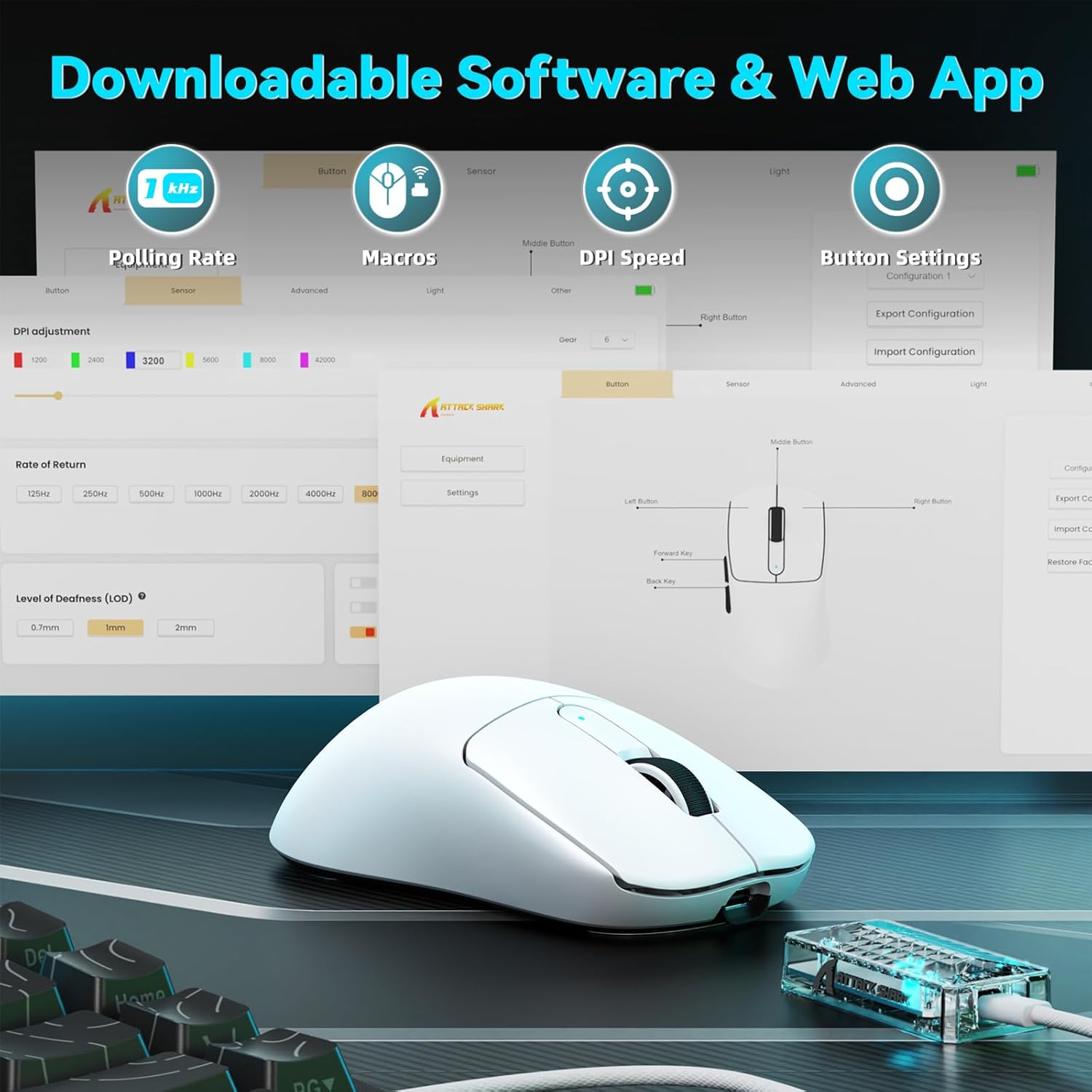
Image: A visual representation of the downloadable software interface, showing options for polling rate, macros, DPI speed, and button settings.
إدارة البطارية
The mouse is equipped with a 500mAh battery, providing extended usage. To charge, connect the mouse using the USB-C cable. The LED indicator on the mouse will show charging status.

الصورة: داخلية view of the ATTACK SHARK V5 mouse, highlighting its high-capacity 500mAh battery.
صيانة
تنظيف
To maintain optimal performance and appearance, regularly clean your mouse. Use a soft, dry cloth to wipe the surface. For stubborn dirt, a slightly damp يمكن استخدام قطعة قماش، مع الحرص على عدم دخول الرطوبة إلى المكونات الداخلية. تجنب استخدام المواد الكيميائية القاسية أو المواد الكاشطة.
Nano Ice-Sense Coating
The mouse features a nano ice-sense coating designed to prevent slippage and ensure a firm grip, even during extended use or with sweaty hands. This coating requires no special maintenance beyond regular cleaning.
استكشاف الأخطاء وإصلاحها
الماوس لا يستجيب
- التحقق من الاتصال: Ensure the USB receiver is properly inserted for 2.4GHz mode, or that the USB-C cable is securely connected for wired mode. For Bluetooth, verify the mouse is paired and selected in your device's Bluetooth settings.
- مستوى البطارية: If in wireless mode, check the mouse's battery level. Connect the USB-C cable to charge if the battery is low.
- إعادة تشغيل: حاول إعادة تشغيل الكمبيوتر أو الجهاز الخاص بك.
- السائق: تأكد من تثبيت برامج التشغيل اللازمة وتحديثها.
Inconsistent Tracking or Lag
- سطح: Use the mouse on a clean, uniform surface. Avoid highly reflective or transparent surfaces.
- تدخل: For wireless modes, ensure there are no strong sources of wireless interference nearby (e.g., other 2.4GHz devices, Wi-Fi routers).
- إعدادات DPI: Adjust DPI settings via the software to find a comfortable and stable tracking speed.
تحديد
| ميزة | التفاصيل |
|---|---|
| ماركة | هجوم القرش |
| نموذج | V5 |
| لون | أبيض |
| الاتصال | سلكي (USB-C)، لاسلكي 2.4 جيجاهرتز، بلوتوث |
| المستشعر | PixArt 3950MAX |
| نطاق DPI | Up to 42,000 (50 DPI adjustable) |
| معدل الاقتراع اللاسلكي | 8000 هرتز |
| معدل استطلاع الرأي السلكي | 1000 هرتز |
| وزن | حوالي 55 جرام |
| المفاتيح | Optical, 100 million click lifespan |
| تسريع | 60 جيجا |
| مُشفّر | Richwell's 200W |
| سعة البطارية | 500 مللي أمبير |
| عدد الأزرار | 6 |
| اتجاه اليد | يمين |
| أنظمة التشغيل المتوافقة | Windows, macOS, Linux (e.g., Mac OS 14 Sonoma, Ubuntu 22.04 Jammy Jellyfish, Windows 11) |
| لاسلكي المدى | 10 متر |
| مادة | بلاستيك |
| رمز المنتج الموحد | 752010843312 |
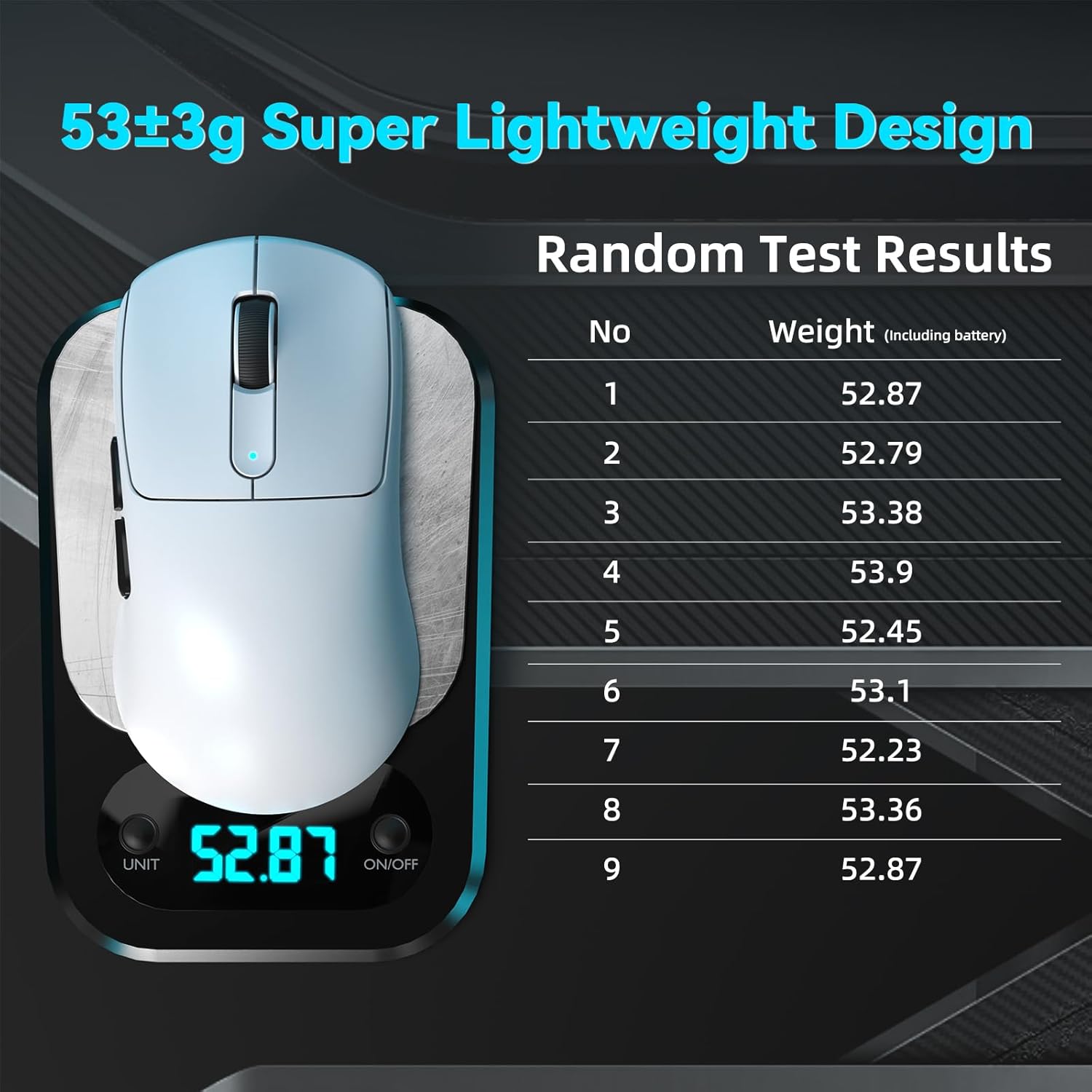
Image: The ATTACK SHARK V5 mouse on a digital scale, demonstrating its ultra-lightweight design at approximately 53 grams.

الصورة: تفصيلية view of the Omron Optical Microswitch used in the ATTACK SHARK V5 mouse, known for its durability and precise clicks.
الضمان والدعم
معلومات الضمان
The ATTACK SHARK V5 Wireless Gaming Mouse comes with a ضمان المصنع لمدة عاميغطي هذا الضمان عيوب المواد والتصنيع في ظل الاستخدام العادي. يُرجى الاحتفاظ بإيصال الشراء للمطالبة بالضمان.
دعم العملاء
For technical assistance, troubleshooting, or warranty inquiries, please visit the official ATTACK SHARK website or contact their customer support directly. Refer to the product packaging or the official webالموقع للحصول على أحدث معلومات الاتصال.