
1. المقدمة
This manual provides detailed instructions for the setup, operation, maintenance, and troubleshooting of your ATTACK SHARK G3PRO Wireless Gaming Mouse. Please read this manual thoroughly to ensure proper use and to maximize your gaming experience.

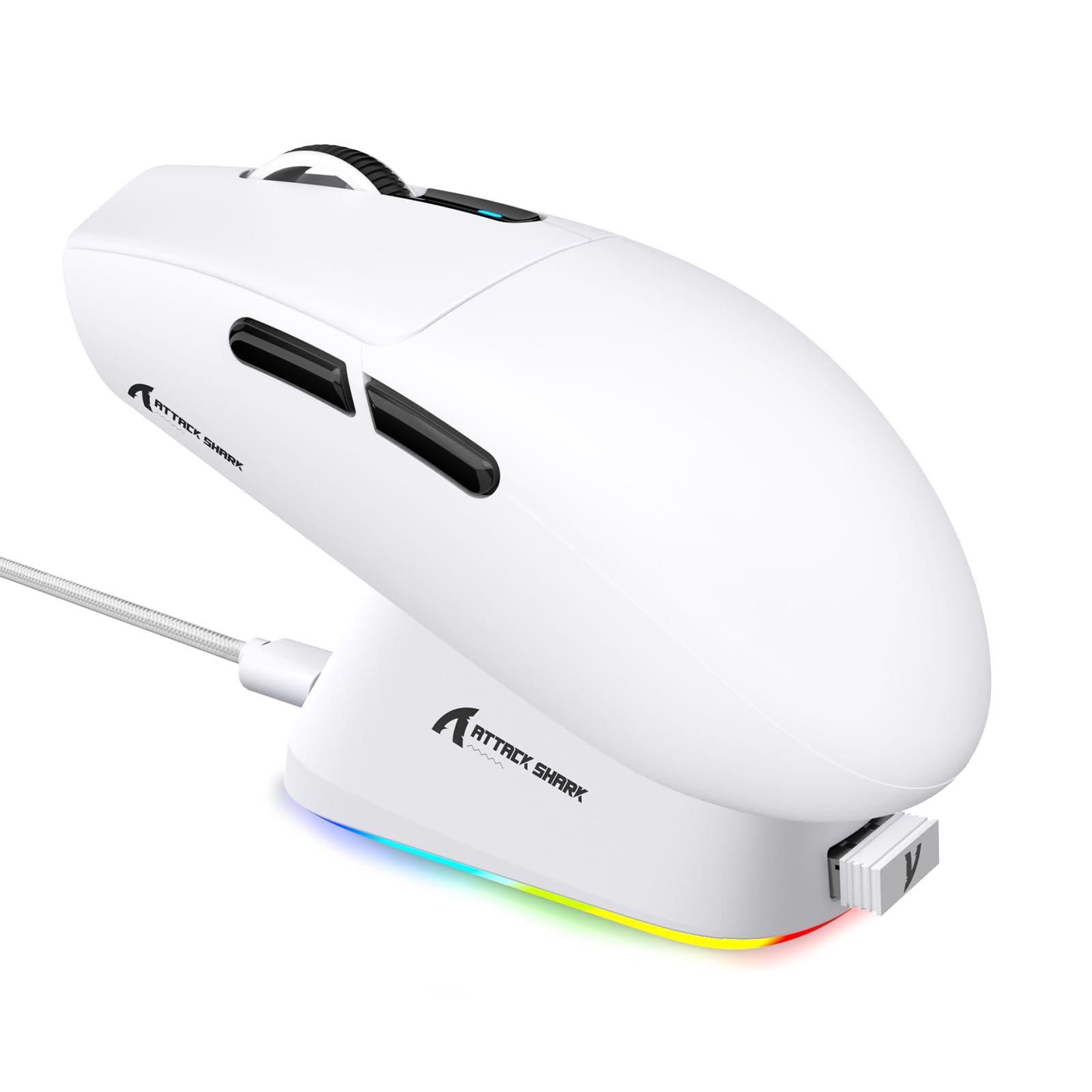
الصورة: أكثر منview of the ATTACK SHARK G3PRO mouse and its features, including magnetic fast charging, PAW3311 sensor, web cloud drive, RGB rapid charging dock, and lightweight design.
2. محتويات العبوة
تأكد من وجود جميع العناصر في الحزمة الخاصة بك:
- ATTACK SHARK G3PRO Wireless Gaming Mouse
- RGB Magnetic Charging Dock
- جهاز استقبال يو اس بي 2.4 جيجا
- كابل شحن/بيانات من USB-C إلى USB-A
- دليل المستخدم
3. الإعداد
3.1 الشحن الأولي
Before first use, it is recommended to fully charge the mouse. Connect the USB-C cable to the charging dock and a power source. Place the mouse onto the magnetic charging dock. The RGB lighting on the dock will indicate charging status.
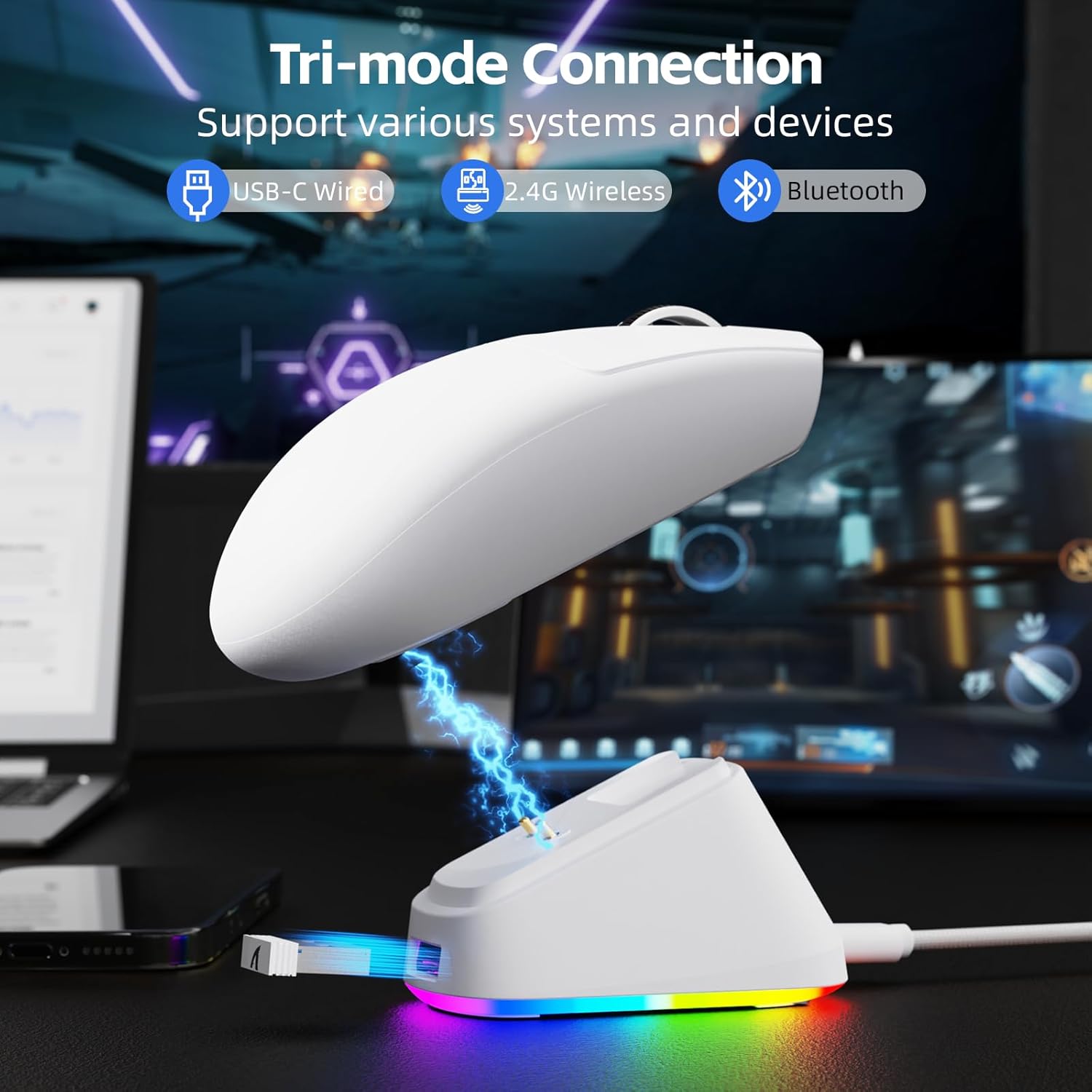
Image: The ATTACK SHARK G3PRO mouse magnetically attached to its RGB charging dock, showing the charging thimbles and USB-C port.
For a visual guide on charging, please watch the following video:
Video: This video demonstrates the magnetic charging dock and its features for the ATTACK SHARK G3PRO Wireless Gaming Mouse.
3.2 توصيل الماوس
The G3PRO supports three connection modes: 2.4GHz Wireless, Bluetooth, and USB-C Wired. A switch on the bottom of the mouse allows you to select the desired mode.

Image: The ATTACK SHARK G3PRO mouse with visual indicators for Wired, 2.4G, and Bluetooth connectivity modes.
الوضع اللاسلكي 2.4 جيجا هرتز:
- Locate the 2.4G USB receiver, typically stored within the charging dock or the mouse itself.
- قم بتوصيل مستقبل USB بمنفذ USB متاح على جهاز الكمبيوتر الخاص بك.
- Set the switch on the bottom of the mouse to "2.4G".
- ينبغي أن يتصل الماوس تلقائيًا.
وضع البلوتوث:
- Set the switch on the bottom of the mouse to "BT".
- على جهاز الكمبيوتر أو الجهاز الخاص بك، انتقل إلى إعدادات البلوتوث وقم بتمكين البلوتوث.
- بحث عن new devices and select "ATTACK SHARK G3PRO" to pair.
الوضع السلكي USB-C:
- Connect the USB-C cable directly from the mouse to your computer.
- سيعمل الماوس كالماوس السلكي وسيقوم بالشحن في نفس الوقت.
For a visual guide on product features and connectivity, please watch the following video:
Video: This video demonstrates the various color options and the magnetic charging feature of the ATTACK SHARK G3PRO Wireless Gaming Mouse, showcasinج- تصميمه ووظائفه.
4. تشغيل الماوس
4.1 وظائف الأزرار
The ATTACK SHARK G3PRO features 5 programmable buttons:
- الزر الأيسر: الإجراء الأساسي.
- انقر على اليمين: قائمة الإجراءات/السياق الثانوية.
- النقرة الوسطى/عجلة التمرير: Scroll up/down, middle click for universal scroll or other functions.
- زر للأمام: Default for navigating forward in web المتصفحات/المجلدات.
- زر الرجوع: Default for navigating backward in web المتصفحات/المجلدات.
- مفتاح DPI: يتنقل بين مستويات DPI المحددة مسبقًا.

Image: A detailed diagram illustrating the location and default functions of the multi-functional buttons on the ATTACK SHARK G3PRO mouse.

الصورة: انفجار view and labeled diagram of the G3PRO mouse components, including buttons, switches, charging points, and the 2.4G/OFF/BT mode switch.
4.2 ضبط DPI
The mouse features a dedicated DPI switch to cycle through various sensitivity levels, ranging from 800 to 25,000 DPI. The current DPI setting is indicated by an LED light.

Image: A visual representation of the 25,000 DPI optical sensor's precision and how mouse movement trajectory sensitivity scales with DPI settings.
4.3 معدل الاقتراع
The G3PRO supports a 1000Hz polling rate in both wired and 2.4GHz wireless modes, ensuring rapid response times for competitive gaming.

Image: A diagram illustrating the 1000Hz polling rate capability in both wired and wireless modes, highlighting millisecond response times.
5. البرمجيات والتخصيص
Customize your G3PRO mouse settings using the intuitive web driver or downloadable software from ATTACK SHARK. This allows for personalization of DPI, polling rate, macros, and more.
- Web السائق: الوصول إلى web-based configuration tool for quick adjustments without installation.
- Downloadable Software: For advanced customization and profile management, download the dedicated software.

Image: A screenshot of the ATTACK SHARK Hub software interface, showing options for mouse settings, DPI settings, parameter settings, macro editing, and personal center.

Image: The cloud-driven programming interface for the G3PRO mouse, displaying options for button settings, DPI adjustments, polling rate settings, and power management.
6. الصيانة
6.1 التنظيف
للحفاظ على الأداء الأمثل، نظّف الماوس بانتظام. استخدم قطعة قماش ناعمة وجافة لمسح السطح. لإزالة الأوساخ المستعصية، استخدم منظفًا خفيفًا.amp يمكن استخدام قطعة قماش، مع الحرص على عدم دخول الرطوبة إلى المكونات الداخلية. تجنب استخدام المواد الكيميائية القاسية أو المواد الكاشطة.
6.2 التخزين
When not in use for extended periods, store the mouse and charging dock in a cool, dry place. Ensure the USB receiver is securely stored, ideally within the charging dock's designated slot, to prevent loss.
7. استكشاف الأخطاء وإصلاحها
| مشكلة | السبب المحتمل | حل |
|---|---|---|
| الفأرة لا تستجيب (2.4 جيجا) | Low battery; Receiver not plugged in; Incorrect mode selected; Driver issue. | Charge the mouse; Ensure receiver is firmly plugged in; Set mouse to "2.4G" mode; Reinstall mouse drivers. |
| الماوس لا يستجيب (بلوتوث) | Low battery; Bluetooth not enabled on device; Not paired; Incorrect mode selected. | Charge the mouse; Enable Bluetooth on your device; Re-pair the mouse in Bluetooth settings; Set mouse to "BT" mode. |
| Charging dock RGB not lighting up | Cable not connected; Power source issue. | Ensure USB-C cable is securely connected to dock and power source; Try a different USB port or power adapter. |
| Inconsistent tracking | Dirty sensor; Uneven surface; Interference (wireless). | Clean the optical sensor; Use a clean, even mouse pad; Reduce wireless interference by moving other devices or using wired mode. |
| الأزرار لا تستجيب | تعارض في البرمجيات؛ تلف مادي. | Check software settings for button remapping; Test on another computer; Contact support if physical damage is suspected. |
8. المواصفات
| ميزة | التفاصيل |
|---|---|
| ماركة | هجوم القرش |
| نموذج | G3PRO |
| لون | أبيض |
| تكنولوجيا الاتصال | 2.4Ghz Wireless, Bluetooth, USB-C Wired |
| تقنية كشف الحركة | بصري (مستشعر PAW3311) |
| ماكس DPI | 25,000 نقطة في البوصة |
| معدل التصويت | 1000 هرتز |
| تسريع | 40 جيجا |
| سرعة التتبع | 400 IPS |
| المفاتيح | Mechanical (100 Million Clicks) |
| سعة البطارية | 500 مللي أمبير |
| عمر البطارية | تصل إلى 200 ساعة |
| وزن | 59g ± 3g |
| أزرار | 5 |
| اتجاه اليد | ثنائي الاستخدام |
| الأجهزة المتوافقة | كمبيوتر محمول، كمبيوتر شخصي، هاتف ذكي، جهاز لوحي |
| نظام التشغيل | ويندوز، ماك أو إس |
For a comparison of G3 and G3PRO models, refer to the image below:

Image: A table comparing the specifications of the ATTACK SHARK G3 and G3PRO models, highlighting differences in components and features.
9. معلومات السلامة
- لا تعرض الجهاز لدرجات حرارة شديدة أو رطوبة.
- تجنب إسقاط الجهاز أو تعريضه لصدمات قوية.
- يحفظ بعيدًا عن متناول الأطفال.
- لا تحاول تفكيك الجهاز أو تعديله، لأن هذا سيؤدي إلى إبطال الضمان وقد يتسبب في حدوث أضرار.
- استخدم فقط كابل الشحن وقاعدة الشحن المرفقين.
10. الضمان والدعم
The ATTACK SHARK G3PRO Wireless Gaming Mouse comes with a standard manufacturer's warranty. For detailed warranty information, please refer to the warranty card included in your package or visit the official ATTACK SHARK webموقع.
For technical support, troubleshooting assistance, or to inquire about replacement parts, please contact ATTACK SHARK customer service through their official webالموقع أو معلومات الاتصال المقدمة في عبوة المنتج الخاص بك.
رسمي Webموقع: ATTACK SHARK Store on Amazon