
1. انتهى المنتجview
The UGREEN 6-in-1 Docking Station (Model 75126) is designed to expand the connectivity of your portable gaming consoles and USB-C devices. It integrates multiple ports including HDMI, Gigabit Ethernet, USB-C Power Delivery, and USB data ports into a compact and stable unit.

Image 1.1: The UGREEN 6-in-1 Docking Station with a Steam Deck OLED console, showcasing its compact design and how the console sits securely in the dock.
المميزات الرئيسية:
- HDMI 4K@120Hz Output: Supports high-resolution video output with Variable Refresh Rate (VRR), FreeSync, and G-Sync for smooth gaming.
- جيجابت إيثرنت: Provides a stable and fast wired network connection (1000/100/10Mbps).
- توصيل الطاقة عبر منفذ USB-C (PD 100W): Allows for pass-through charging of your host device.
- 3 Data Ports (2x USB-A, 1x USB-C): Offers 5Gbps data transfer speeds for connecting peripherals like external hard drives, mice, and keyboards.
- تصميم الحامل المتكامل: Combines docking functionality with a stable stand, featuring anti-slip silicone.

Image 1.2: A detailed diagram illustrating the various ports on the UGREEN 6-in-1 Docking Station, including the USB-C input, HDMI, Gigabit Ethernet, and USB data ports.
2. تعليمات الإعداد
2.1 توصيل محطة الإرساء
- الاتصال بالطاقة: Plug a USB-C power adapter (not included) into the USB-C PD 100W port on the docking station. For optimal charging, use a charger with higher wattage than your console's original charger, as the dock consumes some power for its operation.
- الاتصال بجهاز المضيف: Use the integrated USB-C cable from the docking station to connect to your compatible console (e.g., Steam Deck, ROG Ally, Legion Go) or USB-C enabled device.
- Connect to Display (Optional): Connect an HDMI cable from the docking station's HDMI port to your monitor or TV. Ensure your display supports the desired resolution and refresh rate (up to 4K@120Hz).
- الاتصال بالشبكة (اختياري): For a stable internet connection, plug an Ethernet cable into the RJ45 Gigabit Ethernet port on the docking station.
- توصيل الأجهزة الطرفية (اختياري): Connect USB devices such as keyboards, mice, or external storage to the USB-A and USB-C data ports.

Image 2.1: An illustration demonstrating the power delivery capabilities of the UGREEN docking station, showing typical power consumption for ROG Ally, Steam Deck OLED, and Legion Go.
2.2 توافق الجهاز
This docking station is compatible with devices such as Steam Deck, Steam Deck OLED, ROG Ally, ROG Ally X, ROG Xbox Ally, ROG Xbox Ally X, and Legion Go. ملحوظة: This dock is not compatible with the recent update of the Nintendo Switch 2.
3. تعليمات التشغيل
3.1 إخراج الفيديو
The HDMI port supports resolutions up to 4K at 120Hz. For an enhanced gaming experience, it also supports Variable Refresh Rate (VRR), FreeSync, and G-Sync technologies. To utilize high refresh rates and resolutions, ensure both your host device and connected monitor support these features.
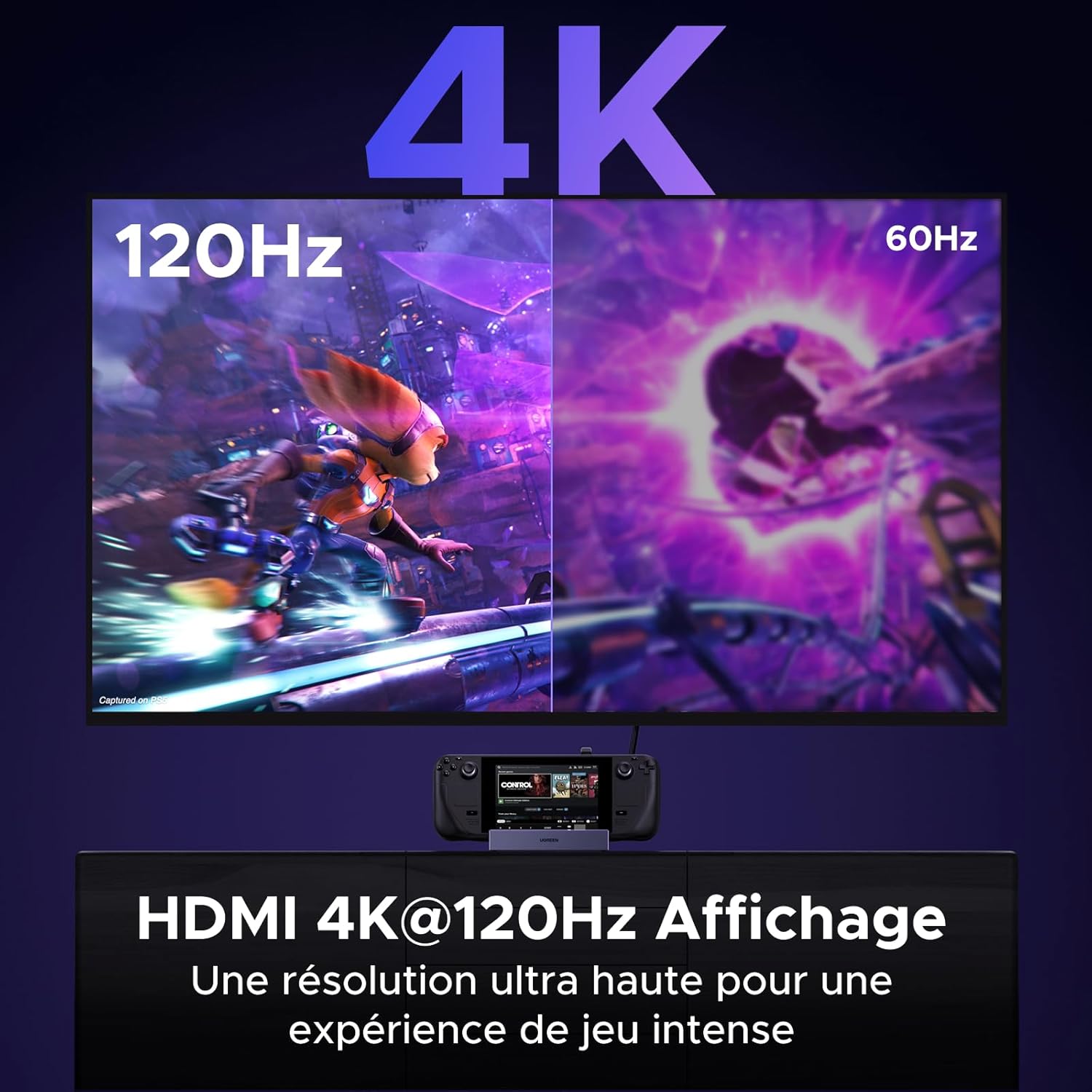
Image 3.1: A visual comparison demonstrating the difference between 4K 120Hz and 60Hz display quality when connected through the UGREEN docking station to a large screen.
3.2 نقل البيانات
The docking station features two USB-A ports and one USB-C data port, all supporting data transfer speeds of up to 5Gbps. These ports are suitable for connecting various USB peripherals.
- توصيل أجهزة التخزين: When connecting USB storage devices (e.g., external hard drives, USB flash drives) to a Steam Deck, you may need to switch the Steam Deck to 'Desktop Mode' first for proper recognition and access.
- ملاحظة هامة: The USB data ports do not support video output.

Image 3.2: The UGREEN docking station connected to a Steam Deck, illustrating various USB peripherals such as a gamepad, mouse, keyboard, headset, and webcam connected to its data ports.
3.3 اتصال الشبكة
The Gigabit Ethernet port provides a reliable wired internet connection, offering speeds of 1000/100/10Mbps. This ensures a faster and more stable connection compared to typical Wi-Fi, which is beneficial for online gaming and large downloads.
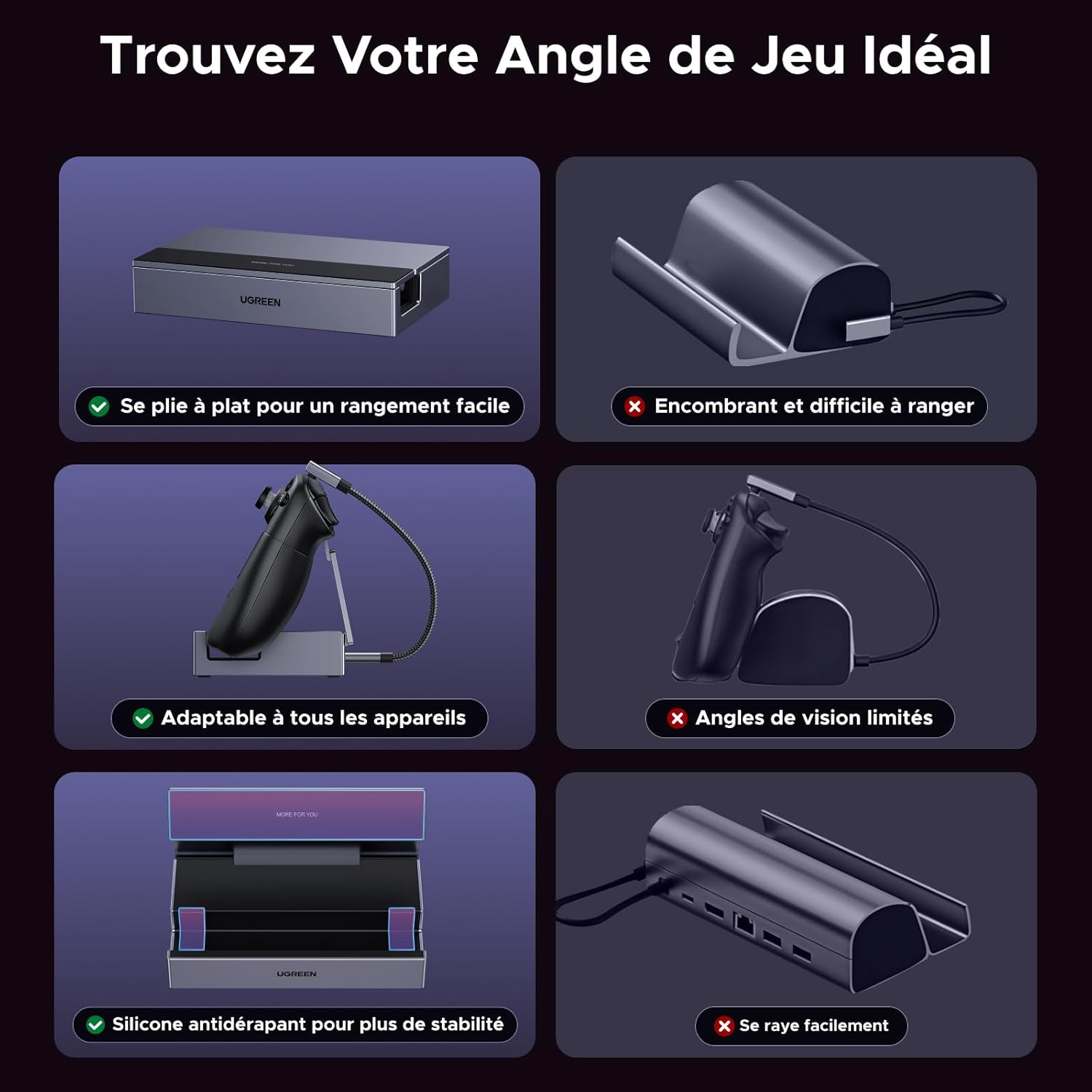
Image 3.3: A Steam Deck console docked in the UGREEN station, with an Ethernet cable connected, highlighting the stable wired network capability.
3.4 Adjustable Stand Functionality
The docking station features an adjustable stand that allows you to set your device at an optimal viewing angle. The stand is equipped with anti-slip silicone to ensure stability and prevent scratches, while also ensuring that cooling vents are not obstructed.

Image 3.4: A diagram illustrating the adjustable angles (0°, 45°, 90°) of the UGREEN docking station's integrated stand, providing flexible viewخيارات جي.
4. الصيانة
To ensure the longevity and optimal performance of your UGREEN 6-in-1 Docking Station, follow these simple maintenance guidelines:
- تنظيف: Use a soft, dry, lint-free cloth to gently wipe the surface of the docking station. Avoid using harsh chemicals, abrasive cleaners, or solvents, as these can damage the finish.
- تخزين: عند عدم الاستخدام، قم بتخزين محطة الإرساء في مكان بارد وجاف بعيدًا عن أشعة الشمس المباشرة ودرجات الحرارة القصوى.
- التعامل: Avoid dropping the device or subjecting it to strong impacts. Do not attempt to disassemble the docking station, as this will void the warranty.
5. استكشاف الأخطاء وإصلاحها
If you encounter issues with your UGREEN 6-in-1 Docking Station, please refer to the following common solutions:
- No Video Output or Incorrect Resolution/Refresh Rate:
- Ensure your host device (e.g., Steam Deck, ROG Ally) and the connected monitor/TV both support the desired resolution and refresh rate (e.g., 4K@120Hz).
- Check that the HDMI cable is securely connected at both ends.
- Try a different HDMI cable or monitor to rule out external component issues.
- USB Peripherals Not Detected:
- For Steam Deck, ensure the device is in 'Desktop Mode' when attempting to use USB storage devices.
- Verify that the USB devices are properly inserted into the docking station's data ports.
- Note that the USB data ports do not support video output.
- Slow Charging or Insufficient Power:
- The docking station consumes some power for its own operation. For optimal charging of your console, use a USB-C PD charger with a higher wattage than the original charger that came with your console.
- Ensure the USB-C PD power adapter is securely connected to the dock's PD port.
- No Network Connection via Ethernet:
- Check that the Ethernet cable is securely connected to both the docking station and your router/modem.
- Verify that your network is functioning correctly.
- Device Not Fitting Securely:
- Ensure your device is placed correctly in the stand. The anti-slip silicone is designed to provide stability.
6. المواصفات
| ميزة | مواصفة |
|---|---|
| ماركة | يوجرين |
| رقم الموديل | 75126 |
| أجهزة الواجهة | يو اس بي نوع سي |
| إجمالي منافذ USB | 4 (2x USB-A, 1x USB-C data, 1x USB-C PD) |
| منافذ HDMI | 1 |
| دقة HDMI | حتى 4K@120Hz |
| سرعة الإيثرنت | 1000/100/10 ميجابايت في الثانية |
| سرعة نقل بيانات USB | 5 جيجابت في الثانية |
| توصيل الطاقة | 100 واط (USB-C PD) |
| الأجهزة المتوافقة | Steam Deck, Steam Deck OLED, ROG Ally, ROG Ally X, ROG Xbox Ally, ROG Xbox Ally X, Legion Go, etc. |
| بلد المنشأ | الصين |
7. الضمان والدعم
7.1 معلومات الضمان
هذا المنتج من UGREEN مشمول بـ ضمان الشركة المصنعة لمدة 24 شهرًا من تاريخ الشراء. يُرجى الاحتفاظ بإيصال الشراء للمطالبة بالضمان.
7.2 دعم العملاء
للحصول على المساعدة التقنية، أو استكشاف الأخطاء وإصلاحها، أو الاستفسارات المتعلقة بالضمان، يرجى الاتصال بدعم عملاء UGREEN عبر موقعهم الرسمي. webالموقع الإلكتروني أو المتجر الذي تم شراء المنتج منه. عادةً ما يمكن العثور على معلومات الاتصال التفصيلية على الموقع الرسمي لشركة UGREEN. webتغليف الموقع أو المنتج.