
1. انتهى المنتجview
The Anmite 18.5 Inch 120Hz Portable Monitor is designed to extend your visual workspace, offering a high-definition display for laptops, gaming consoles, and mobile devices. Its lightweight and slim design ensures portability, while the IPS panel provides wide viewزوايا وألوان نابضة بالحياة.

الصورة 1.1: الجبهة view of the Anmite 18.5 Inch Portable Monitor, highlighting its key features like 1920x1080 resolution, 120Hz refresh rate, 100% sRGB, 3ms response time, and IPS panel.
2. محتويات العبوة
يرجى التأكد من وجود جميع العناصر في الحزمة الخاصة بك:
- Anmite Portable Monitor x 1
- Mini-HDMI to HDMI cable x 1
- كابل من النوع C إلى النوع C × 1
- Type-C to USB-A cable x 1
- دليل المستخدم × 1
3. Monitor Features and Ports
Familiarize yourself with the monitor's physical features and connection ports.
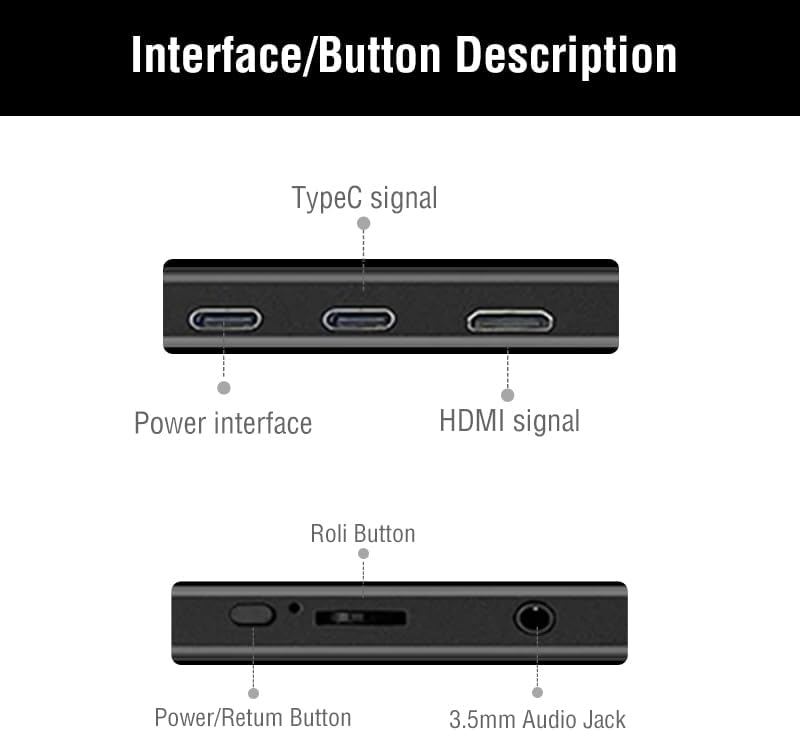
Image 3.1: Detailed diagram showing the monitor's ports and control buttons. This includes Type-C signal input, Power interface, HDMI signal input, a 'Roli Button' for menu navigation, and a 3.5mm Audio Jack.
3.1. المنافذ والأزرار
- النوع C (وظيفة كاملة): For video, audio, and power transmission from compatible devices.
- Type-C (Power): For power input to the monitor.
- ميني HDMI: For video and audio input from devices.
- شنومكسم جاك الصوت: For connecting external headphones or speakers.
- Roli Button: Used for navigating the On-Screen Display (OSD) menu and adjusting settings.
- زر الطاقة / العودة: Used to power the monitor on/off and as a return function in the OSD menu.

الصورة 3.2: خلفي view شاشة العرضasing the integrated metal support stand and VESA mounting points.
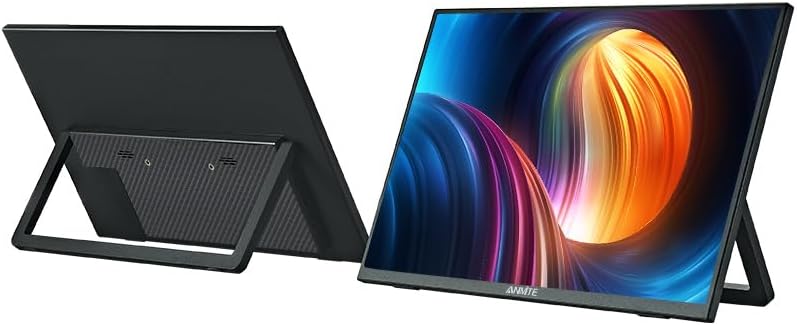
Image 3.3: Front and back perspective views of the monitor, illustrating its slim profile and the adjustable stand.
4. تعليمات الإعداد
4.1. تشغيل الشاشة
The monitor requires power to operate. Connect the provided Type-C to USB-A cable to the monitor's dedicated power Type-C port and a compatible USB power adapter (not included) or a powered USB port on your device.
4.2. الاتصال بالأجهزة
The Anmite portable monitor supports various devices via Type-C (full function) and HDMI connections.
4.2.1. Connecting to a Laptop/PC (Type-C)
- Ensure your laptop/PC has a full-featured Type-C (USB-C) port that supports video output (DisplayPort Alternate Mode) and power delivery.
- Connect one end of the Type-C to Type-C cable to the monitor's full-function Type-C port.
- Connect the other end of the Type-C to Type-C cable to your laptop/PC's full-featured Type-C port.
- The monitor should automatically detect the signal and display your laptop/PC screen. If not, you may need to adjust display settings on your laptop/PC.
4.2.2. التوصيل بجهاز كمبيوتر محمول/شخصي (HDMI)
- Connect one end of the Mini-HDMI to HDMI cable to the monitor's Mini-HDMI port.
- Connect the other end of the Mini-HDMI to HDMI cable to your laptop/PC's HDMI port.
- Connect the monitor to a power source using the Type-C to USB-A cable and a power adapter.
- The monitor should automatically detect the signal. If not, adjust display settings on your laptop/PC.
4.2.3. Connecting to a Smartphone (Type-C)
- Ensure your smartphone has a full-featured Type-C (USB-C) port that supports video output (DisplayPort Alternate Mode) and power delivery.
- Connect one end of the Type-C to Type-C cable to the monitor's full-function Type-C port.
- Connect the other end of the Type-C to Type-C cable to your smartphone's full-featured Type-C port.
- The monitor should mirror or extend your phone's display.

Image 4.1: The portable monitor connected to a smartphone via a Type-C cable, demonstrating its use as an external display for mobile devices.
4.2.4. Connecting to Gaming Consoles (HDMI)
- Connect one end of the Mini-HDMI to HDMI cable to the monitor's Mini-HDMI port.
- Connect the other end of the Mini-HDMI to HDMI cable to your gaming console's HDMI port.
- Connect the monitor to a power source using the Type-C to USB-A cable and a power adapter.
- Power on your gaming console and the monitor. The display should appear automatically.
4.3. استخدام الحامل المدمج
The monitor features an integrated metal stand for easy setup. Simply unfold the stand from the back of the monitor to position it at your desired viewing angle. The stand also allows for both landscape and portrait orientations.
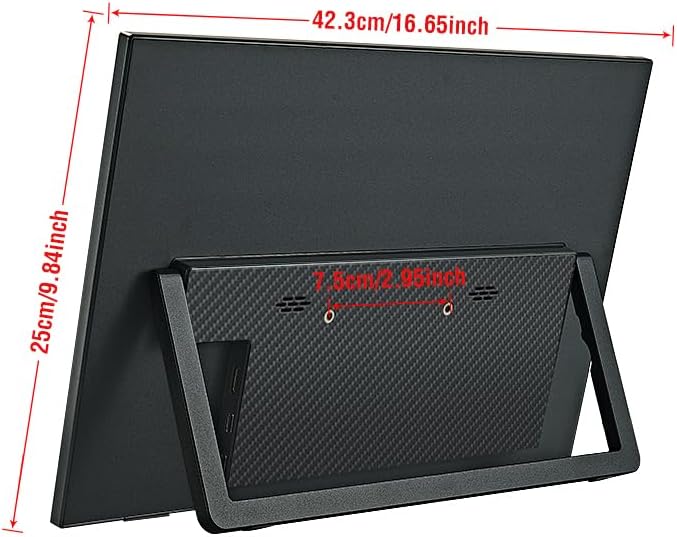
الصورة 4.2: خلفي view of the monitor with its stand extended, showing the overall dimensions and stability.
5. تعليمات التشغيل
5.1. تشغيل/إيقاف التشغيل
اضغط مع الاستمرار على زر الطاقة / العودة for a few seconds to turn the monitor on or off.
5.2. قائمة العرض على الشاشة (OSD)
The OSD menu allows you to adjust various display settings. Use the Roli Button to navigate and select options.
- اضغط على Roli Button لفتح قائمة OSD.
- لف Roli Button up or down to navigate through menu options.
- اضغط على Roli Button لتحديد خيار أو الدخول إلى قائمة فرعية.
- استخدم زر الطاقة / العودة to go back to the previous menu or exit the OSD.
5.3. إعدادات العرض على الشاشة الشائعة
- السطوع / التباين: Adjust the display's luminance and contrast levels.
- إعدادات الألوان: Modify color temperature, hue, and saturation.
- مصدر الإدخال: Manually select between Type-C and HDMI inputs if auto-detection fails.
- نسبة العرض إلى الارتفاع: Change the display aspect ratio (e.g., 16:9, 4:3).
- مقدار: Adjust the volume of the built-in speakers or connected headphones.
5.4. Display Orientation
The monitor supports both landscape and portrait orientations. The display will automatically adjust if your connected device supports auto-rotation. Otherwise, you may need to manually change the display orientation in your device's operating system settings.
6. الصيانة
6.1. تنظيف الشاشة
- قم دائمًا بإيقاف تشغيل الشاشة وفصلها عن الكهرباء قبل تنظيفها.
- استخدم قطعة قماش ناعمة وخالية من الوبر وامسحها برفق.ampاغسلها بالماء أو بمنظف شاشة غير كاشط.
- لا تقم برش المنظف مباشرة على الشاشة.
- تجنب استخدام الكحول أو الأمونيا أو المنظفات الكاشطة، لأنها قد تتلف سطح الشاشة.
6.2. التخزين
- قم بتخزين الشاشة في مكان بارد وجاف بعيدًا عن أشعة الشمس المباشرة ودرجات الحرارة القصوى.
- If storing for an extended period, use the original packaging or a protective sleeve to prevent dust and scratches.
7. استكشاف الأخطاء وإصلاحها
If you encounter issues with your Anmite portable monitor, refer to the following common solutions:
- No Display/No Signal:
- Ensure the monitor is properly powered and turned on.
- Verify that the video cable (Type-C or HDMI) is securely connected to both the monitor and your device.
- If using Type-C, confirm that your device's Type-C port is full-featured and supports video output. Some Type-C ports are for charging only.
- Try selecting the correct input source manually via the OSD menu.
- Test with a different cable or device if possible.
- Flickering or Unstable Display:
- تأكد من عدم وجود أي ارتخاء في توصيلات الكابلات.
- تأكد من أن الشاشة تتلقى طاقة كافية.
- Adjust the refresh rate or resolution settings on your connected device.
- لا يوجد صوت:
- Increase the volume on both the monitor (via OSD) and your connected device.
- Ensure the audio output on your device is set to the portable monitor.
- في حالة استخدام سماعات رأس/مكبرات صوت خارجية، تأكد من توصيلها بشكل صحيح بمقبس الصوت 3.5 ملم.
- Monitor Not Turning On:
- Confirm the power cable is connected and the power source is active.
- حاول استخدام محول طاقة أو منفذ USB مختلف.
8. المواصفات
Detailed technical specifications for the Anmite 18.5 Inch Portable Monitor (Model A185W03).

Image 8.1: Diagram illustrating the physical dimensions of the 18.5-inch monitor in centimeters and inches.
| ميزة | مواصفة |
|---|---|
| رقم الموديل | A185W03 |
| حجم الشاشة | 18.5 بوصة |
| نوع اللوحة | اي بي اس |
| دقة | 1920x1080 (FHD) |
| معدل تحديث الشاشة | 120 هرتز |
| نسبة العرض إلى الارتفاع | 16:9 |
| لون العرض | 16.7 مليون |
| درجة حرارة اللون | 6800 كيلو |
| زاوية الرؤية | H: 178 درجة V: 178 درجة |
| منطقة بصرية | 410 × 230 ملم |
| نسبة التباين | 1000:1 |
| سطوع | 300 شمعة/م² |
| الألوان المدعومة | 100% إس آر جي بي |
| واجهة الإدخال | Mini-HDMI, Type-C (Full Function), Type-C (Power) |
| واجهة الإخراج | 3.5mm واجهة الصوت |
| المتحدثون | Built-in (1W*2) |
| الوزن الصافي | 1.2 كجم |
| أبعاد | 423 × 250 × 6-13 ملم (16.65 × 9.84 × 0.24-0.51 بوصة) |
| أبعاد المنتج (مُعبأة) | 8.26 × 14.96 × 19.29 بوصة |
| المجلدtage | 5 فولت (تيار مستمر) |
| وصف سطح الشاشة | مطفي |

Image 8.2: Illustration of the monitor's ultra-portable design, highlighting its thinness and lightweight nature with dimensions.

Image 8.3: Visual comparison of the 18.5-inch monitor alongside 17.3-inch and 15.6-inch models, demonstrating its larger screen size.
9. الضمان والدعم
9.1. معلومات الضمان
For detailed warranty information regarding your Anmite portable monitor, please refer to the warranty card included in your product packaging or visit the official Anmite website. Protection plans may also be available for purchase separately.
9.2. دعم العملاء
If you require further assistance or have questions not covered in this manual, please contact Anmite customer support. You can find contact information and additional resources on the Anmite Official Store.