
ASUS RT-AX5400
ASUS RT-AX5400 Dual Band WiFi 6 Router User Manual
Model: RT-AX5400
العلامة التجارية: ASUS
1. المقدمة
This manual provides comprehensive instructions for the setup, operation, maintenance, and troubleshooting of your ASUS RT-AX5400 Dual Band WiFi 6 Extendable Router. The RT-AX5400 is designed to provide robust and secure wireless connectivity for both home and business environments, featuring advanced capabilities such as VPN Fusion, Instant Guard, and comprehensive parental controls.
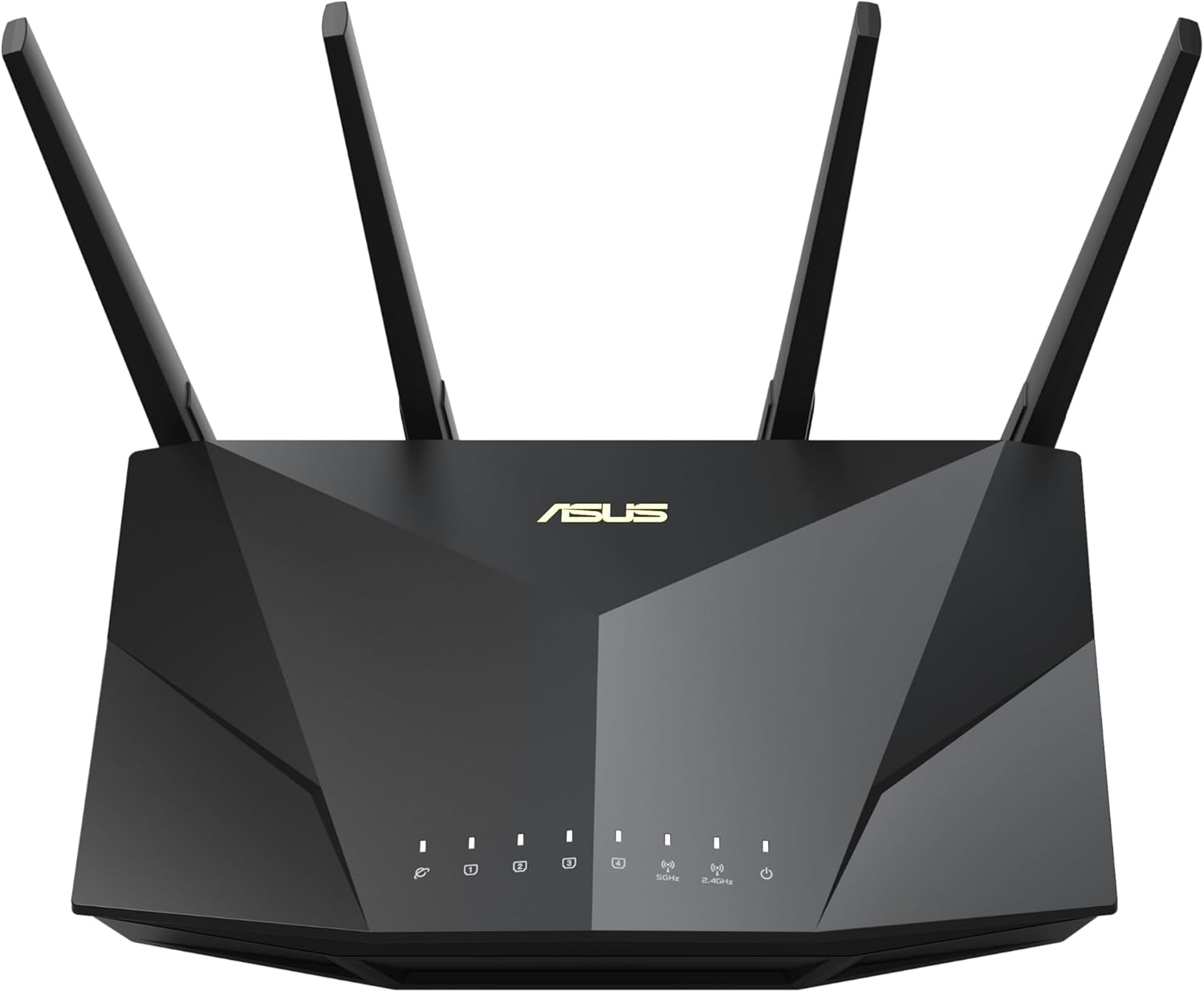
الشكل 1.1: الجبهة view of the ASUS RT-AX5400 WiFi 6 router, showcasing its modern design and LED indicators.
2. محتويات العبوة
قبل البدء بعملية التثبيت، يرجى التأكد من وجود جميع العناصر المدرجة أدناه في العبوة:
- ASUS RT-AX5400 WiFi Router
- RJ-45 Cable (Ethernet cable)
- محول الطاقة
- بطاقة الضمان
- دليل البدء السريع
3. مواصفات المنتج
The ASUS RT-AX5400 router is equipped with a range of features designed to enhance your network experience:
- Dual-Band WiFi 6 (802.11ax): Provides faster speeds, increased capacity, and reduced network congestion compared to previous WiFi standards.
- Extendable Network (AiMesh): Seamlessly expand your network coverage by adding any AiMesh-compatible ASUS router.
- Enhanced Network Security (AiProtection Pro): Lifetime free internet security powered by Trend Micro, offering protection against online threats.
- Advanced Parental Controls: Manage and schedule internet access for connected devices, ensuring a safe online environment for family members.
- Instant Guard 2.0: Securely access your home network from anywhere using a mobile device, creating a secure VPN tunnel.
- VPN Fusion: Simultaneously run a VPN and a regular internet connection, allowing specific devices to use the VPN while others do not. Supports WireGuard, OpenVPN, PPTP, and L2TP/IPsec protocols.
- جودة الخدمة (QoS): Prioritize network traffic for specific applications or devices to optimize performance.
- أوضاع تشغيل متعددة: Functions as a wireless router, access point, or media bridge.

Figure 3.1: ASUS RT-AX5400 highlighting key features like WiFi 6 and AiMesh extendable network capabilities.
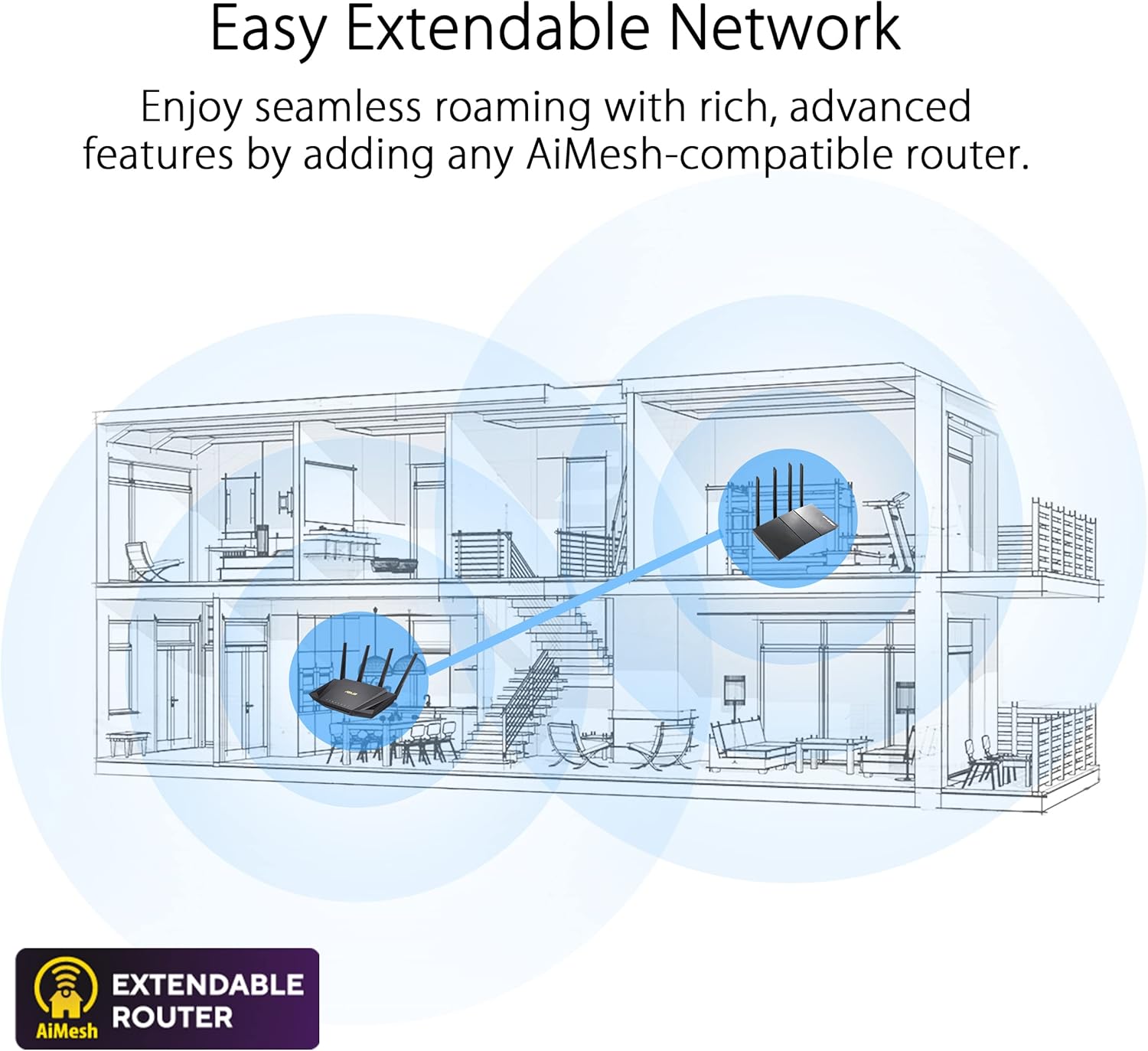
Figure 3.2: Illustration of an AiMesh extendable network, demonstrating how multiple routers can create a unified, seamless Wi-Fi system.

Figure 3.3: Visual representation of the router's enhanced network security features, including AiProtection and advanced parental controls.

Figure 3.4: The Instant Guard 2.0 mobile app interface, designed for secure remote access to your home network.

Figure 3.5: Depiction of the router's versatile VPN capabilities, supporting multiple protocols for secure network access.
4. دليل الإعداد
4.1 تركيب الأجهزة
- وضع جهاز التوجيه: Place the RT-AX5400 in a central location in your home or office, away from obstructions and electronic devices that may cause interference. Ensure good ventilation.
- ربط الهوائيات: Screw the four external antennas firmly onto the connectors at the back of the router. Adjust them vertically for optimal signal coverage.
- الاتصال بالإنترنت:
- Connect one end of the provided RJ-45 cable to the منفذ WAN (blue) on the back of the RT-AX5400.
- Connect the other end of the RJ-45 cable to your modem's LAN port.
- توصيل الطاقة: قم بتوصيل محول الطاقة بمنفذ منفذ DCIN on the router, then plug the other end into a power outlet.
- تشغيل الطاقة: اضغط على زر الطاقة on the back of the router. Wait for the LED indicators on the front to stabilize, indicating the router is ready.
- توصيل الأجهزة (اختياري):
- بالنسبة للاتصالات السلكية، قم بتوصيل جهاز الكمبيوتر الخاص بك أو أجهزة الشبكة الأخرى بأي من منافذ الشبكة المحلية (yellow) using an RJ-45 cable.
- For wireless connections, connect to the default Wi-Fi network name (SSID) and password found on the label at the bottom of the router.

Figure 4.1: Rear panel of the ASUS RT-AX5400 router, showing all connectivity ports and buttons.
4.2 التكوين الأولي (Web واجهة المستخدم الرسومية)
- افتح web browser on a computer connected to the router (wired or wirelessly).
- يكتب http://router.asus.com or http://192.168.1.1 في شريط العناوين واضغط على Enter.
- Follow the on-screen instructions of the ASUS Setup Wizard to configure your internet connection, Wi-Fi network name (SSID), and password. It is highly recommended to change the default login username and password for the router's administration page for security purposes.
4.3 Initial Configuration (ASUS Router App)
- Download the ASUS Router app from your mobile device's app store (available for iOS and Android).
- Open the app and follow the guided steps to set up your new router. The app provides a user-friendly interface for quick and easy configuration.
5. تعليمات التشغيل
This section covers the basic operation and advanced features of your ASUS RT-AX5400 router.
5.1 Managing Your Network via Web واجهة المستخدم الرسومية
الوصول إلى جهاز التوجيه web واجهة من خلال الانتقال إلى http://router.asus.com فيك web browser. The dashboard provides an overview of your network status and access to detailed settings.
- خريطة الشبكة: View connected devices, internet status, and network topology.
- حماية الذكاء الاصطناعي: Configure security settings, including network vulnerability scans, malicious site blocking, and two-way IPS.
- الرقابة الأبوية: Set time limits, content filters, and schedule internet access for specific devices.
- جودة الخدمة (QoS): Prioritize bandwidth for gaming, streaming, or other applications.
- USB Application: Manage connected USB devices for file sharing (AiDisk), media server (AiMedia), or 4G/5G dongle support.
- شبكة VPN: Configure VPN server or client settings, including VPN Fusion.
- الإعدادات اللاسلكية: Adjust Wi-Fi network names (SSIDs), passwords, security protocols, and channel settings.
5.2 Using the ASUS Router App
The ASUS Router mobile app offers convenient management of your network from your smartphone or tablet. Features include:
- Real-time network monitoring.
- Easy setup and management of Wi-Fi settings.
- Parental control management.
- Instant Guard VPN activation.
- تحديثات البرامج الثابتة.
- Network diagnostics.
5.3 Instant Guard VPN
Instant Guard allows you to create a secure VPN connection back to your home network when you are away. This encrypts your internet traffic and protects your privacy, especially when using public Wi-Fi. To use Instant Guard:
- Ensure your RT-AX5400 router is connected to the internet.
- Download and open the ASUS Router app on your mobile device.
- Navigate to the Instant Guard section within the app and follow the prompts to activate the VPN connection.
5.4 VPN Fusion
VPN Fusion enables you to run both a VPN connection and a regular internet connection simultaneously. This is useful for assigning specific devices to a VPN tunnel while others access the internet directly. Configure VPN Fusion via the router's web GUI under the VPN settings.
6. الصيانة
تضمن الصيانة المنتظمة الأداء الأمثل والأمان لجهاز التوجيه الخاص بك.
- تحديثات البرامج الثابتة: التحقق بانتظام من أحدث تحديثات البرامج الثابتة وتثبيتها عبر جهاز التوجيه web GUI or the ASUS Router app. Firmware updates often include performance improvements, new features, and security patches.
- إعادة تشغيل جهاز التوجيه: Periodically reboot your router (e.g., once a month) to clear its memory and refresh network connections. This can resolve minor performance issues.
- التنظيف المادي: Keep the router clean and free from dust. Ensure ventilation openings are not blocked to prevent overheating. Use a soft, dry cloth for cleaning.
- إدارة كلمة المرور: Change your Wi-Fi and router administration passwords periodically to enhance security. Use strong, unique passwords.
7. استكشاف الأخطاء وإصلاحها
This section addresses common issues you might encounter with your RT-AX5400 router.
7.1 لا يوجد اتصال بالإنترنت
- فحص الكابلات: تأكد من توصيل كابل الإيثرنت من المودم بمنفذ WAN الأزرق الخاص بجهاز التوجيه بشكل محكم. تحقق من توصيل جميع الكابلات الأخرى بشكل صحيح.
- حالة المودم: Check your modem's indicator lights to ensure it is receiving an internet signal. If not, contact your Internet Service Provider (ISP).
- إعادة تشغيل الأجهزة: Power off your modem and router. Wait 30 seconds, then power on the modem first. Once the modem is fully online, power on the router.
- إعدادات جهاز التوجيه: الوصول إلى جهاز التوجيه web GUI and check the WAN settings. Ensure your internet connection type (e.g., DHCP, PPPoE) is correctly configured.
7.2 مشاكل إشارة Wi-Fi
- وضع جهاز التوجيه: Move the router to a central location, away from large metal objects, concrete walls, and other electronic devices that may cause interference.
- اتجاه الهوائي: Adjust the router's antennas for optimal signal spread.
- تدخل: Other devices operating on the 2.4 GHz or 5 GHz bands (e.g., cordless phones, microwaves) can cause interference. Try changing the Wi-Fi channel in the router settings.
- البرامج الثابتة: تأكد من أن البرامج الثابتة لجهاز التوجيه الخاص بك محدثة.
- Extendable Network: If you have a large area, consider adding an AiMesh compatible router to extend coverage.
7.3 لا يمكن الوصول إلى جهاز التوجيه Web واجهة المستخدم الرسومية
- عنوان IP: تأكد من ضبط جهاز الكمبيوتر الخاص بك للحصول على عنوان IP تلقائيًا (DHCP).
- العنوان الصحيح: تأكد من أنك تكتب http://router.asus.com or http://192.168.1.1 بشكل صحيح.
- ذاكرة التخزين المؤقت للمتصفح: امسح ذاكرة التخزين المؤقت وملفات تعريف الارتباط الخاصة بالمتصفح لديك، أو جرب متصفحًا آخر web المتصفح.
- جدار الحماية/مكافحة الفيروسات: قم بتعطيل أي جدار حماية أو برنامج مكافحة فيروسات على جهاز الكمبيوتر الخاص بك مؤقتًا لمعرفة ما إذا كان يمنع الوصول.
- إعادة تعيين جهاز التوجيه: If all else fails, perform a factory reset. Locate the زر إعادة الضبط on the back of the router (Figure 4.1), press and hold it for 5-10 seconds until the power LED blinks. تحذير: سيؤدي هذا إلى مسح جميع إعداداتك المخصصة.
8. المواصفات
| ميزة | التفاصيل |
|---|---|
| اسم الموديل | آر تي-إيه إكس 5400 |
| المعيار اللاسلكي | 802.11ax (واي فاي 6) |
| نطاق التردد | النطاق المزدوج (2.4 جيجاهرتز و 5 جيجاهرتز) |
| الهوائيات | هوائيان خارجيان |
| منافذ إيثرنت | 1 x WAN (Gigabit), 4 x LAN (Gigabit) |
| منفذ يو اس بي | 1 x USB 3.2 Gen 1 (USB 3.0) |
| الأبعاد (الطول × العرض × الارتفاع) | 8.91 × 6.54 × 6.31 بوصة |
| وزن | 1.35 رطل |
| المميزات الخاصة | AiMesh, AiProtection Pro, Instant Guard, Parental Control, QoS, Access Point Mode, Guest Mode |
| الأجهزة المتوافقة | أجهزة الكمبيوتر الشخصية والأجهزة الأخرى المتصلة بالشبكة |
| الاستخدامات الموصى بها | الأعمال، المنزل |

Figure 8.1: WiFi 6 performance metrics and speed comparison.
9. الضمان والدعم
Your ASUS RT-AX5400 router comes with a warranty card included in the package. Please refer to this card for specific warranty terms and conditions applicable to your region.
For technical support, driver downloads, manuals, and FAQs, please visit the official ASUS support website. You can typically find support by searching for your product model (RT-AX5400) on the ASUS support portal.
- الدعم الرسمي من ASUS Webموقع: https://www.asus.com/support/
- تسجيل المنتج: قم بتسجيل منتجك عبر الإنترنت لتلقي التحديثات والدعم.
Ask a question about this manual
Ask about setup, troubleshooting, compatibility, parts, safety, or missing instructions. Manuals+ will review the question and use this page’s manual context to help answer it.