
1. المقدمة
This manual provides instructions for the Konica Minolta bizhub C224e, a color multifunction device designed for copying, printing, and scanning. It operates at 22 pages per minute (ppm) for both color and black/white output. The device includes two universal paper trays, a cabinet, and an automatic document feeder (ADF) to enhance document handling efficiency.
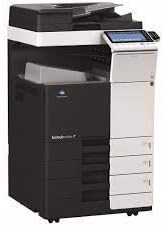
Image 1.1: The Konica Minolta bizhub C224e multifunction device, featuring a black and white chassis with multiple paper trays and an integrated control panel.
2. ماذا يوجد في الصندوق
تأكد من وجود جميع المكونات عند فك العبوة:
- Konica Minolta bizhub C224e Printer Unit
- Paper Trays (Quantity: 3)
- وحدة التغذية التلقائية للمستندات (ADF)
- كابل الطاقة
- دليل الإعداد
3. الإعداد
3.1 فك التعبئة
- أخرج الجهاز بعناية من عبوته.
- Remove all protective materials, tapes, and packing inserts.
- Retain packaging for future transport or service.
3.2 التنسيب
Place the device on a stable, level surface capable of supporting its weight. Ensure adequate ventilation around the unit and avoid direct sunlight or areas with extreme temperature fluctuations.
3.3 توصيل الطاقة
- قم بتوصيل كابل الطاقة بمدخل الطاقة الخاص بالجهاز.
- قم بتوصيل الطرف الآخر من كابل الطاقة بمأخذ كهربائي مؤرض.
- اضغط على زر الطاقة لتشغيل الجهاز.
3.4 اتصال الشبكة
Connect an Ethernet cable from the device's Ethernet port to your network router or switch. The device supports Ethernet connectivity for network printing and scanning functions.
3.5 التكوين الأولي
Follow the on-screen prompts on the device's control panel to complete the initial setup, including language selection, date/time settings, and network configuration.
4. تعليمات التشغيل
4.1 النسخ الأساسي
- ضع المستند الأصلي بحيث يكون وجهه لأعلى في وحدة التغذية التلقائية للمستندات (ADF) أو وجهه لأسفل على زجاج الماسح الضوئي.
- حدد وظيفة "النسخ" من لوحة التحكم.
- Adjust settings such as quantity, color mode, and paper tray if necessary.
- اضغط على زر "ابدأ" لبدء النسخ.
4.2 الطباعة من الكمبيوتر
- Ensure the device drivers are installed on your computer.
- افتح المستند أو الصورة التي ترغب في طباعتها.
- حدد "طباعة" من قائمة التطبيق.
- Choose the Konica Minolta bizhub C224e from the list of available printers.
- Adjust print settings as required and click 'Print'.
4.3 مسح المستندات ضوئيًا
- ضع المستند في وحدة التغذية التلقائية للمستندات أو على زجاج الماسح الضوئي.
- حدد وظيفة "المسح الضوئي" على لوحة التحكم.
- Choose the destination (e.g., email, network folder, USB) and scan settings (e.g., resolution, file شكل).
- اضغط على زر "ابدأ" لبدء عملية المسح.
4.4 استخدام وحدة التغذية التلقائية للمستندات (ADF)
The ADF allows for continuous scanning or copying of multiple pages. Load documents face-up into the ADF tray. The device will automatically feed each page for processing. Ensure documents are free of staples or clips to prevent jams.
4.5 Duplex Printing/Copying
The bizhub C224e supports automatic duplex (two-sided) printing and copying. This feature can be enabled through the print driver settings on your computer or directly from the device's control panel when performing copy operations.
5. الصيانة
5.1 تنظيف الجزء الخارجي
امسح الجزء الخارجي من الجهاز بقطعة قماش ناعمة، دamp, lint-free cloth. Avoid using abrasive cleaners or solvents. Regularly clean the scanner glass with a glass cleaner and a soft cloth to ensure clear scans and copies.
5.2 استبدال خراطيش الحبر
- عندما يكون مستوى الحبر في خرطوشة الحبر منخفضًا أو فارغًا، ستظهر رسالة على لوحة التحكم.
- افتح الغطاء الأمامي للجهاز.
- قم بإزالة خرطوشة الحبر الفارغة بعناية عن طريق سحبها نحوك.
- قم بإخراج خرطوشة الحبر الجديدة من العبوة ورجها برفق لتوزيع الحبر.
- أدخل الخرطوشة الجديدة في الفتحة المناسبة حتى تسمع صوت طقطقة عند تثبيتها في مكانها.
- أغلق الغطاء الأمامي.
5.3 إزالة انحشار الورق
If a paper jam occurs, the control panel will display an error message indicating the location of the jam. Follow the on-screen instructions or refer to the internal diagrams to locate and carefully remove the jammed paper. Always pull paper in the direction of the paper path to avoid tearing.
6. استكشاف الأخطاء وإصلاحها
This section addresses common issues you may encounter with the Konica Minolta bizhub C224e.
| مشكلة | حل |
|---|---|
| الجهاز لا يعمل. | Ensure the power cable is securely connected to both the device and a working electrical outlet. Check the power button. |
| يحدث انحشار الورق بشكل متكرر. | Verify that paper is loaded correctly and is not creased or damaged. Ensure the correct paper type is selected in settings. Clean paper feed rollers if necessary. |
| Print quality is poor (streaks, faded prints). | Check toner levels and replace cartridges if low. Perform a print head cleaning or calibration from the device's maintenance menu. Clean the scanner glass. |
| لا يمكن الطباعة من الكمبيوتر. | Verify network connection. Ensure printer drivers are installed and updated. Check if the printer is selected as the default printer. Restart both the printer and computer. |
| Scanned images are blurry or distorted. | Clean the scanner glass and ADF rollers. Ensure documents are placed correctly and flat. Check scan resolution settings. |
7. المواصفات الفنية
Key specifications for the Konica Minolta bizhub C224e:
| ميزة | قيمة |
|---|---|
| اسم الموديل | بيز هب C224e |
| تكنولوجيا الطباعة | الليزر |
| مخرجات الطابعة | لون |
| الحد الأقصى لسعة ورقة الإدخال | 3650 |
| أقصى دقة طباعة ملونة | 1800 × 600 نقطة في البوصة |
| أقصى دقة طباعة بالأبيض والأسود | 600 نقطة في البوصة |
| أقصى دقة نسخ ملونة | 1800 × 600 نقطة في البوصة |
| أقصى دقة نسخ بالأبيض والأسود | 1800 نقطة في البوصة |
| حجم الورقة | 297 ملم |
| الحد الأقصى لحجم الوسائط | A3 |
| الطباعة على الوجهين | اوتوماتيكي |
| واجهة الأجهزة | إيثرنت |
| تكنولوجيا الاتصال | إيثرنت |
| لون الحبر | اللون CMYK |
| عدد الصواني | 3 |
| إجمالي منافذ USB | 1 |
| ميزة خاصة | وحدة تغذية المستندات التلقائية |
| نوع الماسح الضوئي | وحدة التغذية التلقائية للمستندات |
| وسائل الإعلام المطبوعة | ورق (عادي) |
| رمز المنتج الموحد | 647213855753 |
8. الضمان والدعم
8.1 معلومات الضمان
This Konica Minolta bizhub C224e device is covered by a ضمان محدود لمدة 90 يومًا. Please refer to your purchase documentation for specific terms and conditions regarding warranty claims and service.
8.2 دعم العملاء
For technical assistance, troubleshooting beyond this manual, or warranty service, please contact your authorized Konica Minolta dealer or the vendor from whom the product was purchased. Have your model number and serial number ready when contacting support.