
مقدمة
Welcome to the Merkury Innovations EVO Ultra II Virtual Reality Headset. This manual provides essential information for the safe and effective use of your VR headset. Please read these instructions carefully before use and retain them for future reference.
ماذا يوجد في الصندوق
- EVO Ultra II VR Headset
المنتج انتهىview
The EVO Ultra II VR Headset is designed to provide an immersive virtual reality experience using your smartphone. It features adjustable lenses and a comfortable design for extended use.

أمام view of the Merkury Innovations EVO Ultra II VR Headset, showcasing its sleek design and smartphone compartment.
يثبت
1. توافق الهواتف الذكية
The EVO Ultra II VR Headset is compatible with all Apple iPhone, Samsung Galaxy S and Note devices, and other smartphones up to 6 inches in screen size. Ensure your smartphone is updated to the latest operating system (Android or iOS) for optimal performance.

Image illustrating various smartphone models fitting into the EVO Ultra II VR Headset, confirming compatibility with devices up to 6 inches.
2. إدخال هاتفك الذكي
- افتح الغطاء الأمامي لسماعة الواقع الافتراضي.
- Carefully place your smartphone into the designated slot, ensuring it is centered and securely held.
- أغلق الغطاء الأمامي حتى تسمع صوت طقطقة عند تثبيته في مكانه.
3. ضبط سماعة الرأس
The headset features a fully adjustable and removable headband for a comfortable fit. Adjust the straps to ensure the headset sits snugly and comfortably on your head, with the lenses aligned with your eyes.
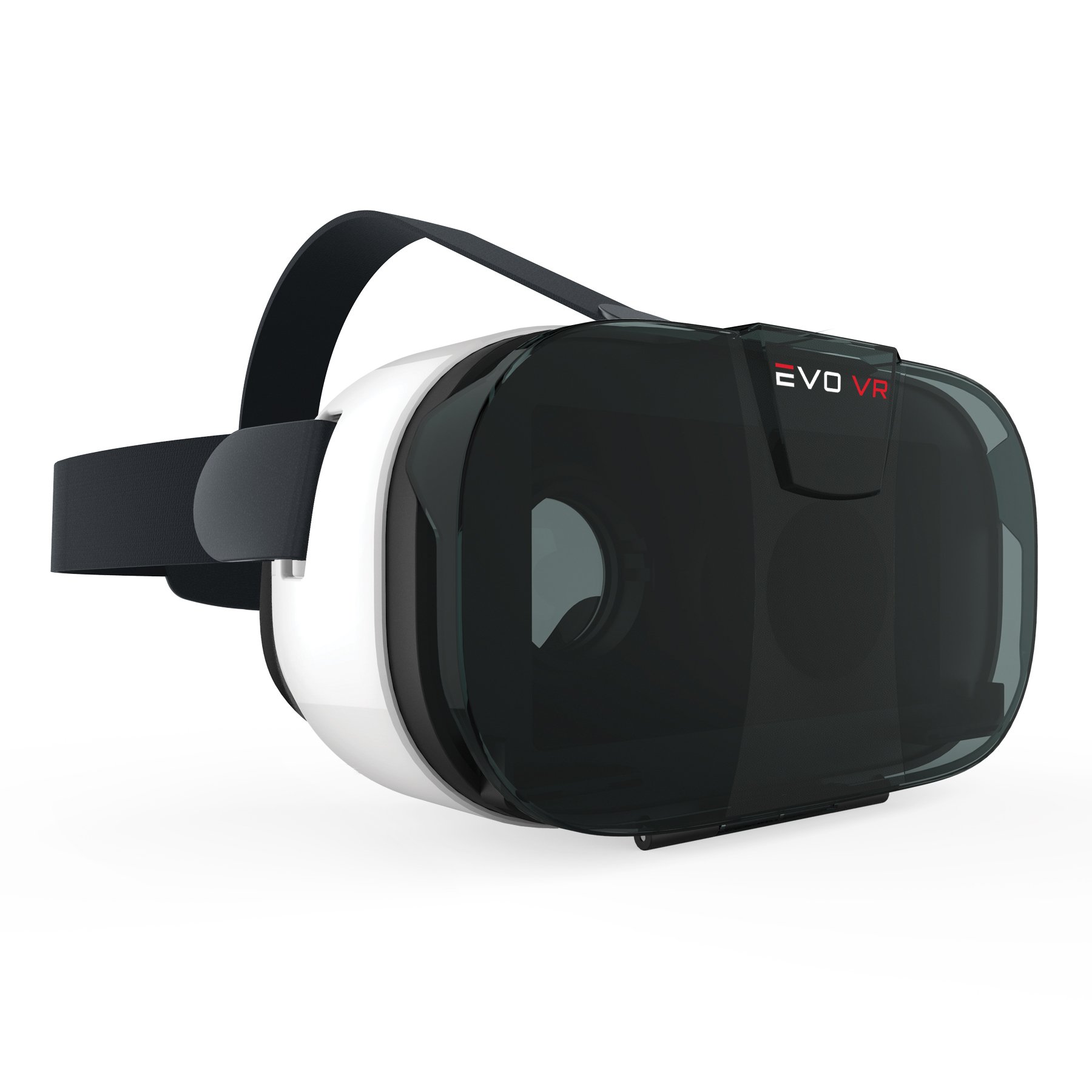
Diagram showing the adjustable pupillary (focal) distance by rotating lenses and lens position by sliding buttons on the bottom of the headset.
تعليمات التشغيل
1. Launching VR/AR Content
Download VR or AR applications from your smartphone's app store (e.g., Google Play Store for Android, Apple App Store for iOS). Launch the desired application before inserting your phone into the headset.
2. تجربة غامرة
Once your smartphone is securely in place and the VR/AR content is running, you will experience a 360-degree panoramic view with an immersive 102-degree field of view. The headset supports left-right 3D and augmented reality content.
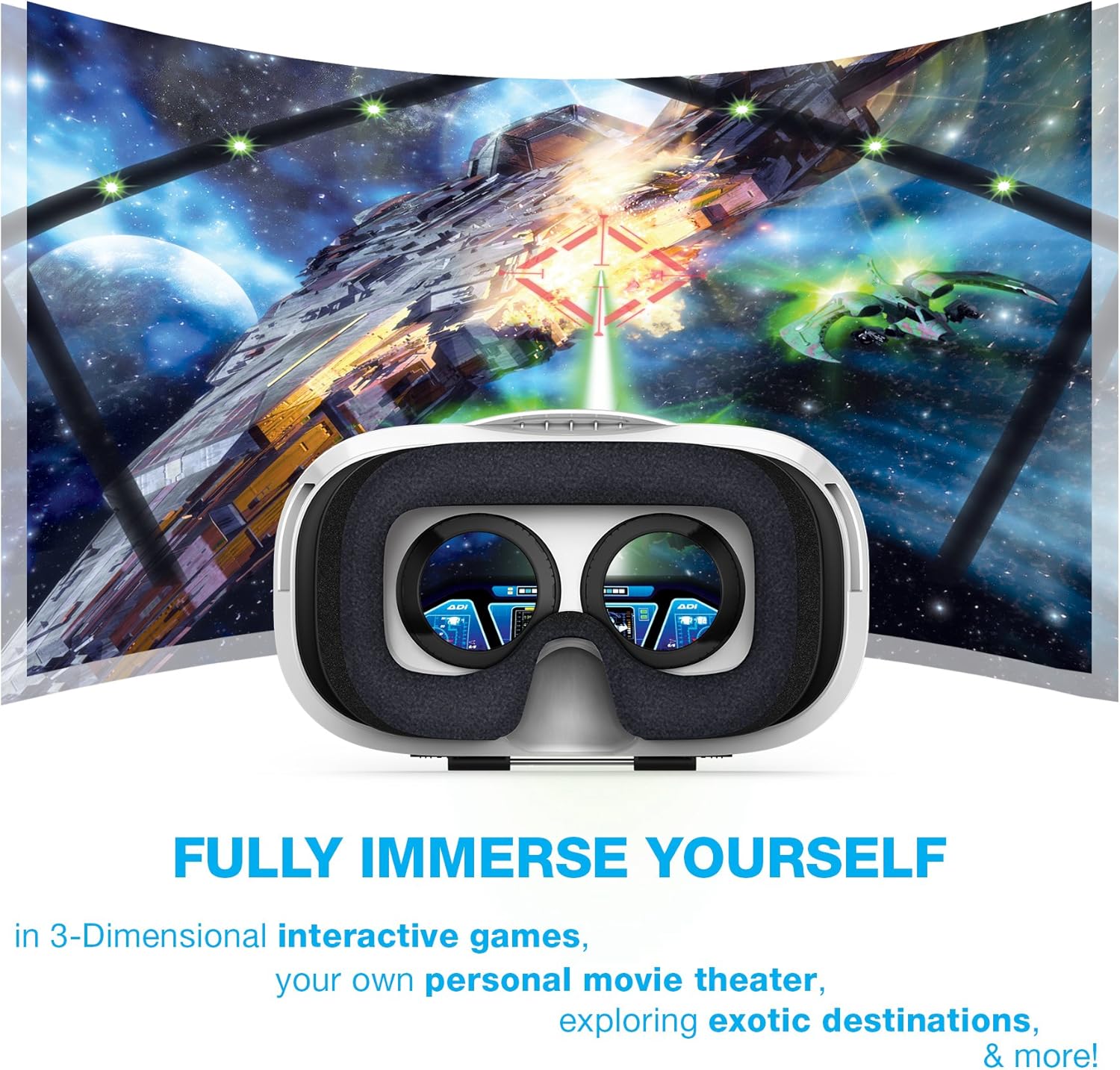
A user's perspective through the EVO Ultra II VR Headset, showing an immersive 3D interactive game environment.
3. Augmented Reality (AR)
For augmented reality experiences, ensure your chosen application utilizes your smartphone's camera. The headset allows for a seamless blend of virtual objects with your real-world environment.

An augmented reality scene viewed through the headset, overlaying a virtual spaceship onto a real-world city landscape.
4. Adjusting Focus and Pupillary Distance
To achieve the clearest image, adjust the pupillary (focal) distance by rotating the lenses. You can also adjust the lens position by sliding the buttons located on the bottom of the headset. Experiment with these adjustments until the image is sharp and comfortable for your eyes.
5. External Controllers
Many VR games and applications require interaction beyond head movements. For a complete experience, an external Bluetooth controller (sold separately) may be necessary, as the headset does not include a built-in touch button or stylus.
صيانة
تنظيف العدسات
Use a soft, dry microfiber cloth to gently wipe the lenses. Avoid using abrasive cleaners or solvents, as these can damage the lens coating. Do not touch the lenses with your fingers.
Cleaning the Headset Body
امسح الجزء الخارجي من سماعة الرأس بقطعة قماش ناعمة قليلاًamp, soft cloth. Ensure no moisture enters the internal components.
تخزين
Store the headset in a cool, dry place away from direct sunlight and extreme temperatures. Keep it free from dust and debris.
استكشاف الأخطاء وإصلاحها
صورة مشوشة
- Ensure your smartphone is centered within the headset.
- Adjust the pupillary distance and lens position using the controls on the headset.
- Check if your smartphone screen is clean and free from smudges.
الشعور بعدم الراحة أثناء الاستخدام
- Adjust the headband straps for a more comfortable and secure fit.
- Take breaks during extended use to prevent eye strain or dizziness.
No Interaction in Games/Apps
- Verify if the application requires an external Bluetooth controller.
- Ensure your smartphone's gyroscope and accelerometer sensors are functioning correctly.
تحديد

Detailed product dimensions including headset weight, top view with headband, and front view with a smartphone installed.
| ميزة | التفاصيل |
|---|---|
| اسم الموديل | EVO Ultra II |
| رقم الموديل | MI-VRH04-199 |
| ماركة | ابتكارات ميركوري |
| لون | أبيض |
| الأجهزة المتوافقة | Smartphones (up to 6 inches) |
| نظام التشغيل | أندرويد، آي أو إس |
| مجال ال View | 102 درجة |
| تقنية الاستشعار | Gyroscope, Accelerometer, Magnetometer (smartphone dependent) |
| وزن العنصر | 9.44 أونصات |
| تكنولوجيا الاتصال | Bluetooth (for optional controller) |
| المميزات الخاصة | Immersive Visuals, 3D & AR Support, Adjustable Lenses |
الضمان والدعم
معلومات الضمان
This product is covered by a Manufacturer Warranty. Please refer to the warranty card included with your purchase or contact Merkury Innovations customer support for specific details regarding warranty coverage and duration.
دعم العملاء
For technical assistance, troubleshooting, or warranty inquiries, please visit the official Merkury Innovations website or contact their customer support team. Contact information can typically be found on the product packaging or their webموقع.