
1. علىview
The Intel NUC NUC5i5RYH is a compact desktop system designed for versatile computing. It integrates the capabilities of a full desktop PC into a small form factor, measuring approximately 4x4 inches. This unit is built with a 5th generation Intel Core i5 processor, offering performance suitable for various tasks including media consumption, content creation, and general office use. Its design allows for customization with user-supplied memory and storage components, including support for a 2.5-inch drive.
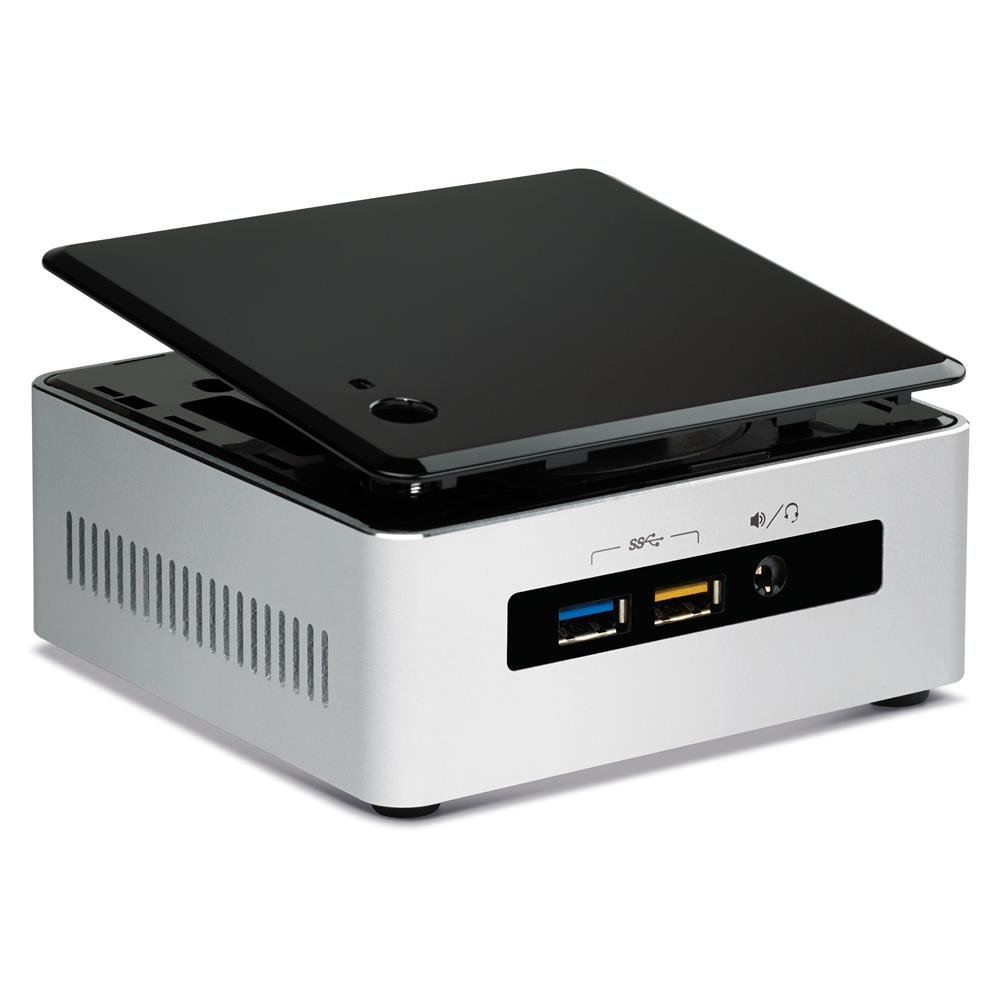
Figure 1: Intel NUC NUC5i5RYH Mini PC
انتهى فيديو المنتجview
الفيديو 1: المنتج الرسميview highlighting the compact size and versatile applications of the Intel NUC.
2. ماذا يوجد في الصندوق
The Intel NUC NUC5i5RYH is a barebones kit, meaning essential components like RAM and storage are not included and must be purchased separately. The package typically contains:
- Intel NUC NUC5i5RYH Unit
- محول الطاقة
- VESA Mounting Plate and Screws
- دليل البدء السريع
ملحوظة: Memory (RAM), storage (SSD/HDD), and an operating system are not included and must be installed by the user.
3. الإعداد والتثبيت
This section outlines the general steps for setting up your Intel NUC. For detailed instructions, refer to the comprehensive installation guide available on the Intel support webموقع.
3.1 تثبيت الذاكرة (RAM)
- Unscrew the bottom cover of the NUC unit.
- Locate the two SODIMM memory slots.
- Insert DDR3L SODIMM modules (up to 16GB total) into the slots, ensuring they are seated correctly and the clips engage. If installing a single 8GB module, use the lower slot.
- استبدل الغطاء السفلي.
3.2 تثبيت التخزين
The NUC5i5RYH supports both 2.5-inch SATA drives (HDD or SSD) and M.2 SSDs.
For 2.5-inch SATA Drive:
- With the bottom cover removed, locate the 2.5-inch drive bay.
- Carefully connect the SATA data and power cables to your 2.5-inch drive.
- Secure the drive in the bay using the provided screws. Ensure the drive height does not exceed 7mm.
For M.2 SSD:
- حدد مكان فتحة M.2 على اللوحة الأم.
- Insert the M.2 SSD into the slot at an angle and then gently push it down.
- Secure the M.2 SSD with the small screw provided with the NUC.
3.3 توصيل الأجهزة الطرفية
- عرض: Connect your monitor to the NUC using an HDMI or DisplayPort cable. Note that the NUC features a Mini-HDMI port, which may require an adapter for standard HDMI cables.
- جهاز USB:٪ s: قم بتوصيل لوحة المفاتيح والماوس وأجهزة USB الأخرى بالمنافذ USB 3.0 المتوفرة.
- شبكة: Connect an Ethernet cable for wired network access, or use the built-in Wi-Fi.
- صوتي: قم بتوصيل مكبرات الصوت أو سماعات الرأس بمقبس الصوت.
3.4 تثبيت نظام التشغيل
After installing memory and storage, install your preferred operating system (e.g., Windows 7, 8.1, 10, or Linux distributions like Ubuntu) from a USB drive or network source. Ensure you download the latest drivers from the Intel support webالموقع للحصول على الأداء الأمثل.
4. Operating Your Intel NUC
Once setup is complete and the operating system is installed, your Intel NUC is ready for use.
4.1 تشغيل/إيقاف التشغيل
Press the power button located on the top of the unit to turn the NUC on or off. A short press will typically put the system to sleep, while a longer press will force a shutdown.
4.2 العرض والصوت
The Intel NUC NUC5i5RYH supports high-resolution displays up to 3840x2160 (4K) via HDMI and DisplayPort. Ensure your display is set to the correct input source. Audio output is available through HDMI (for displays with integrated speakers) or the 3.5mm audio jack.
4.3 الاتصال
Utilize the multiple USB 3.0 ports for high-speed data transfer and peripheral connections. The integrated Wi-Fi and Ethernet port provide flexible network options.
5. الصيانة
تساعد الصيانة المنتظمة على ضمان طول العمر والأداء الأمثل لجهاز Intel NUC الخاص بك.
- حافظ على نظافة: Periodically clean the exterior of the NUC with a soft, dry cloth. Ensure ventilation openings are free from dust and obstructions to prevent overheating.
- تحديثات البرامج: Regularly update your operating system, drivers, and BIOS. Visit the Intel support website for the latest driver and BIOS updates specific to the NUC5i5RYH model.
- ضوضاء المروحة: The NUC is designed to be quiet, but fan noise may become noticeable under heavy load. Ensure proper ventilation and keep the unit in an area where minor fan sounds are not disruptive.
6. استكشاف الأخطاء وإصلاحها
This section addresses common issues you might encounter with your Intel NUC.
6.1 مشاكل العرض
- لا يوجد عرض/شاشة سوداء: Ensure all display cables are securely connected. Verify the monitor is set to the correct input source. If using a Mini-HDMI to HDMI adapter, ensure it is functioning correctly.
- Occasional Display Snow: This can sometimes occur. Try changing the HDMI input on your TV/monitor and then switching back. Ensure your display drivers are up to date. Consider trying a different Mini-HDMI to HDMI cable.
- 4K Resolution at 30Hz instead of 60Hz: The Mini-HDMI port is HDMI 1.4, which supports 4K at 30Hz. For 4K at 60Hz, use the DisplayPort with an active adapter to HDMI 2.0 if your display requires HDMI.
- DRM Issues with DisplayPort: Some users have reported issues with Digital Rights Management (DRM) when using DisplayPort with certain applications (e.g., Windows Media Center). This may be a limitation of the DisplayPort or the adapter used.
6.2 مشاكل الأداء
- الأداء البطيء: Ensure sufficient RAM is installed (up to 16GB DDR3L). Verify that your storage drive (SSD/HDD) is functioning correctly and has enough free space. Check for background processes consuming resources.
- ارتفاع درجة الحرارة: Ensure the NUC is placed in a well-ventilated area and that its vents are not blocked. Dust accumulation can impede airflow; refer to the maintenance section for cleaning.
6.3 مشاكل الاتصال
- Wi-Fi/Bluetooth Problems: Ensure wireless drivers are installed and up to date. Check for interference from other devices.
- لم يتم التعرف على جهاز USB: حاول توصيل الجهاز بمنفذ USB آخر. تأكد من تثبيت برامج تشغيل الجهاز.
7. المواصفات
| ميزة | التفاصيل |
|---|---|
| ماركة | إنتل |
| رقم الموديل | BOXNUC5i5RYH |
| نموذج وحدة المعالجة المركزية | إنتل كور i5-5250U |
| سرعة وحدة المعالجة المركزية | 2.5 جيجاهرتز |
| معالج الرسوميات المساعد | بطاقة رسوميات Intel HD 6000 |
| تقنية ذاكرة الوصول العشوائي (RAM) | DDR3L 1600 ميجا هرتز |
| Max RAM Memory | 16 جيجا بايت |
| واجهة القرص الصلب | Serial ATA (for 2.5" HDD/SSD), M.2 |
| دعم محرك التخزين | 2.5-inch SATA HDD/SSD (max 7mm height) |
| منافذ USB | 6 (USB 3.0) |
| مخرج الفيديو | Mini-HDMI (HDMI 1.4), Mini DisplayPort |
| أقصى دقة للعرض | 3840x2160 (4K) |
| الاتصال اللاسلكي | واي فاي (802.11ac)، بلوتوث |
| واجهة الشبكة | جيجابت إيثرنت |
| أبعاد العنصر (الطول × العرض × الارتفاع) | 5.4 × 3.94 × 4.92 بوصة |
| وزن العنصر | 0.9 رطل |
| دعم نظام التشغيل | Windows 7, 8.1, 10, Linux (user installed) |
8. الضمان والدعم
للحصول على معلومات الضمان والدعم الفني، يرجى الرجوع إلى موقع Intel الرسمي website or contact Intel customer service directly. Intel provides comprehensive support resources, including drivers, documentation, and troubleshooting guides for NUC products.
Users have reported positive experiences with Intel's support, noting prompt and helpful assistance for product-related inquiries and replacements.
دعم إنتل Webموقع: https://www.intel.com/content/www/us/en/support/products/83916/mini-pcs/intel-nuc-kits/intel-nuc-kit-with-5th-generation-intel-core-processors.html