
1. علىview
The HyperX Cloud II is a high-performance gaming headset designed for comfort and superior audio quality across multiple platforms. It features virtual 7.1 surround sound, large 53mm drivers, and a durable aluminum frame. The headset is equipped with comfortable memory foam ear cushions and a detachable noise-cancelling microphone for clear communication.

Image 1: The HyperX Cloud II Gaming Headset in Gun Metal, showcasinتصميمه وميكروفونه القابل للفصل.
Video 1: An official product video highlighting the key features and design of the HyperX Cloud II Gaming Headset.
2. ماذا يوجد في الصندوق
- سماعة الألعاب HyperX Cloud II
- ميكروفون إلغاء الضوضاء القابل للفصل
- USB Sound Card Audio Control Box
- كابل تمديد للكمبيوتر
- دليل البدء السريع
- Additional Velour Ear Cushions (pre-installed are leatherette)
3. الإعداد
3.1 توصيل سماعة الرأس
- Connect the detachable microphone to the headset's microphone port on the left ear cup.
- For PC and Mac, connect the headset's 3.5mm jack to the USB Sound Card Audio Control Box. Then, plug the USB connector of the control box into an available USB port on your computer.
- For PS4, Xbox One, Nintendo Switch, and mobile devices, connect the headset's 3.5mm jack directly to the controller or device's audio port. The USB Sound Card Audio Control Box is not typically used for these connections for optimal stereo sound.

Image 2: A diagram illustrating the multi-platform compatibility of the HyperX Cloud II, showing USB connection for PC/Playstation/Nintendo Switch and 3.5mm connection for Xbox Controller/Mobile/VR.
3.2 Configuring 7.1 Virtual Surround Sound (PC/Mac)
The HyperX Cloud II features a USB sound card audio control box that enables virtual 7.1 surround sound on PC and Mac. Follow these steps to ensure proper configuration:
بالنسبة لنظام Windows:
- Open the Control Panel and navigate to 'Hardware and Sound', then select 'Sound'.
- In the 'Playback' tab, locate 'HyperX 7.1 Audio' (or 'USB Audio'). If it's not the default device, right-click and select 'Set as Default Device'. A green checkmark will appear.
- Repeat the same steps for the microphone under the 'Recording' tab, selecting 'HyperX 7.1 Audio' (or 'USB Audio') as the default input device.
بالنسبة لنظام التشغيل Mac:
- Click the Apple menu and select 'System Preferences'.
- Click on the 'Sound' icon.
- In the 'Input' tab, select 'HyperX 7.1 Audio' (or 'USB Audio') for default sound input.
- In the 'Output' tab, select 'HyperX 7.1 Audio' (or 'USB Audio') for default sound output.
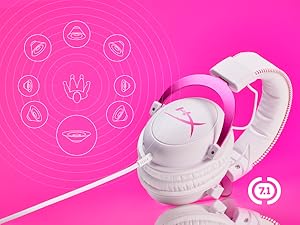
Image 3: The HyperX Cloud II headset with an overlay indicating its 7.1 virtual surround sound capability.
4. تشغيل سماعة الرأس
4.1 Audio Control Box Functions
The USB Sound Card Audio Control Box provides convenient access to audio settings:
- التحكم في مستوى صوت سماعة الرأس: Use the '+' and '-' buttons on the left side to adjust headphone volume.
- التحكم بحجم صوت الميكروفون: Use the '+' and '-' buttons on the right side to adjust microphone volume.
- 7.1 تبديل الصوت المحيطي: Press the '7.1' button in the center to activate or deactivate virtual 7.1 surround sound.
- ميكروفون كتم الصوت: Use the switch on the side of the control box to quickly mute or unmute the microphone.
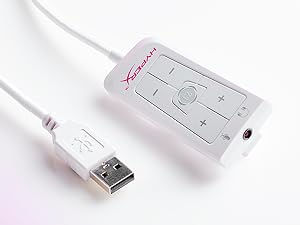
Image 4: The Advanced USB Sound Card Audio Control Box for the HyperX Cloud II headset, showing volume controls and 7.1 surround sound toggle.
4.2 ميكروفون قابل للفصل
The noise-cancelling microphone can be detached when not needed, allowing the headset to be used for music listening or other audio without the microphone boom in the way.

الصورة 5: لقطة مقربة view of the HyperX Cloud II's detachable, noise-cancelling microphone.
5. الصيانة
5.1 Ear Cushion Replacement
The HyperX Cloud II comes with both leatherette and velour ear cushions. These are replaceable, allowing you to maintain comfort and hygiene over time. To replace, gently pull off the existing ear cushions and press the new ones onto the ear cups until securely attached.
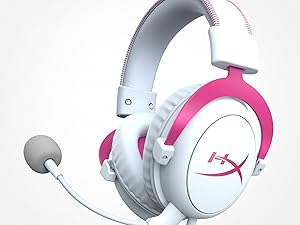
Image 6: The HyperX Cloud II headset highlighting its comfortable memory foam ear cushions.
Video 2: A video demonstrating the memory foam ear cushions of the HyperX Cloud II headset, emphasizing their comfort and flexibility.
5.2 العناية العامة
- قم بتخزين سماعة الرأس في مكان نظيف وجاف عند عدم استخدامها.
- تجنب تعريض سماعة الرأس لدرجات الحرارة أو الرطوبة الشديدة.
- نظف وسائد الأذن وعصابة الرأس بقطعة قماش ناعمة و...amp قماش. لا تستخدم كيماويات مركزة.
6. استكشاف الأخطاء وإصلاحها
6.1 No Audio or Microphone Function
- التحقق من الاتصالات: Ensure all cables (3.5mm jack, USB) are securely connected to the headset, control box, and device.
- Default Audio Device: Verify that 'HyperX 7.1 Audio' (or 'USB Audio') is set as the default playback and recording device in your operating system's sound settings (refer to Section 3.2 for detailed steps).
- مستويات الصوت: Check both the headset's volume controls on the audio control box and your device's system volume. Ensure the microphone is not muted.
- Microphone Detached: Confirm the detachable microphone is fully inserted into its port.
7. المواصفات
| ميزة | مواصفة |
|---|---|
| ماركة | هايبر اكس |
| رقم الموديل | KHX-HSCP-GM |
| لون | معدن البندقية |
| وضع الأذن | فوق الأذن |
| مقاومة | 60 أوم |
| استجابة التردد | 15-25kKhz |
| حجم برنامج تشغيل الصوت | 53 مليمتر |
| التحكم في الضوضاء | إلغاء الضجيج السلبي |
| تكنولوجيا الاتصال | Wired (3.5 mm Jack, USB) |
| الأجهزة المتوافقة | PC, Mac, PS4, PS5, Xbox Series X|S, Xbox One, Nintendo Switch, Mobile, VR |
| مادة | Aluminum, Faux Leather |
| وزن العنصر | 11.29 أونصة |
8. الضمان والدعم
For detailed warranty information and technical support, please refer to the official HyperX webيمكنك الاطلاع على الموقع الإلكتروني أو بطاقة الضمان المرفقة مع المنتج. كما يمكنك زيارة الموقع الإلكتروني. متجر هايبر إكس على أمازون للحصول على موارد إضافية.