
1. መግቢያ
This manual provides essential information for setting up, operating, maintaining, and troubleshooting your HP Chromebook 14a-ne1013dx. This device is designed for productivity and entertainment, featuring a reliable Intel Celeron N4500 processor, a 14-inch HD display, and the Chrome OS operating system.
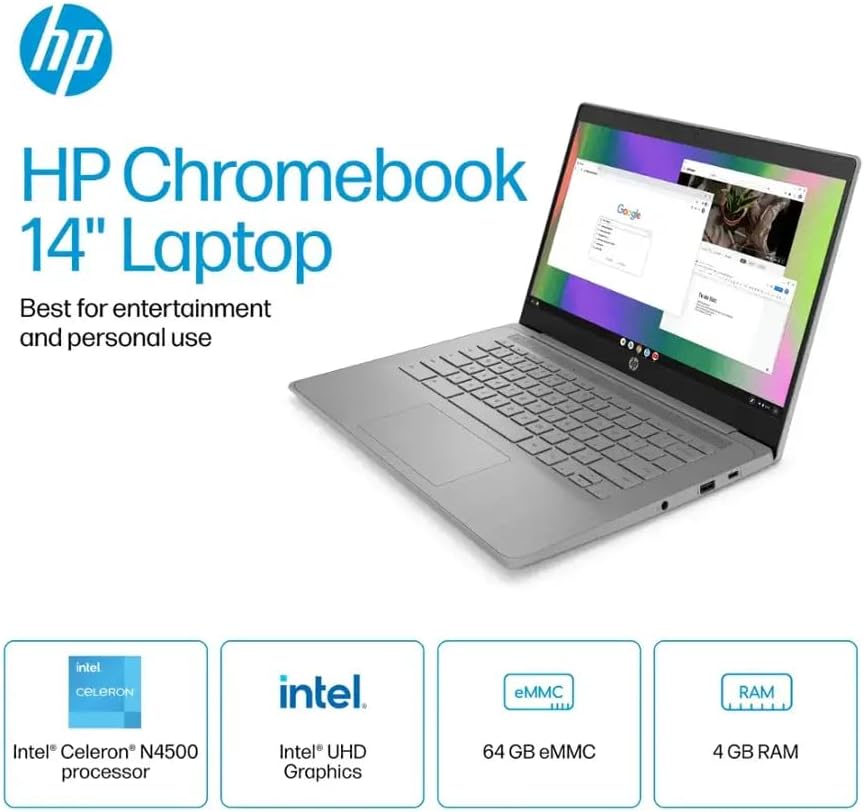
ምስል 1.1፡ HP Chromebook 14a-ne1013dx overview, highlighting its core components: Intel Celeron N4500 processor, Intel UHD Graphics, 64GB eMMC storage, and 4GB RAM.
2. ማዋቀር
2.1 ማሸግ እና የመጀመሪያ ምርመራ
ሁሉንም ክፍሎች ከማሸጊያው በጥንቃቄ ያስወግዱ። ከዚህ በታች የተዘረዘሩት ሁሉም እቃዎች መኖራቸውን እና ምንም ጉዳት እንደሌላቸው ያረጋግጡ።

ምስል 2.1፡ Items included in the box: HP Chromebook 14-inch Laptop, 45W USB Type-C power adapter, and setup instructions.
በሣጥኑ ውስጥ ያለው ነገር፡-
- HP Chromebook 14-inch Laptop (Model: 14a-ne1013dx)
- 45W USB Type-C Power Adapter
- የማዋቀር መመሪያዎች
- የተዋሃደ Webካም
2.2 ማብራት እና የመጀመሪያ ማዋቀር
- Connect the 45W USB Type-C power adapter to the Chromebook and a power outlet.
- Open the laptop lid. The Chromebook should power on automatically. If not, press the power button located on the keyboard.
- Follow the on-screen prompts to select your language, connect to a Wi-Fi network, and sign in with your Google account. A Google account is required to use Chrome OS.
3. Operating Your Chromebook
3.1 Chrome OS Basics
Your HP Chromebook runs on Chrome OS, a lightweight operating system designed for speed, simplicity, and security. It integrates seamlessly with Google services and provides access to a wide range of web-based applications and Android apps.

ምስል 3.1፡ Chrome OS security features, including built-in virus protection and automatic updates, ensuring a secure and efficient user experience.
3.2 ማሳያ እና መልቲሚዲያ
The 14-inch HD (1366 x 768) micro-edge, anti-glare display provides clear visuals for work and entertainment. Dual speakers enhance the audio experience.

ምስል 3.2፡ The 14-inch micro-edge display is ideal for streaming and multimedia consumption, allowing multiple applications to be viewed በአንድ ጊዜ.
3.3 ወደቦች እና ግንኙነት
Your Chromebook is equipped with various ports for connecting peripherals and external displays.

ምስል 3.3፡ Port layout of the HP Chromebook 14a-ne1013dx, including HDMI 1.4b, USB Type-A, USB Type-C, and a headphone/microphone combo jack.
- 1x SuperSpeed USB 3.1 Type-C: ለውሂብ ማስተላለፍ፣ ለኃይል አቅርቦት እና ለማሳያ ውፅዓት።
- 2x SuperSpeed USB 3.0 Type-A: እንደ አይጥ፣ ኪቦርድ እና ውጫዊ ማከማቻ ያሉ የዩኤስቢ መሳሪያዎችን ለማገናኘት
- 1x HDMI 1.4፡ ከውጭ ማሳያዎች ወይም ቲቪዎች ጋር ለመገናኘት።
- 1 x የጆሮ ማዳመጫ/ማይክሮፎን ጥምረት፡ ለድምጽ ግብአት እና ውፅዓት።
Wireless connectivity includes Wi-Fi (802.11a/b/g/n/ac) and Bluetooth for connecting to wireless networks and accessories.
4. ጥገና
4.1 Cleaning Your Chromebook
- ስክሪን፡ ለስላሳ፣ ከቆሸሸ ነፃ የሆነ ጨርቅ በትንሹ ተጠቀም መampened with water or a screen cleaner specifically designed for electronics. Do not spray cleaner directly onto the screen.
- የቁልፍ ሰሌዳ እና ቻሲስ; ለስላሳ እና ደረቅ ጨርቅ ይጠቀሙ. ለግትር ቆሻሻ, ትንሽ መamp ጨርቅ መጠቀም ይቻላል. ኃይለኛ ኬሚካሎችን ወይም ገላጭ ቁሳቁሶችን ያስወግዱ.
- ወደቦች፡ Ensure ports are free of dust and debris. Use compressed air if necessary, holding the can upright to prevent liquid propellant from spraying.
4.2 የባትሪ እንክብካቤ
- የባትሪውን ዕድሜ ከፍ ለማድረግ፣ ከፍተኛ የሙቀት መጠንን ያስወግዱ።
- አልፎ አልፎ ባትሪውን ከ20% በታች እንዲያወጡ እና ከዚያም ሙሉ በሙሉ እንዲሞሉ ይመከራል።
- The Chromebook supports HP Fast Charge for quick recharging.
5. መላ መፈለግ
5.1 የተለመዱ ጉዳዮች እና መፍትሄዎች
| ጉዳይ | ሊሆን የሚችል መፍትሄ |
|---|---|
| Chromebook does not power on. | Ensure the power adapter is securely connected to both the Chromebook and a working power outlet. Try a different outlet. If the battery is completely drained, it may take a few minutes to show signs of charging. |
| ከWi-Fi ጋር መገናኘት አልተቻለም። | Check if Wi-Fi is enabled in Chrome OS settings. Restart your router and modem. Verify the Wi-Fi password. Try connecting to a different network if available. |
| ውጫዊ ማሳያ አልተገኘም። | Ensure the HDMI cable is securely connected to both the Chromebook and the external display. Check the input source on your external display. Try a different HDMI cable or port if available. |
| ዘገምተኛ አፈጻጸም. | Close unnecessary browser tabs and applications. Clear browser cache and cookies. Ensure Chrome OS is up to date. Consider a powerwash (factory reset) as a last resort, backing up your data first. |
| Webcam not working. | Ensure no physical cover is obstructing the webcam. Check privacy settings in Chrome OS to ensure applications have permission to access the camera. Restart the Chromebook. |
6. ዝርዝሮች
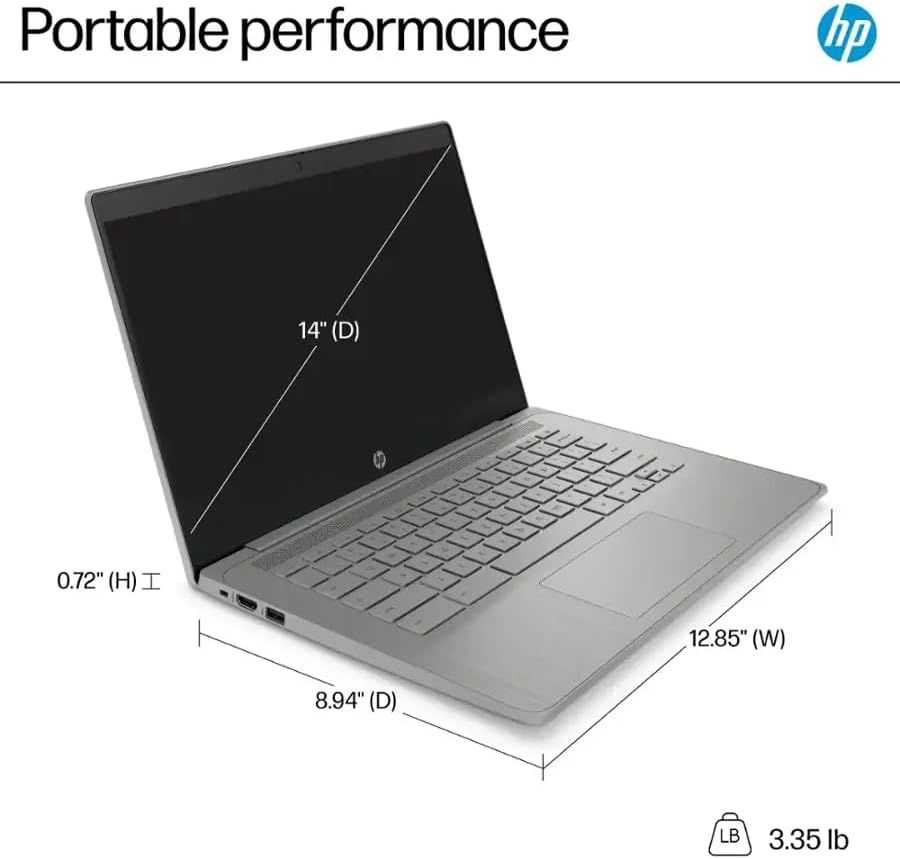
ምስል 6.1፡ Physical dimensions and weight of the HP Chromebook 14a-ne1013dx.
| ባህሪ | ዝርዝር |
|---|---|
| የሞዴል ስም | 14a-ne1013dx |
| ፕሮሰሰር | Intel Celeron N4500 (1.1 GHz, up to 2.8 GHz burst) |
| ግራፊክስ | ኢንቴል ዩኤችዲ ግራፊክስ (የተዋሃደ) |
| ማሳያ | 14-inch diagonal, HD (1366 x 768), micro-edge, anti-glare, 250 nits, 60Hz LCD |
| ራም | 4 ጊባ DDR4 SDRAM |
| ማከማቻ | 64GB eMMC |
| ስርዓተ ክወና | Chrome OS |
| የገመድ አልባ ግንኙነት | 802.11a/b/g/n/ac Wi-Fi፣ ብሉቱዝ |
| ወደቦች | 1x SuperSpeed USB 3.1 Type-C, 2x SuperSpeed USB 3.0 Type-A, 1x HDMI 1.4, 1x Headphone/microphone combo |
| አብሮ የተሰራ ሚዲያ | Webካም |
| ልኬቶች (L x W x H) | 12.85" x 8.94" x 0.72" (32.64 ሴሜ x 22.71 ሴሜ x 1.83 ሴሜ) |
| ክብደት | 3.35 ፓውንድ (1.52 ኪግ) |
| ቀለም | ግራጫ |
| ልዩ ባህሪያት | Chrome OS, HP Fast Charge |
7. የዋስትና መረጃ
Your HP Chromebook 14a-ne1013dx comes with a የአንድ አመት የተወሰነ ዋስትና. እባክዎ ለሙሉ ውሎች እና ሁኔታዎች ከምርትዎ ጋር የተካተተውን የዋስትና ሰነድ ይመልከቱ። ለዋስትና ጥያቄዎች የግዢ ማረጋገጫዎን ያስቀምጡ።
8. ድጋፍ
ለቴክኒካል ድጋፍ፣ ለአሽከርካሪ ማውረዶች፣ ወይም ለተጨማሪ የምርት መረጃ፣ እባክዎን ኦፊሴላዊውን የ HP ድጋፍ ይጎብኙ website. You can typically find support resources by searching for your model number (14a-ne1013dx) on the HP support portal.
የ HP ድጋፍ Webጣቢያ፡ www.hp.com/support


