
1. መግቢያ
This manual provides essential information for the safe and efficient use of your Acer SA270G0bi 27-inch IPS Full HD Monitor. Please read it thoroughly before operating the device and keep it for future reference.
2. የደህንነት መረጃ
- የኃይል ምንጭ፡- ከሞኒተሩ ጋር አብሮ የሚመጣውን የኃይል አስማሚ ብቻ ይጠቀሙ። የኃይል መውጫው በትክክል መሬት ላይ መሆኑን ያረጋግጡ።
- አቀማመጥ፡- Place the monitor on a stable, flat surface. Avoid direct sunlight, heat sources, and areas with high humidity or dust.
- የአየር ማናፈሻ; የአየር ማናፈሻ ክፍተቶችን አያግዱ. ለትክክለኛው የአየር ፍሰት በተቆጣጣሪው ዙሪያ በቂ ቦታ ይፍቀዱ።
- ማጽዳት፡ ከማጽዳትዎ በፊት የኃይል ገመዱን ያላቅቁ። ለስላሳ እና ደረቅ ጨርቅ ይጠቀሙ። ፈሳሽ ማጽጃዎችን ወይም ኤሮሶል የሚረጩ ነገሮችን ያስወግዱ።
- Liquid and Foreign Objects: Do not allow liquids or foreign objects to enter the monitor. If this occurs, immediately unplug the monitor and contact service personnel.
- የዓይን ምቾት; Take regular breaks to reduce eye strain. Adjust screen brightness and contrast to a comfortable level.
3. የጥቅል ይዘቶች
ሁሉም እቃዎች በጥቅልዎ ውስጥ መኖራቸውን ያረጋግጡ፡-
- Acer SA270G0bi Monitor
- Monitor Stand (Round Base)
- የኃይል ገመድ
- HDMI ገመድ
- Mini D-Sub (VGA) Cable
- የተጠቃሚ መመሪያ (ይህ ሰነድ)
4. ማዋቀር
4.1 የሞኒተሪ ስታንድ ማሰባሰብ
- መቆጣጠሪያውን በጥንቃቄ ያስወግዱ እና ከማሸጊያው ውስጥ ክፍሎችን ይቁሙ.
- የማቆሚያውን አንገት ወደ መቆጣጠሪያ ፓነል ያያይዙት. ደህንነቱ በተጠበቀ ሁኔታ ወደ ቦታው ጠቅ ማድረጉን ያረጋግጡ።
- Attach the round base to the stand neck. Tighten the screw at the bottom of the base to secure it.
4.2 ማገናኛ ገመዶች
አስፈላጊዎቹን ገመዶች ከሞኒተርዎ እና ከኮምፒዩተርዎ ጋር ያገናኙ፡
- የኃይል ገመድ የኃይል ገመዱን ከሞኒተሩ የኃይል ግብዓት ጋር እና ከዚያም ከተገነባ የኤሌክትሪክ መውጫ ጋር ያገናኙ።
- የቪዲዮ ገመድ፡- Connect either an HDMI cable or a Mini D-Sub (VGA) cable from your computer's video output to the corresponding input on the monitor.

ምስል: የኋላ view of the Acer SA270G0bi monitor showing dimensions and available ports. It features one HDMI 1.4 port and one Mini D-Sub 15-pin port. The monitor has a tilt angle of 15 degrees up and 5 degrees down. Please note that this model does not include built-in speakers or a headphone jack.
4.3 በማብራት ላይ
እሱን ለማብራት በተቆጣጣሪው ላይ የሚገኘውን የኃይል ቁልፍ ተጫን። ተቆጣጣሪው የገቢ ምንጭ ምንጩን በራስ-ሰር ያገኝ ይሆናል።
5. ሞኒተሩን መስራት
5.1 የማያ ገጽ ላይ ማሳያ (OSD) ምናሌ
The OSD menu allows you to adjust various monitor settings. Use the buttons on the monitor (usually located on the bottom right or rear) to navigate the menu.
የተለመዱ የ OSD ቅንብሮች
- ብሩህነት/ንፅፅር፡ የማሳያውን አጠቃላይ ብርሃን እና ንፅፅር ያስተካክሉ።
- የቀለም ቅንጅቶች የቀለም ሙቀት፣ ጋማ እና የግለሰብ RGB ደረጃዎችን ያስተካክሉ።
- የግቤት ምንጭ፡- Manually select between HDMI and Mini D-Sub inputs.
- የሥዕል ሁኔታ፡- Select predefined display modes (e.g., Standard, ECO, Game, Movie).
5.2 ቁልፍ ባህሪያት
- የአይፒኤስ ፓነል Enjoy vibrant colors and wide viewing angles (178° horizontal/vertical) with the Full HD (1920x1080) IPS panel. The non-glare surface reduces reflections.
- 120Hz Refresh Rate & 1ms VRB: Experience smoother visuals with a 120Hz refresh rate and a rapid 1ms Visual Response Boost (VRB) to reduce motion blur and ghosting.
- AdaptiveSync፡ ስክሪን መቀደድ እና መንተባተብ ለማጥፋት የተቆጣጣሪውን የማደስ ፍጥነት ከግራፊክ ካርድዎ የፍሬም ፍጥነት ጋር ያመሳስለዋል።
- ዜሮ ፍሬም ንድፍ፡ The ultra-thin bezel design maximizes screen space and is ideal for multi-monitor setups.
- Acer VisionCare™፡ Technologies like Flicker-less, Blue Light Shield, and Low Dimming are integrated to help reduce eye fatigue during prolonged use.

Image: The Acer SA270G0bi monitor highlighting its IPS display technology, Full HD (1920x1080) resolution, wide 178-degree viewing angles, and non-glare panel for comfortable viewing
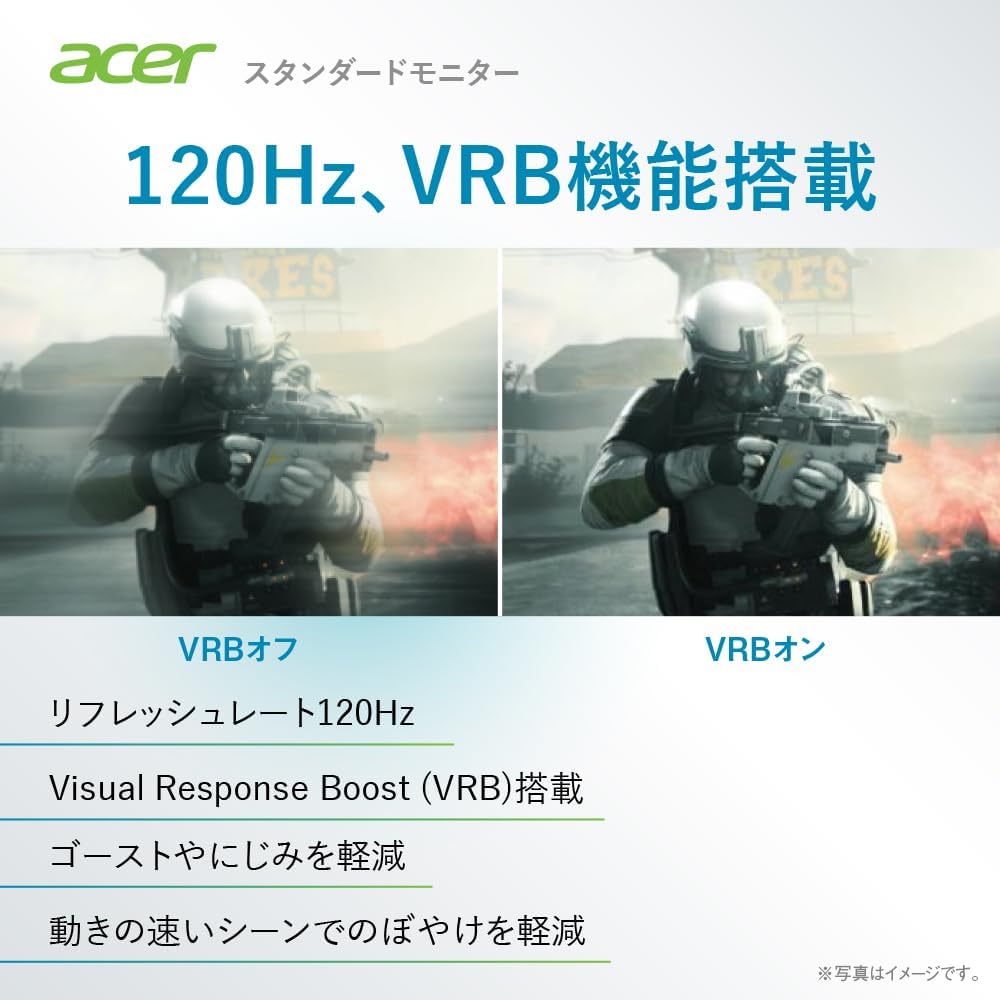
Image: A comparison demonstrating the effect of Visual Response Boost (VRB) on the Acer SA270G0bi monitor. The left side shows VRB off with more motion blur, while the right side shows VRB on, resulting in clearer images during fast-moving scenes.

ምስል፡ ጎን እና ፊት view of the Acer SA270G0bi monitor, illustrating its ultra-thin profile and Zero Frame design, which minimizes the bezel for an expansive viewልምድ.

Image: The Acer SA270G0bi monitor displaying a city skyline, with an overlay indicating Acer VisionCare™ technology. This feature includes Flicker-less, Blue Light Shield, and Acer Low Dimming technologies designed to reduce eye strain.
5.3 የኤሰር ማሳያ ዊጅት
The Acer Display Widget software allows for intuitive control of monitor settings directly from your PC. Download and install the application to access various display modes and split-screen functions.

Image: Screenshot of the Acer Display Widget interface, showing options for Visual Modes (sRGB, Reading, Darkroom, User, Standard, ECO, Graphic, Movie), Visual Sync, and Split Screen settings, allowing PC-based control of the monitor.
6. ጥገና
6.1 መቆጣጠሪያውን ማጽዳት
- ከማጽዳትዎ በፊት ሁልጊዜ መቆጣጠሪያውን ከኃይል ማሰራጫው ያላቅቁት።
- ለስላሳ፣ ከቆሸሸ ነፃ የሆነ ጨርቅ በትንሹ ተጠቀምampened with water to clean the screen. Avoid using alcohol-based cleaners, solvents, or abrasive materials.
- ለተቆጣጣሪው ሐasinሰ, ለስላሳ እና ደረቅ ጨርቅ ይጠቀሙ.
7. መላ መፈለግ
| ችግር | ሊሆን የሚችል መፍትሄ |
|---|---|
| በማያ ገጹ ላይ ምንም ምስል የለም | Ensure the power cable is securely connected. Check if the video cable (HDMI/D-Sub) is properly connected to both the monitor and the computer. Press the monitor's power button. Select the correct input source via the OSD menu. |
| ምስሉ የደበዘዘ ወይም የተዛባ ነው። | Check the video cable connection. Ensure the display resolution and refresh rate are set correctly in your computer's display settings. For D-Sub connections, use the OSD's auto-adjust function. |
| ቀለሞች የተሳሳቱ ናቸው | Adjust color settings (brightness, contrast, color temperature) in the OSD menu. Reset the monitor to factory default settings. |
| ብልጭ ድርግም የሚሉ ነገሮችን ይቆጣጠሩ | Ensure the refresh rate is set correctly. Enable Acer VisionCare's Flicker-less feature if available. Check for external interference. |
8. ዝርዝሮች
| ባህሪ | ዝርዝር |
|---|---|
| የሞዴል ስም | SA270G0bi |
| የፓነል መጠን | 27 ኢንች |
| የፓነል ዓይነት | IPS, Non-glare |
| ጥራት | ሙሉ ኤችዲ (1920 x 1080 ፒክስል) |
| ምጥጥነ ገጽታ | 16፡9 |
| የማደስ ደረጃ | 120Hz (HDMI), 56-75Hz (Mini D-Sub) |
| የምላሽ ጊዜ | 1ሚሴ (VRB) |
| Viewማእዘን | 178° (H) / 178° (V) |
| የማሳያ ቀለሞች | በግምት. 16.77 ሚሊዮን ቀለሞች |
| የግብዓት ተርሚናሎች | 1 x HDMI 1.4, 1 x Mini D-Sub 15-pin |
| ተናጋሪዎች | አልታጠቁም። |
| የጆሮ ማዳመጫ ጃክ | አልታጠቁም። |
| መጠኖች (ወ x D x H) | 61.2 x 21.2 x 44.7 ሴ.ሜ |
| ክብደት | 3.5 ኪ.ግ |
| ዘንበል አንግል | Up 15°, Down 5° |
9. ዋስትና እና ድጋፍ
For product support, warranty information, and frequently asked questions, please visit the official Acer support page:
Support business hours: 10:00 - 19:00, 365 days a year (excluding company-designated holidays).