
1. Introduction and Overview
This manual provides essential information for setting up, operating, maintaining, and troubleshooting your HP 17-inch Business Laptop. This device is designed for productivity and features a 13th Generation Intel Core i5 processor, a 17.3-inch HD+ anti-glare display, a backlit keyboard with a numeric keypad, and a fingerprint reader for enhanced security. It comes pre-installed with Windows 11 Home.
Key features include:
- Processor: 13th Gen Intel Core i5-1334U 10-core processor for efficient multitasking.
- Operating System: Windows 11 Home for a modern and secure computing experience.
- Display: 17.3-inch HD+ (1366x768) anti-glare screen with micro-edge design.
- Memory & Storage: Up to 64GB DDR4 RAM and up to 2TB NVMe M.2 SSD for fast performance and ample storage.
- Connectivity: USB 3.2 Gen 1 Type-C, USB 3.2 Gen 1 Type-A, HDMI 1.4, and a headphone/microphone combo jack.
- Security: Integrated fingerprint reader.
- Convenience: Full-size backlit keyboard with numeric keypad and HP Fast Charge battery technology.
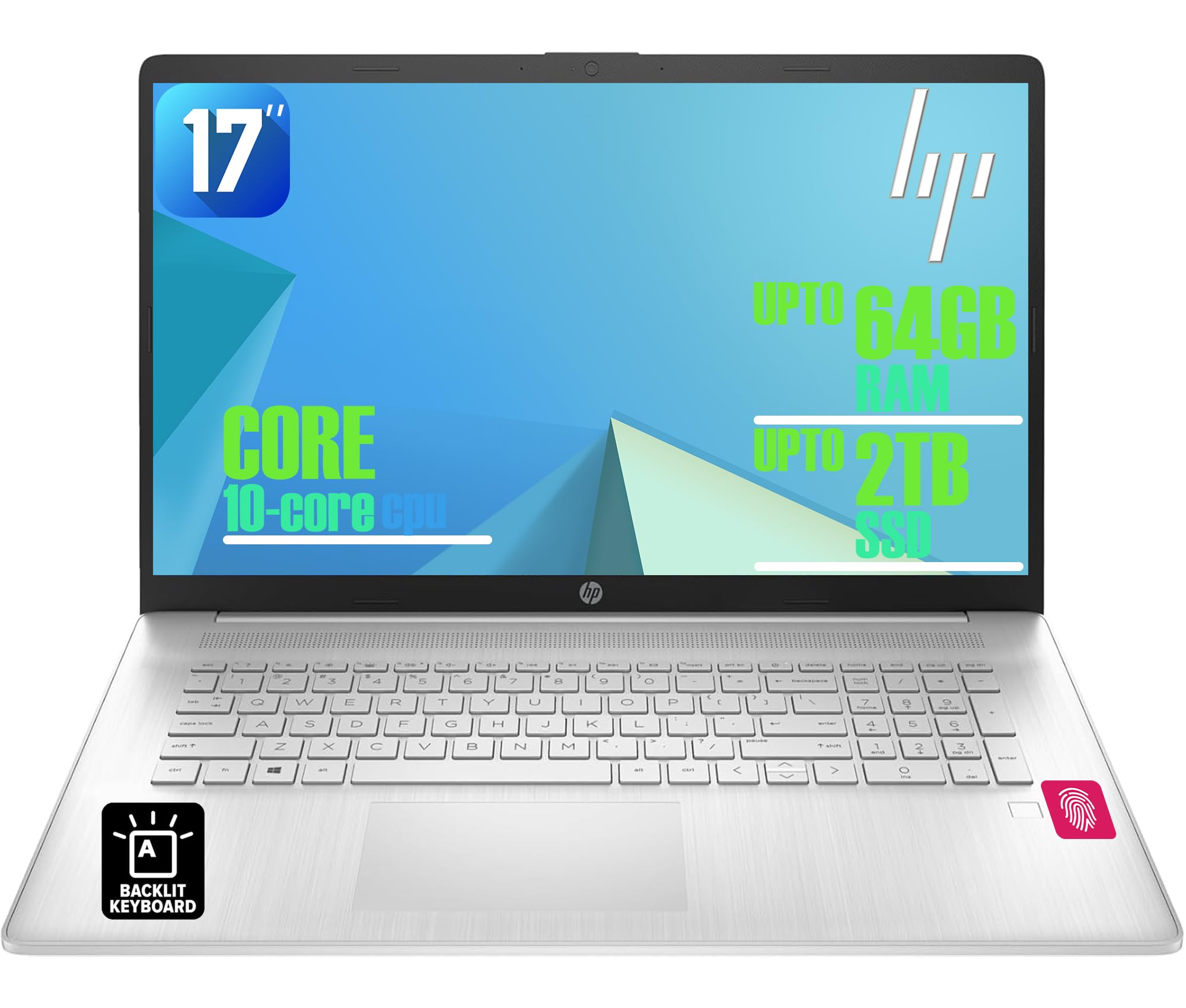
Figure 1: HP 17-inch Business Laptop (Silver)
2. Setup
2.1 Unboxing and Initial Inspection
Carefully remove the laptop and all accessories from the packaging. Check for any visible damage. The package should include the HP 17-inch laptop, a power adapter, and documentation.
2.2 Connecting to Power
- Connect the power adapter to the AC smart pin port on the side of the laptop.
- Plug the power adapter into a wall outlet.
- Allow the laptop to charge for at least 30 minutes before initial use, or until the battery indicator shows sufficient charge.
2.3 Initial Boot-up and Windows Setup
- Open the laptop lid and press the power button, typically located on the top right of the keyboard deck.
- Follow the on-screen instructions to complete the Windows 11 Home setup process. This includes selecting your region, language, connecting to a Wi-Fi network, and creating a user account.
2.4 Connecting Peripherals
Your HP laptop offers various ports for connecting external devices:
- USB Ports: Use the USB 3.2 Gen 1 Type-C port or the two USB 3.2 Gen 1 Type-A ports for connecting external drives, mice, keyboards, or other USB accessories.
- HDMI: Connect an external monitor or projector using the HDMI 1.4 port.
- Audio: Plug headphones or an external microphone into the 3.5mm headphone/microphone combo jack.

Figure 2: Side view illustrating available ports (USB Type-C, USB Type-A, HDMI, Headphone/microphone combo, AC smart pin)
3. Operating Your Laptop
3.1 Power Management
- Power On: Press the power button.
- Sleep Mode: Close the lid or select 'Sleep' from the Start menu.
- Shut Down: Select 'Shut down' from the Start menu.
- Restart: Select 'Restart' from the Start menu.
3.2 Keyboard and Touchpad
The laptop features a full-size backlit keyboard with a numeric keypad. Use the function keys (Fn) in combination with other keys for specific actions like adjusting screen brightness, volume, or toggling the keyboard backlight.
The integrated touchpad supports multi-touch gestures for navigation. Refer to Windows settings for customizing touchpad behavior.

Figure 3: Backlit keyboard with numeric keypad and integrated fingerprint reader
3.3 Fingerprint Reader
The integrated fingerprint reader allows for secure and quick login using Windows Hello. To set up, navigate to Settings > Accounts > Sign-in options and follow the instructions to register your fingerprint.
3.4 Wireless Connectivity
- Wi-Fi: The laptop supports Realtek Wi-Fi 6 (2x2). To connect to a wireless network, click the Wi-Fi icon in the taskbar, select your desired network, and enter the password if required.
- Bluetooth: Bluetooth 5.3 is integrated for connecting wireless accessories like headphones or mice. Enable Bluetooth from Settings > Bluetooth & devices and pair your devices.
3.5 Display and Webcam
The 17.3-inch HD+ anti-glare display provides a clear viewing experience. The HP True Vision 720p HD webcam with dual microphones is suitable for video calls and online meetings.
3.6 HP QuickDrop
HP QuickDrop allows for wireless file transfer between your laptop and mobile devices without needing cables. Install the HP QuickDrop app on both your laptop and mobile device and follow the in-app instructions to pair and transfer files.

Figure 4: HP QuickDrop for wireless file transfer between laptop and phone
4. Maintenance
4.1 Cleaning Your Laptop
- Screen: Use a soft, lint-free cloth lightly dampened with water or a screen cleaner. Do not spray liquid directly onto the screen.
- Keyboard and Chassis: Use a soft, dry cloth. For stubborn dirt, a slightly damp cloth can be used, ensuring no liquid enters the device. Compressed air can help remove debris from between keys.
4.2 Battery Care
The laptop is equipped with a 41Wh Lithium-Ion Battery. To maximize battery lifespan:
- Avoid extreme temperatures.
- Do not fully discharge the battery regularly.
- Utilize HP Fast Charge, which can charge the battery from 0 to 50% in approximately 45 minutes.

Figure 5: Battery life indicator (Up to 8 hours wireless streaming)
4.3 Software Updates
Regularly check for and install Windows updates to ensure your system has the latest security patches and performance improvements. Go to Settings > Windows Update to manage updates.
5. Troubleshooting
This section addresses common issues you might encounter with your HP laptop.
5.1 Power Issues
- Laptop not turning on: Ensure the power adapter is securely connected to both the laptop and a working power outlet. Check if the power adapter's indicator light is on. Try a different outlet.
- Battery not charging: Verify the power adapter connection. Check battery health in Windows settings.
5.2 Display Problems
- No image on screen: Ensure the laptop is powered on. If an external monitor is connected, try disconnecting it or pressing Fn + F4 (or the corresponding display toggle key) to switch display output.
- Dim screen: Adjust brightness using the function keys (e.g., Fn + F2/F3) or through Windows settings.
5.3 Connectivity Issues
- Wi-Fi not connecting: Ensure Wi-Fi is enabled in Windows settings. Restart your router and the laptop. Check for updated network drivers.
- Bluetooth device not pairing: Ensure Bluetooth is enabled on both the laptop and the device. Make sure the device is in pairing mode.
5.4 General Performance Issues
- Slow performance: Close unnecessary applications. Check for malware. Ensure sufficient free space on the SSD.
- System freezes: Press Ctrl + Alt + Del to open Task Manager and end unresponsive tasks. If unresponsive, perform a hard shutdown by holding the power button for several seconds.
6. Specifications
The following table outlines the key technical specifications for the HP 17-inch Business Laptop (Model: HP laptop).
| Feature | Specification |
|---|---|
| Brand | HP |
| Model Name | HP laptop |
| Processor | 13th Gen Intel Core i5-1334U (10 Cores, up to 4.6 GHz) |
| Operating System | Windows 11 Home |
| Display | 17.3-inch HD+ (1366x768) Anti-glare, 250 nits |
| Graphics | Intel Iris Xe Graphics (Integrated) |
| RAM Memory | Up to 64GB DDR4 SDRAM 3200 MHz |
| Storage | Up to 2TB NVMe M.2 SSD |
| Wireless Connectivity | Realtek Wi-Fi 6 (2x2), Bluetooth 5.3 |
| Ports | 1x USB 3.2 Gen 1 Type-C, 2x USB 3.2 Gen 1 Type-A, 1x HDMI 1.4, 1x Headphone/microphone combo jack |
| Keyboard | Full-size Backlit Keyboard with Numpad |
| Security | Fingerprint Reader |
| Camera | 720p HD Camera with Privacy Shutter |
| Battery | 41Wh Lithium-Ion (HP Fast Charge) |
| Dimensions (L x W x H) | 15.78" x 10.15" x 0.81" (approx.) |
| Weight | 4.6 lbs (approx.) |
| Color | Natural Silver |

Figure 6: Laptop dimensions (15.78" W x 10.15" D x 0.78" H) and weight (4.60 lbs)
7. Warranty and Support
7.1 Manufacturer Warranty
Your HP laptop is covered by a manufacturer's warranty. Please refer to the warranty documentation included with your product for specific terms, conditions, and duration. Keep your proof of purchase for warranty claims.
7.2 Technical Support
For technical assistance, driver downloads, or further support, please visit the official HP support website. You will typically need your product's serial number or model number to access specific support resources.
Online Support: https://support.hp.com