
1. Inleiding
The MageGee Moon104 is a versatile 104-key wireless mechanical keyboard designed for office and general use. It features triple-mode connectivity (2.4GHz wireless, Bluetooth, and USB-C wired), RGB backlighting, and an ergonomic design for comfortable typing. This manual provides detailed instructions for setup, operation, maintenance, and troubleshooting to ensure optimal performance of your keyboard.

Image: The MageGee Moon104 keyboard in a grey and black color scheme, featuring RGB backlighting, positioned on a desk with a laptop and other office accessories.
2. Pakketinhoud
Kontroleer asseblief die pakket vir die volgende items:
- MageGee Moon104 Wireless Mechanical Keyboard
- USB-C-kabel
- 2.4GHz USB Receiver (Dongle)
- Gebruikershandleiding (hierdie dokument)
3. Produk verbyview
The Moon104 keyboard features a full-size 104-key layout with low-profile mechanical brown switches, designed for a responsive and quiet typing experience. It includes dedicated function keys, a numeric keypad, and adjustable tilt feet for ergonomic comfort.

Image: A full-size view of the MageGee Moon104 keyboard, highlighting its 104-key layout including the numeric pad and function row.
Sleutel kenmerke:
- Drievoudige-modus konnektiwiteit: Switch between USB-C wired, 2.4GHz wireless, and Bluetooth 3.0/5.0.
- RGB-agterbeligting: Customizable seven-color breathing backlight system.
- Ergonomiese ontwerp: Lae profile keys, adjustable tilt feet, and a comfortable layout to reduce wrist strain.
- Duursame konstruksie: High-quality materials and brown mechanical switches for extended lifespan.
- N-sleutel oorrol: Ensures all key presses are registered accurately, even during rapid typing.

Image: A visual representation of the N-key rollover feature, showing multiple keys being pressed simultaneously and registered.
4. Opstelling en konnektiwiteit
The Moon104 keyboard supports three connection modes: USB-C wired, 2.4GHz wireless, and Bluetooth. You can switch between these modes using the function keys.
4.1. USB-C Bedrade Verbinding
- Locate the USB-C port on the keyboard, typically on the top edge.
- Connect one end of the provided USB-C cable to the keyboard.
- Koppel die ander kant van die USB-C-kabel aan 'n beskikbare USB-poort op jou rekenaar.
- Die sleutelbord sal outomaties herken word en gereed wees vir gebruik.

Beeld: 'n Nabyskoot view of the keyboard's side, illustrating the detachable USB-C cable connected to the port.
4.2. 2.4GHz Draadlose Verbinding
- Vind die 2.4GHz USB-ontvanger (dongle) in die pakket.
- Koppel die 2.4GHz USB-ontvanger in 'n beskikbare USB-poort op jou rekenaar.
- Op die sleutelbord, druk Fn + Q to switch to 2.4GHz wireless mode. The indicator light will confirm the mode.
- The keyboard should automatically connect. If not, ensure the receiver is properly inserted and the keyboard is in 2.4GHz mode.
4.3. Bluetooth-verbinding
Die sleutelbord ondersteun twee Bluetooth-kanale (BT1 en BT2).
- Op die sleutelbord, druk Fn + W. for Bluetooth channel 1 or Fn + E for Bluetooth channel 2. The corresponding indicator light will flash rapidly, indicating pairing mode.
- On your device (computer, laptop, tablet, etc.), enable Bluetooth and search for new devices.
- Select "MageGee Moon104" (or similar name) from the list of available devices to pair.
- Sodra dit gekoppel is, sal die aanwyserliggie op die sleutelbord ophou flikker en aanhoudend bly brand.
- To connect another device, repeat steps 1-3 using the other Bluetooth channel (Fn + W. or Fn + E).
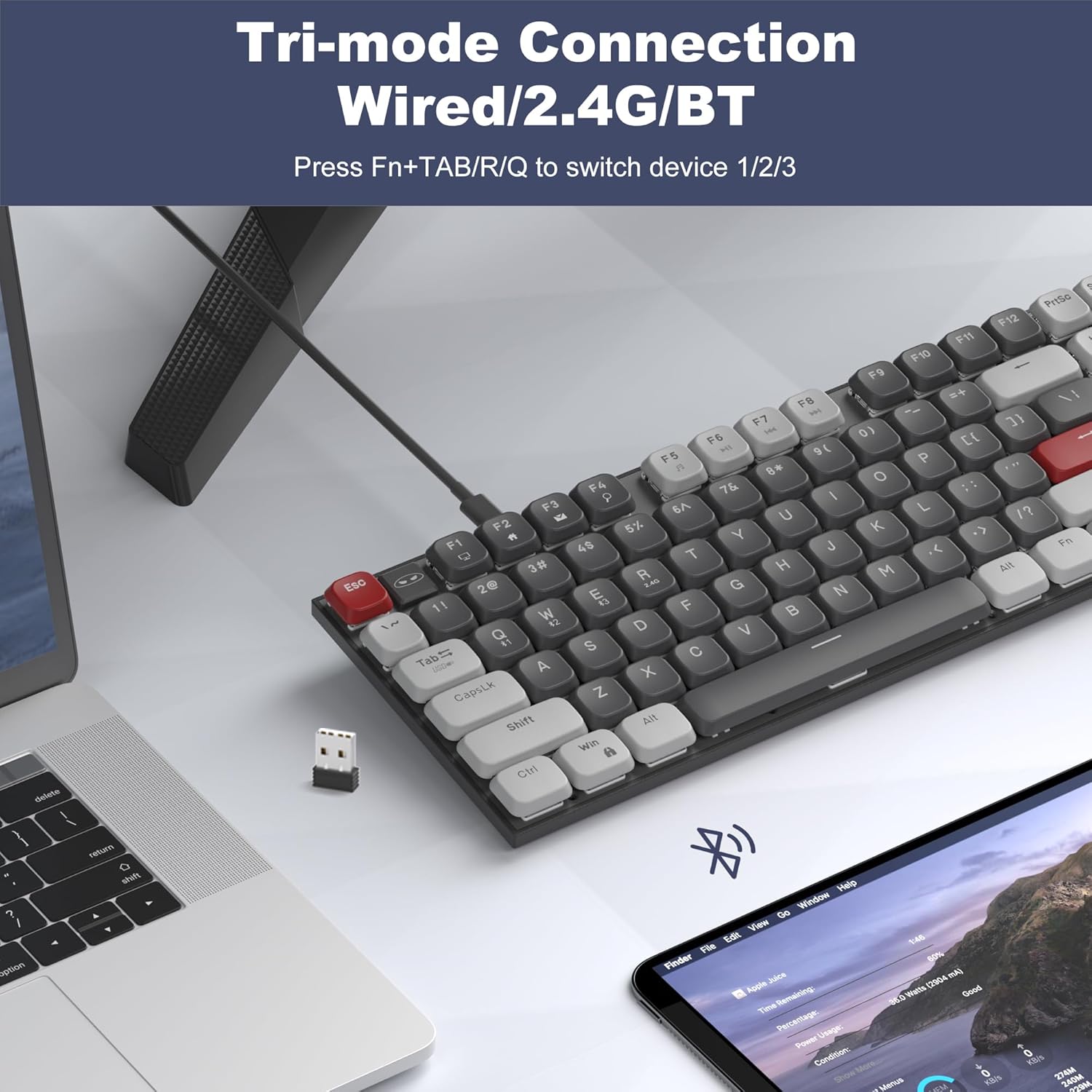
Image: The MageGee Moon104 keyboard shown with a 2.4GHz USB receiver plugged into a laptop, illustrating its wireless connectivity options.
5. Bedryfsmodusse en -funksies
5.1. Wissel tussen modusse
To switch between the connected devices or modes:
- Druk Fn + TAB for USB-C Wired Mode.
- Druk Fn + Q for 2.4GHz Wireless Mode.
- Druk Fn + W. for Bluetooth Channel 1.
- Druk Fn + E for Bluetooth Channel 2.
5.2. RGB-agterligbeheer
The Moon104 keyboard features a seven-color breathing RGB backlight system. Use the following key combinations to control the lighting:
- Druk Fn + Ins om deur verskillende agterligmodusse te blaai
- Druk Fn + Del to change backlight colors within certain modes.
- Druk Fn + ↑ (Up Arrow) to increase backlight brightness.
- Druk Fn + ↓ (Down Arrow) to decrease backlight brightness.
- Druk Fn + ← (Left Arrow) to decrease backlight speed.
- Druk Fn + → (Right Arrow) to increase backlight speed.
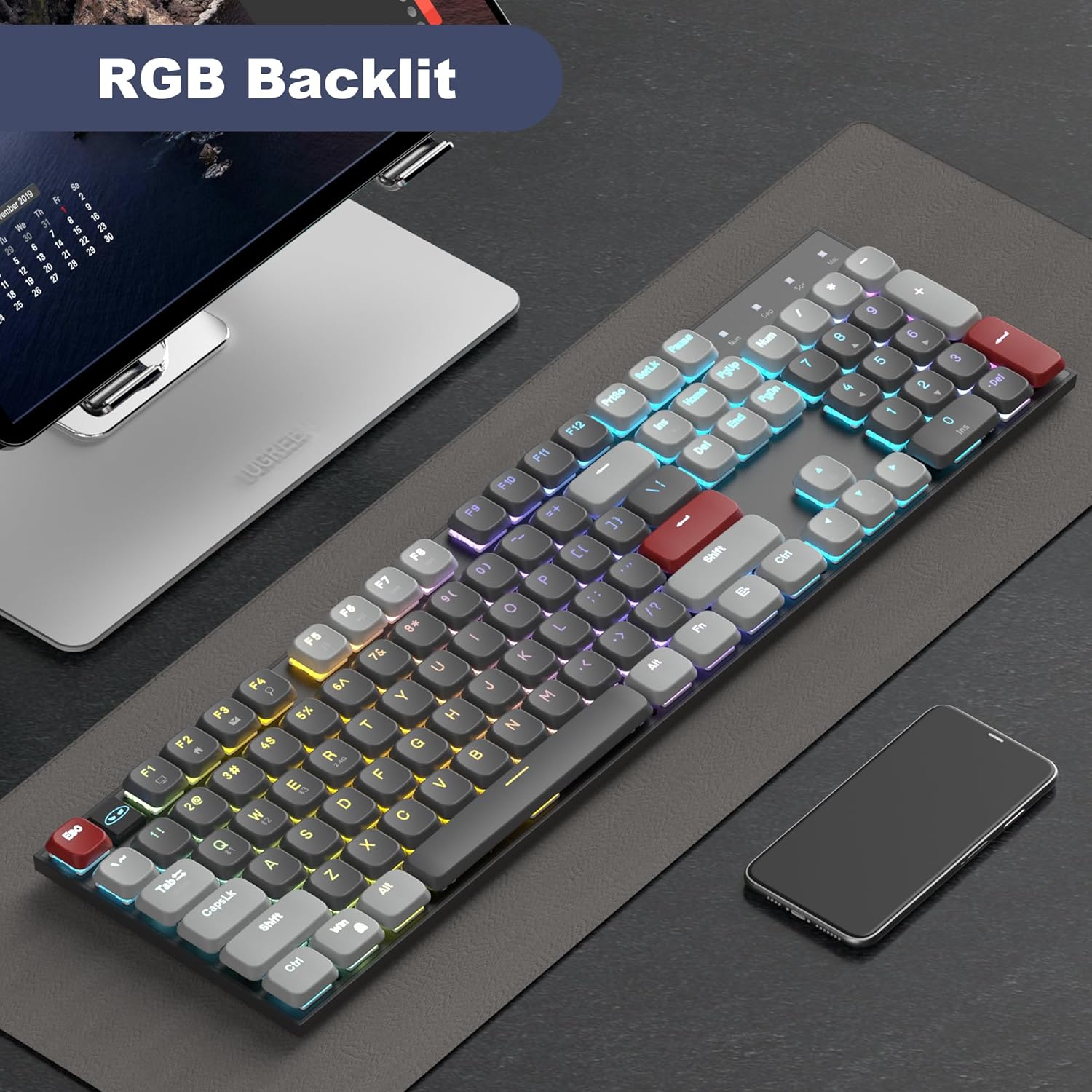
Image: The MageGee Moon104 keyboard displaying its RGB backlighting in a colorful pattern, enhancing visibility in low-light conditions.
5.3. Multimedia- en Funksietoetse
The keyboard includes dedicated function keys (F1-F12) that can be combined with the Fn key for multimedia controls and other shortcuts. Refer to the keycap legends for specific functions.
- Fn + F1-F12: Various multimedia and system functions (e.g., volume control, media playback, web blaaier).
- Caps Lock-aanwyser: An indicator light shows when Caps Lock is active.
- Battery aanwyser: An indicator light provides information on battery status.
6. Verenigbaarheid
The MageGee Moon104 keyboard is compatible with a wide range of operating systems and devices:
- Bedryfstelsels: Windows 10/8/7, macOS.
- Toestelle: Computers, desktops, PCs, laptops, Surface devices, Smart TVs, gaming consoles.
A dedicated switch on the side of the keyboard allows you to toggle between Windows and Mac compatibility modes for optimal key mapping.
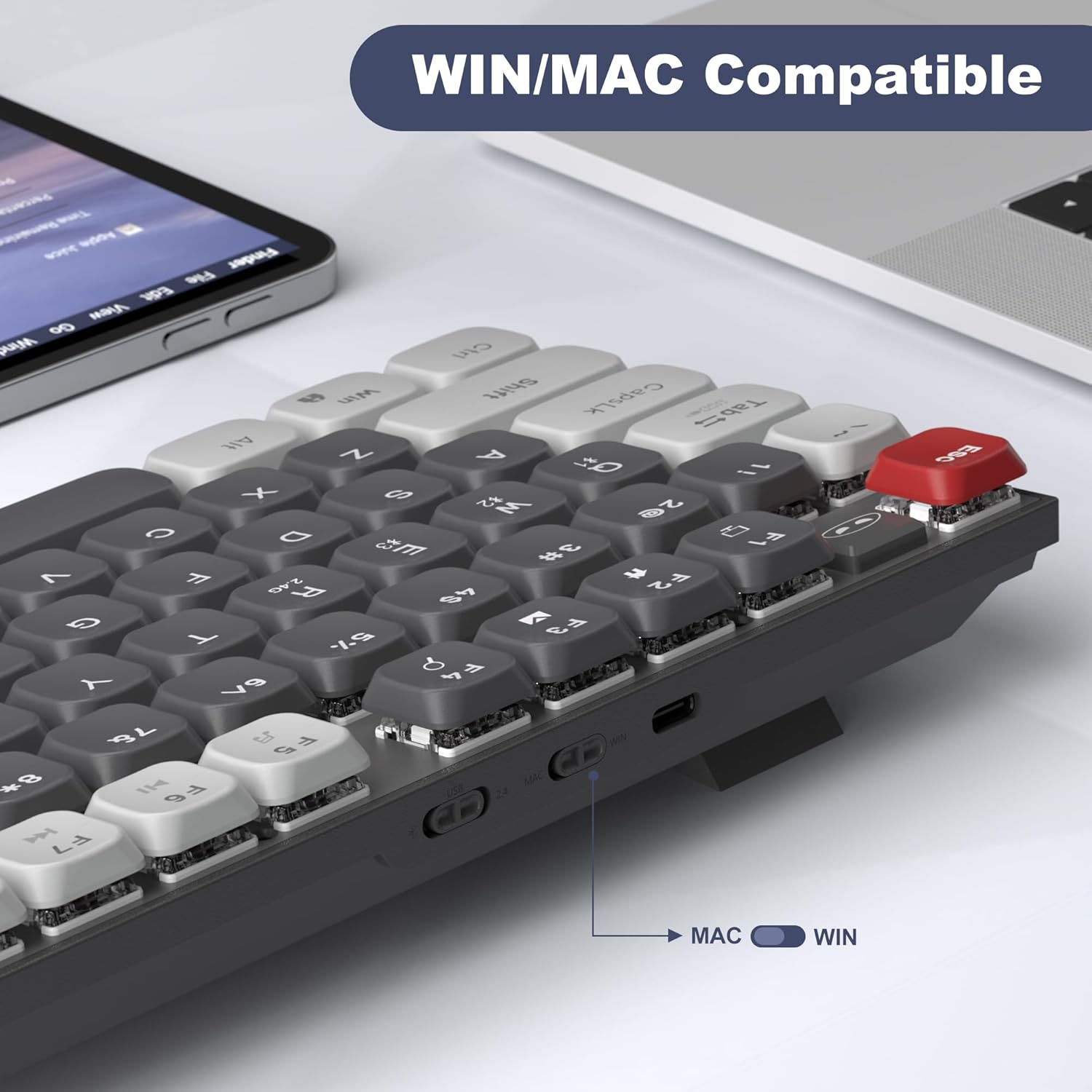
Beeld: 'n Gedetailleerde view of the keyboard's side, showing the physical switch to select between WIN (Windows) and MAC operating system modes.
7. Onderhoud
Behoorlike onderhoud verseker die lang lewensduur en werkverrigting van jou sleutelbord:
- Skoonmaak: Use a soft, dry cloth to wipe the keyboard surface. For deeper cleaning, use compressed air to remove dust and debris from between the keycaps. Avoid using harsh chemicals or abrasive materials.
- Berging: Bêre die sleutelbord op 'n koel, droë plek weg van direkte sonlig en uiterste temperature.
- Batterysorg: For wireless modes, ensure the keyboard is charged regularly using the provided USB-C cable. Avoid completely draining the battery frequently to prolong its lifespan.
- Vloeistofblootstelling: Avoid spilling liquids on the keyboard. If accidental spills occur, immediately disconnect the keyboard, power it off, and allow it to dry completely before attempting to use it again.
8. Probleemoplossing
If you encounter issues with your MageGee Moon104 keyboard, please refer to the following troubleshooting steps:
8.1. Keyboard Not Responding (Wired Mode)
- Maak seker dat die USB-C-kabel stewig aan beide die sleutelbord en jou rekenaar gekoppel is.
- Probeer om die sleutelbord aan 'n ander USB-poort op jou rekenaar te koppel.
- Test the cable with another device or use a different USB-C cable if available.
- Ensure the keyboard is set to wired mode (Fn + TAB).
8.2. Keyboard Not Responding (2.4GHz Wireless Mode)
- Ensure the 2.4GHz USB receiver is securely plugged into a USB port on your computer.
- Ensure the keyboard is set to 2.4GHz mode (Fn + Q).
- Kontroleer die sleutelbord se batteryvlak en laai indien nodig.
- Try plugging the receiver into a different USB port, preferably directly into the computer rather than a USB hub.
- Move the keyboard closer to the receiver to rule out interference.
8.3. Keyboard Not Responding (Bluetooth Mode)
- Maak seker dat Bluetooth op jou toestel geaktiveer is.
- Ensure the keyboard is set to the correct Bluetooth channel (Fn + W. or Fn + E) and is in pairing mode (flashing indicator).
- If previously paired, try unpairing the keyboard from your device's Bluetooth settings and then re-pairing it.
- Kontroleer die sleutelbord se batteryvlak en laai indien nodig.
- Restart your device's Bluetooth function or restart the device itself.
8.4. Function Keys (e.g., Volume Control) Not Working
- Maak seker dat jy druk op Fn key in combination with the desired function key (e.g., Fn + F1 for media functions).
- Verify the keyboard's operating system switch (WIN/MAC) is set correctly for your system.
- Check your computer's operating system settings for any conflicting hotkey assignments or driver issues.
8.5. Backlight Not Working or Incorrect
- Ensure the backlight is not turned off or set to minimum brightness (Fn + ↑).
- Blaai deur agtergrondmodusse met behulp van Fn + Ins.
- Check battery level; low battery might affect backlight performance.
8.6. Keyboard Enters Sleep Mode Too Quickly
- The keyboard is designed to enter sleep mode to conserve battery. Press any key to wake it up.
- There is no user-adjustable setting to change the sleep timer.
9. Spesifikasies
| Kenmerk | Detail |
|---|---|
| Model | Moon104 |
| Handelsmerk | MageGee |
| Konnektiwiteit | USB-C Bedraad, 2.4GHz Draadloos, Bluetooth 3.0/5.0 |
| Aantal sleutels | 104 |
| Sleutelborduitleg | QWERTY |
| Skakel Tipe | Brown Mechanical Switches (Tactile) |
| Agterlig | RGB (7-color breathing backlight system) |
| Versoenbare bedryfstelsels | Windows, macOS |
| Materiaal | Plastiek |
| Kragbron | USB krag |
10. Waarborg en Ondersteuning
The MageGee Moon104 keyboard comes with a 1 jaar waarborg vanaf die aankoopdatum.
If you encounter any issues or have questions regarding your product, please contact MageGee customer support. We aim to reply to all inquiries within 24 hours and provide a satisfactory solution.
Kontak ondersteuning: Please reach out to us via Amazon email for assistance.
Note: This warranty covers manufacturing defects. Damage caused by misuse, accidents, unauthorized modifications, or normal wear and tear is not covered.