1. Product Overview
The VGN Dragonfly3 series is a high-performance, lightweight, tri-mode competitive gaming mouse designed for precision and comfort. It features an ergonomic design, advanced sensors, and multiple connectivity options.

2. Package Contents
The contents of your VGN Dragonfly3 package may vary slightly depending on the specific model (3se, 3pro, 3promax, Master Edition, Master Edition+).
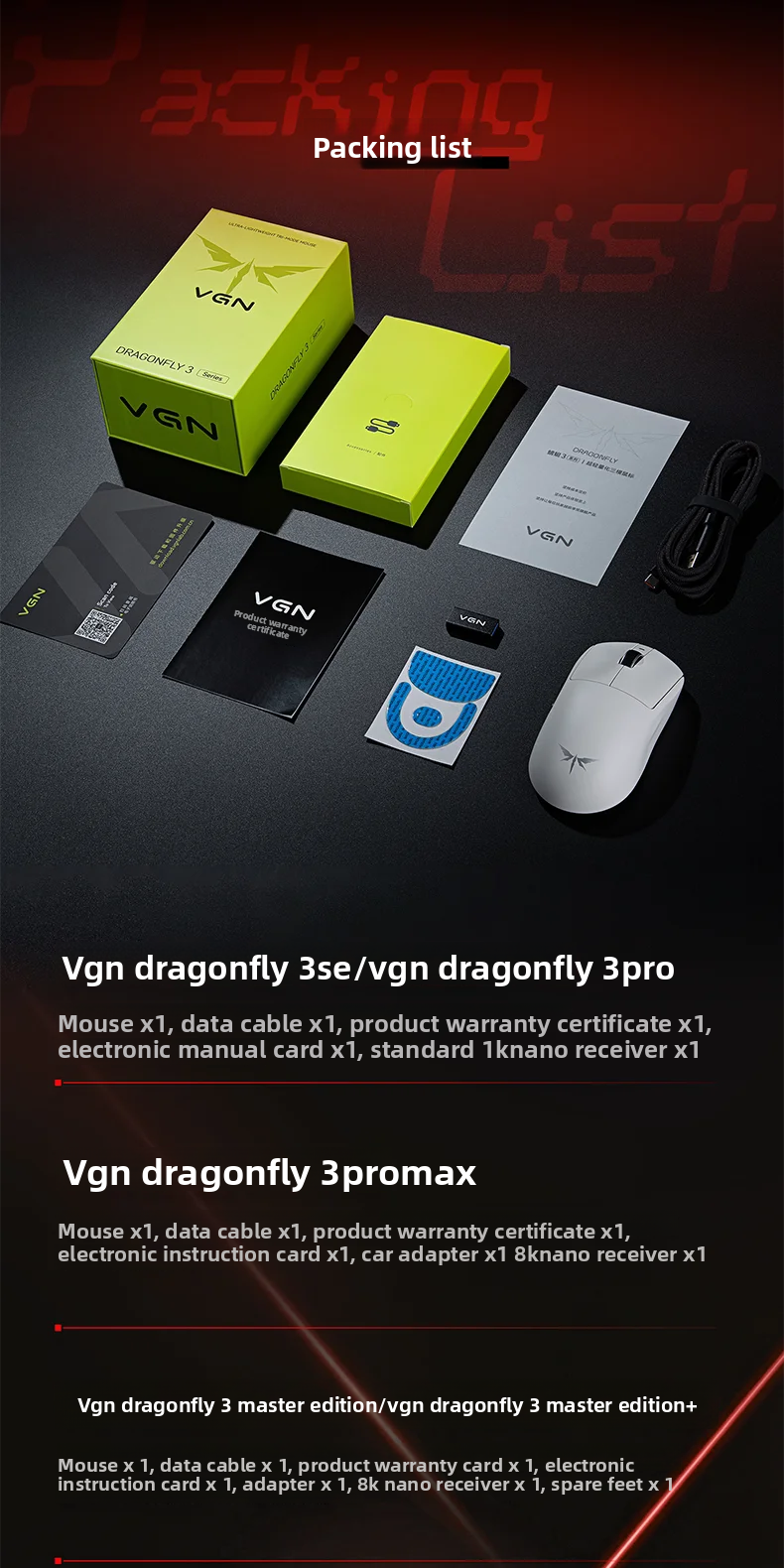
General Package Contents:
- Mouse x1
- Data Cable x1
- Product Warranty Certificate x1
- Electronic Manual Card x1
Model-Specific Additions:
- Dragonfly 3promax: Includes a car adapter x1 and an 8k nano receiver x1.
- Dragonfly 3 Master Edition/Master Edition+: Includes an adapter x1, an 8k nano receiver x1, and spare feet x1.
3. Setup
3.1 Initial Charging
Before first use, it is recommended to fully charge your VGN Dragonfly3 mouse. Connect the provided data cable to the mouse and a computer USB port. Ensure the charging source is 5V/2A or less to avoid damage. Fast charging is supported only by 500mAh battery models (Master Edition/Master Edition+).

3.2 Connectivity Modes
The VGN Dragonfly3 supports three connection modes: Wired, 2.4G Wireless, and Bluetooth.
3.2.1 Wired Connection
- Connect the data cable to the mouse and your computer's USB port.
- The mouse will automatically switch to wired mode and be ready for use.
3.2.2 2.4G Wireless Connection
- Insert the 2.4G nano receiver into an available USB port on your computer.
- Turn on the mouse. It should automatically connect to the receiver.
- For 8K polling rate models (3promax, Master Edition, Master Edition+), ensure you use the provided 8K nano receiver and adapter.
3.2.3 Bluetooth Connection
- Turn on the mouse and switch it to Bluetooth mode (refer to the mouse's bottom switch for mode selection).
- On your computer or device, go to Bluetooth settings and search for new devices.
- Select "VGN Dragonfly3" (or similar name) from the list of available devices to pair.
3.3 Driver and Software Installation (V HUB 3.0)
For advanced customization, including editable mouse buttons, DPI adjustment, report rate, game enhancement, and macro management, download and install the V HUB 3.0 software.
- Visit the official support website: www.vgnlab.com.cn
- Download the appropriate V HUB 3.0 client for your operating system (webpage/windows client).
- Install the software and follow the on-screen instructions.
4. Operating Instructions
4.1 DPI Adjustment
The mouse features a dedicated DPI button, usually located on the bottom or top of the mouse, to cycle through preset DPI levels. You can customize these levels using the V HUB 3.0 software.
4.2 Polling Rate
The polling rate determines how often the mouse reports its position to the computer. Higher polling rates (e.g., 8000Hz) provide smoother and more responsive tracking, especially in competitive gaming.
- 1K Polling Rate: Standard for 3se and 3pro models.
- 8K Polling Rate: Available for 3promax, Master Edition, and Master Edition+ models in wired and 2.4G wireless modes. Requires compatible hardware (see section 6.1).
4.3 Button Functions
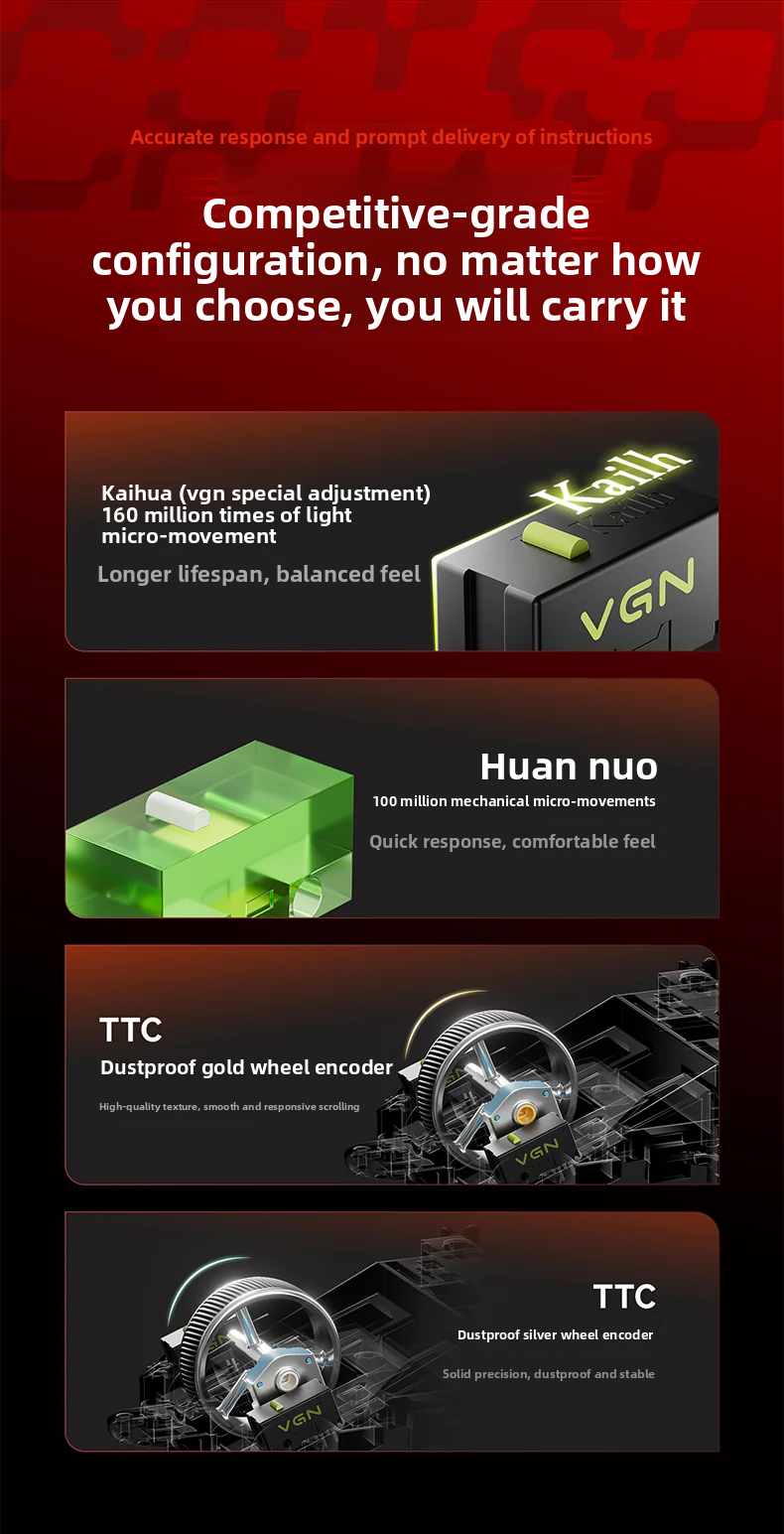
The VGN Dragonfly3 features a standard set of mouse buttons, including left click, right click, scroll wheel, and side buttons. All buttons are customizable via the V HUB 3.0 software.
4.4 Ergonomics and Grip Styles
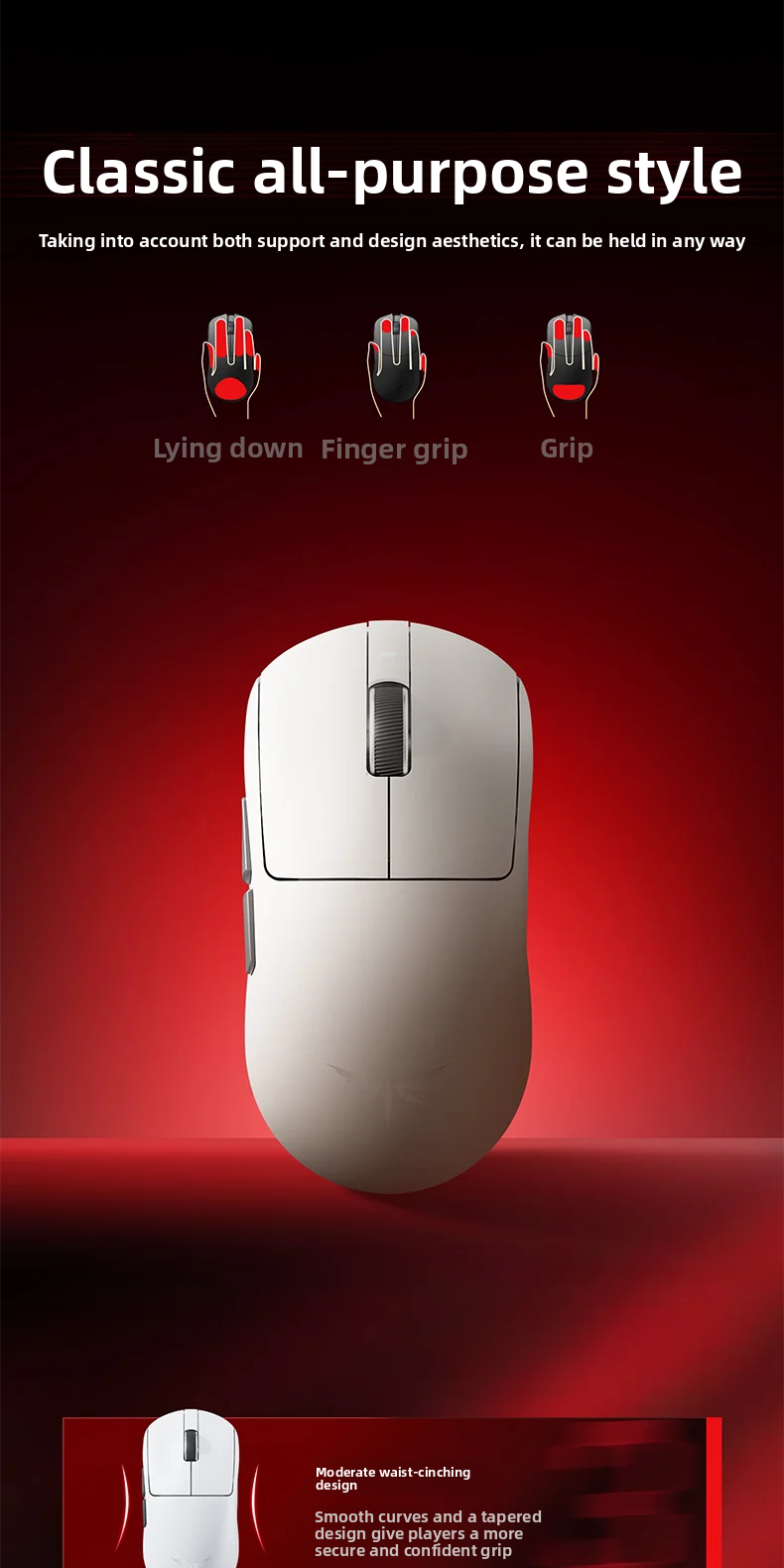
The mouse is designed with a classic all-purpose style, featuring a moderate waist-cinching design and smooth curves for a secure and confident grip. It accommodates various grip styles including lying down, finger grip, and full grip.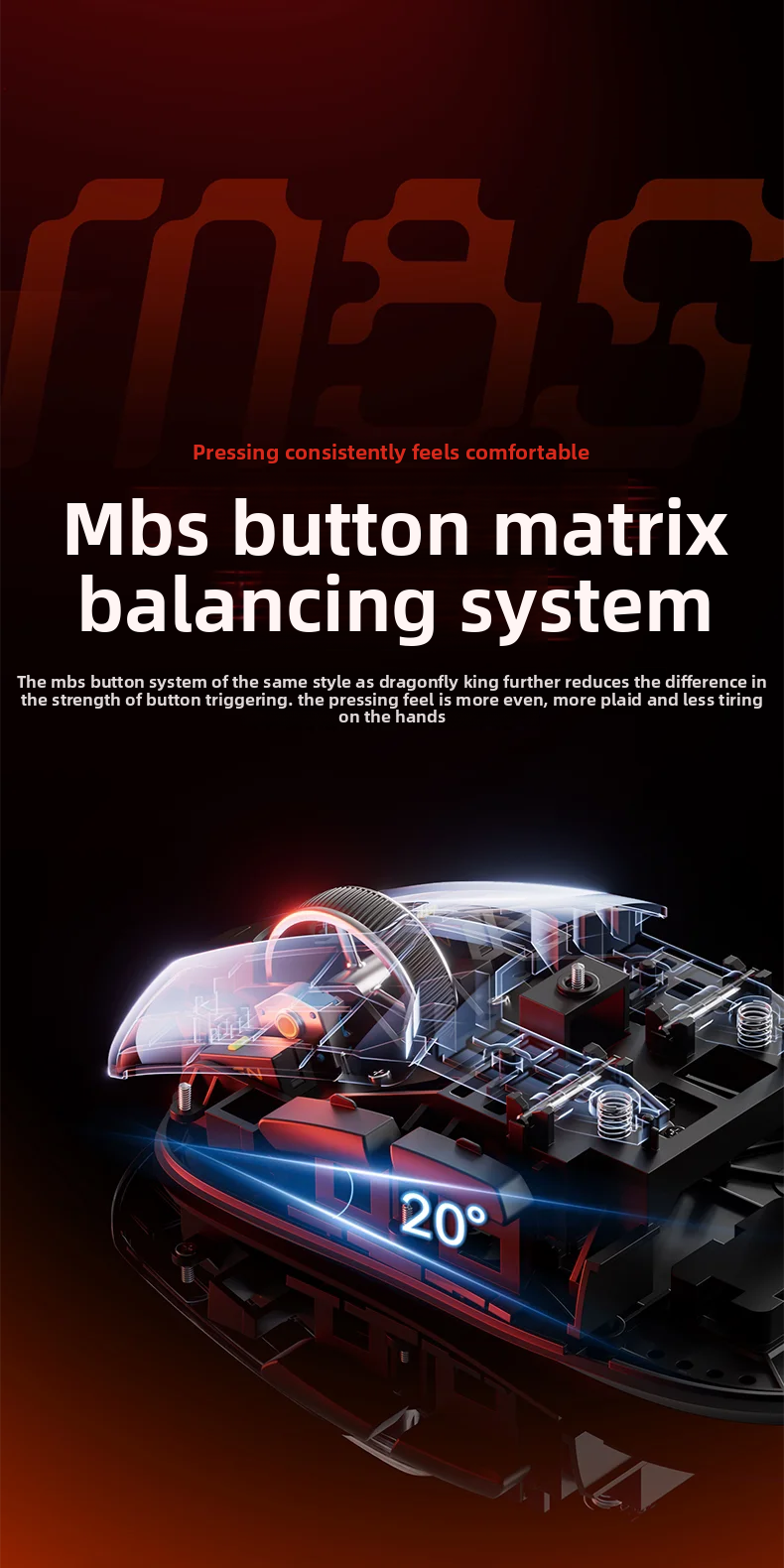
5. Maintenance
5.1 Cleaning
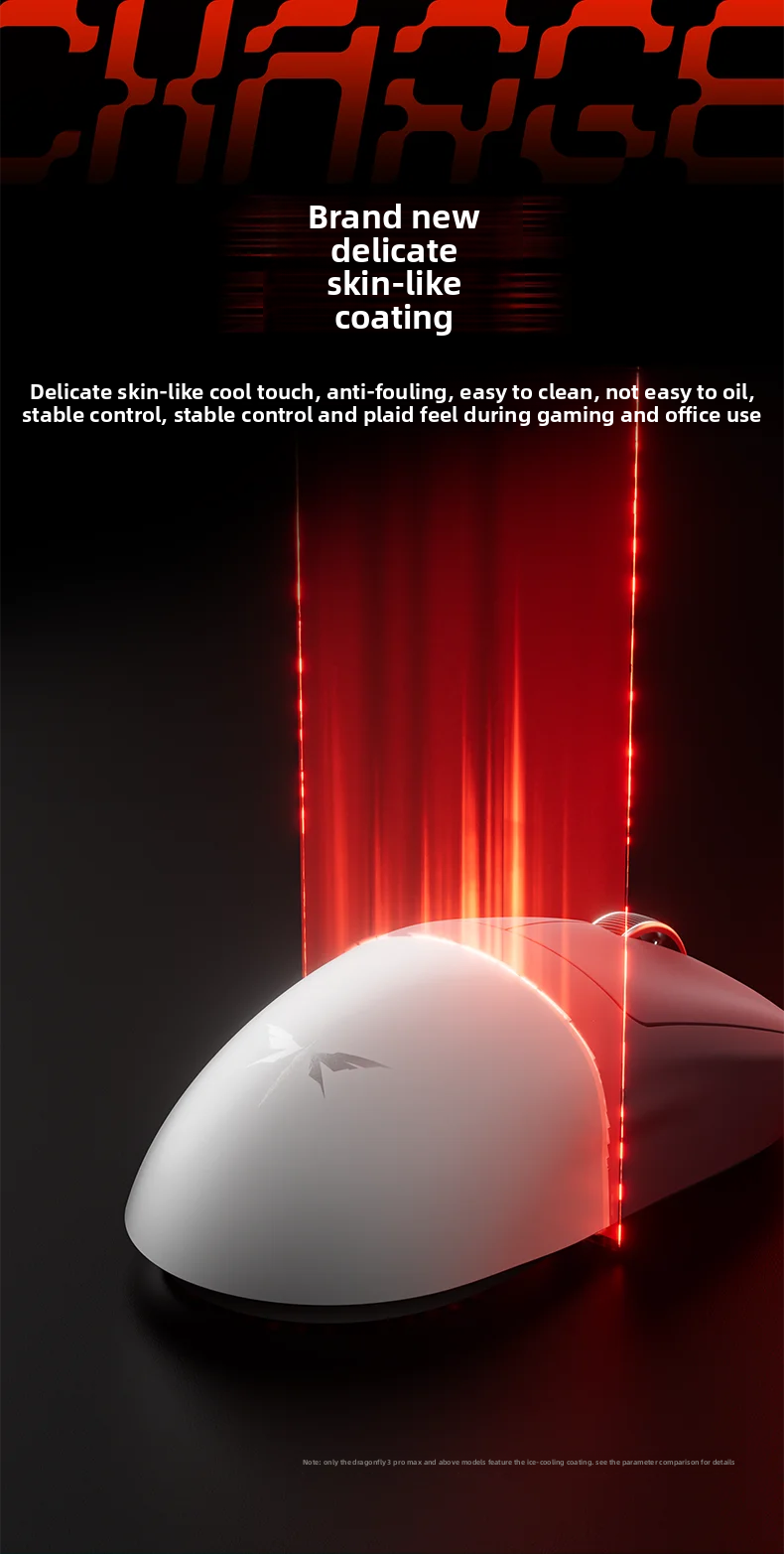
The VGN Dragonfly3 features a delicate skin-like coating that is anti-fouling and easy to clean. Use a soft, dry cloth to wipe the mouse surface. Avoid using harsh chemicals or abrasive materials that could damage the coating.

5.2 Battery Care
- Charge the mouse using a computer USB port or a charger not exceeding 5V/2A.
- Avoid charging in environments with excessively high or low temperatures to ensure charging safety and prolong battery life.
- For models with 500mAh batteries, 1 minute of charging can provide approximately 10 hours of use.
5.3 Foot Stickers
The mouse is equipped with upgraded competition-grade Teflon foot stickers. If replacement is needed, use genuine VGN spare feet to maintain optimal glide performance.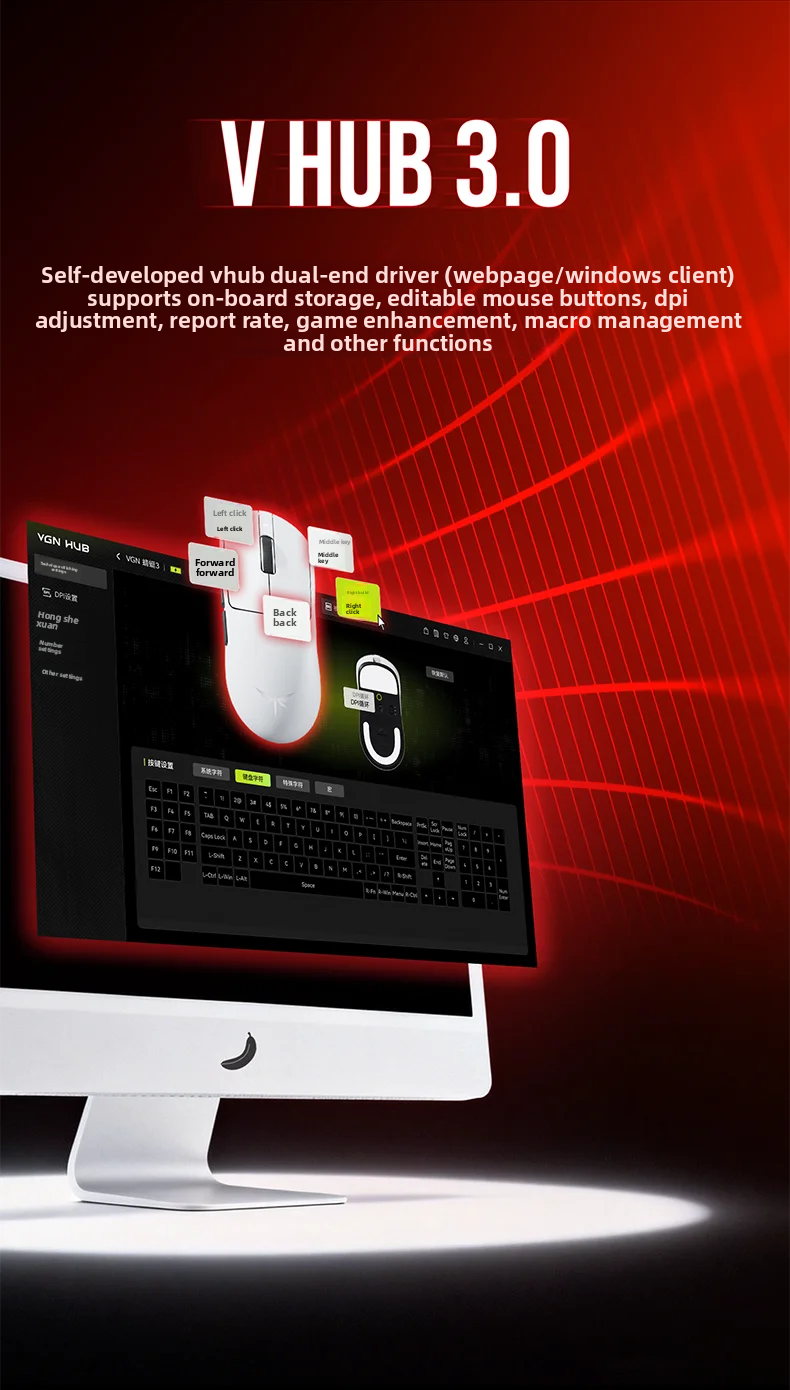
6. Troubleshooting
6.1 Connectivity Issues
- Wireless Disconnection: Ensure the 2.4G receiver is securely plugged into a USB port and the mouse is within range. Check battery level.
- Bluetooth Pairing Failure: Make sure the mouse is in Bluetooth pairing mode and your device's Bluetooth is enabled and discoverable.
- Lag/Stuttering: For 8000Hz polling rate, ensure your computer meets the recommended configuration:
| Component | Intel Platform | AMD Platform |
|---|---|---|
| CPU | i7-9700k and above | Ryzen 7 3700x and above |
| Graphics Card | NVIDIA RTX 2060 and above | AMD RX 5700XT and above |
| Memory | 16GB and above | 16GB and above |
| Monitor | Screen refresh rate above 240Hz | |
6.2 Button Sound Differences
Due to the ergonomic design of the left and right buttons and varying finger pressing methods, slight differences in button sound may occur. This is considered normal and does not indicate a defect.
7. Specifications
The VGN Dragonfly3 series offers various models with differing specifications. Please refer to the table below for detailed comparisons.
| Feature | Dragonfly 3se | Dragonfly 3pro | Dragonfly 3promax | Dragonfly 3 Master Edition | Dragonfly 3 Master Edition+ |
|---|---|---|---|---|---|
| Color | Black gold/white/rose red | Black gold/white/rose red/star orange | |||
| Size | 125*63.3*40mm | ||||
| Surface Coating | Nothing | Ice coating | |||
| Sensor | PAW3311 | PAW 3395 | PAW 3395Extreme | PAW 3950Extreme | |
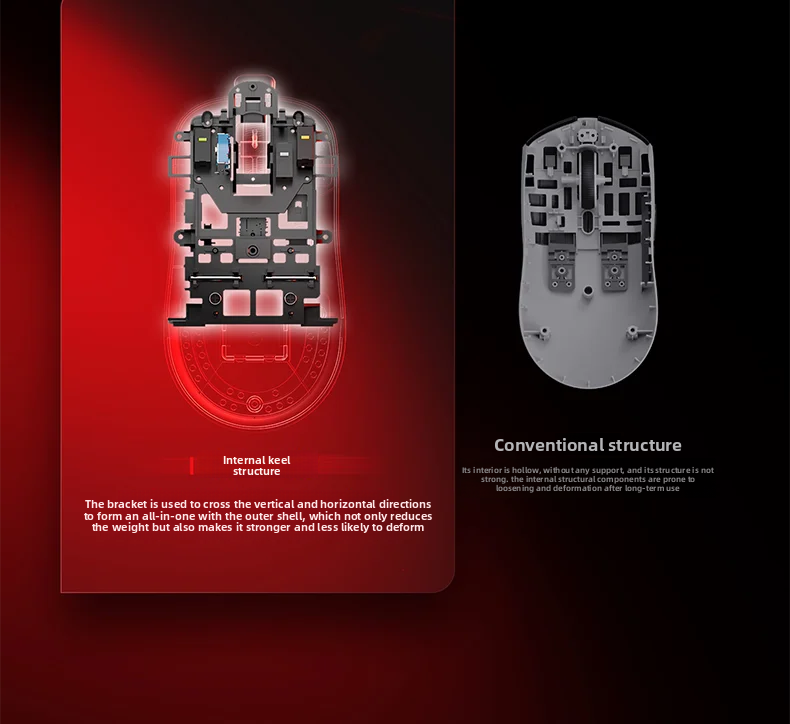
| Mold Structure | Dragon bone structure in dragonfly war spine | ||||
| Button System | Mbs button matrix system | ||||
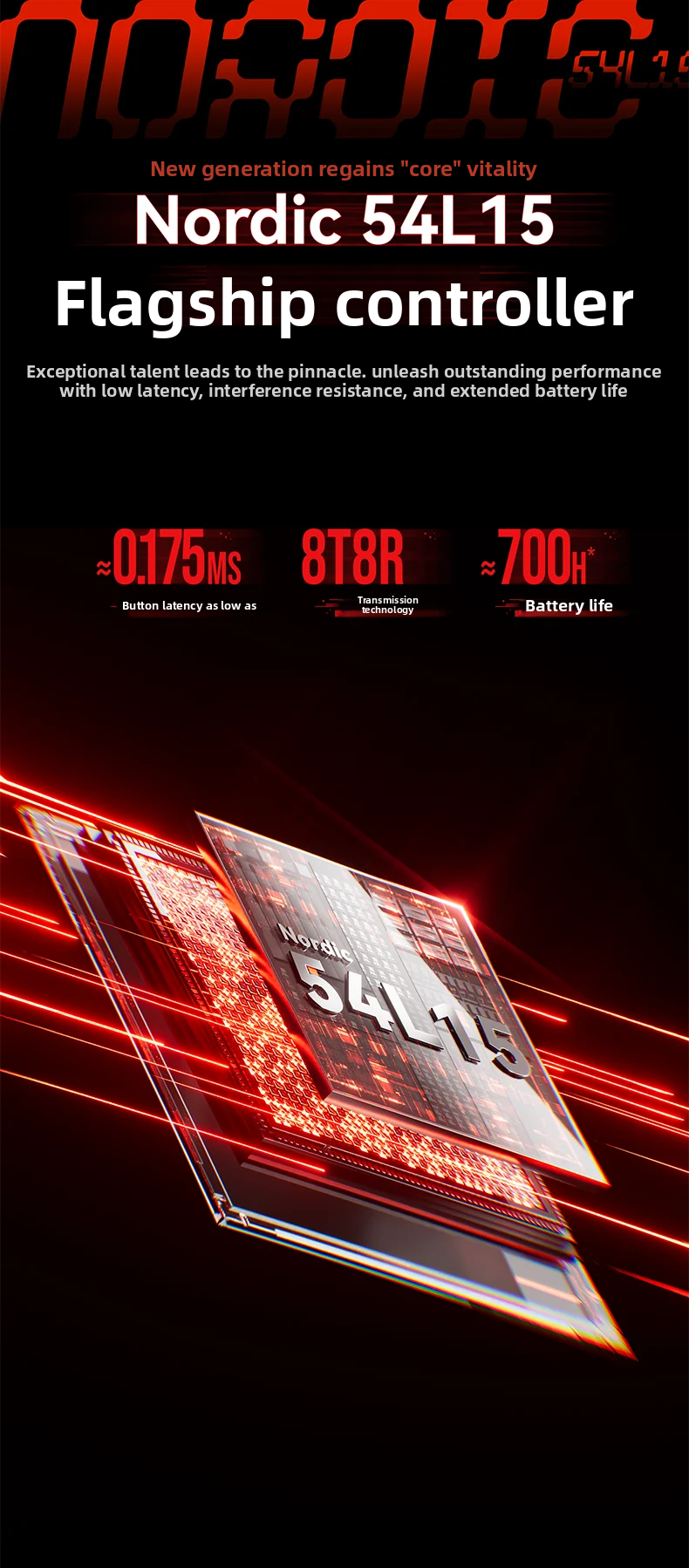
| Main Control Chip | Freqchic main control chip | Vgn customized chip | Nordic 54L15 | ||
| Connection Mode | Wired/2.4G/Bluetooth | ||||
| Weight | 58±3g | 56±3g | |||
| Return Rate | Wired 1k/Wireless 1k | Wired 8k/Wireless 8k | |||
| Minimum Latency | 4ms | As low as 0.4ms | As low as 0.263ms | As low as 0.175ms | |
| Battery | 800mAh | 500mAh | |||
| Fast Charging Technology | Not supported | Support | |||
| Micro-movement | Huan nuo 100 million times mechanical micro-movement | Kaihua 100 million times optical micro-movement | |||
| Roller Encoder | Ttc dustproof silver wheel | Ttc dustproof gold wheel | |||
| Foot Stickers | Teflon big foot patch | ||||
| DPI | 50-12000 | 50-36000 | 50-42000 | ||
| Receiver | Standard 1k nano receiver | Standard 8k nano receiver + adapter | |||
| Drive | Self-developed V HUB client + web driver | ||||
8. User Tips
- Optimal Performance: For the best gaming experience, especially with 8K polling rate models, ensure your computer meets the recommended specifications for CPU, GPU, memory, and monitor refresh rate.
- Customization: Utilize the V HUB 3.0 software to personalize DPI settings, button assignments, and macros to suit your individual preferences and gaming style.
- Battery Life: While 500mAh models support fast charging, remember that battery life can vary based on usage patterns and environment. Charge regularly to avoid interruptions.
- Grip Comfort: Experiment with different grip styles (palm, claw, fingertip) to find the most comfortable and effective way to hold the mouse for long sessions.
9. Warranty and Support
Your VGN Dragonfly3 Wireless Mouse comes with a product warranty certificate included in the package. Please refer to this document for specific warranty terms and conditions.
For product driver downloads, software updates, and additional support, please visit the official VGN website:
For any issues not covered in this manual, please contact the seller or refer to the official support channels provided on the website.


