1. Introduction
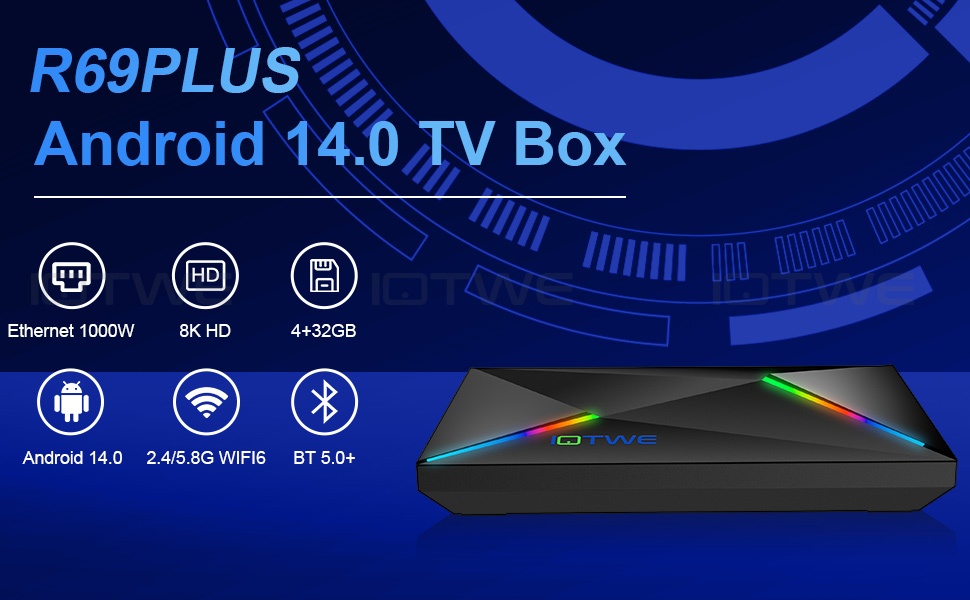
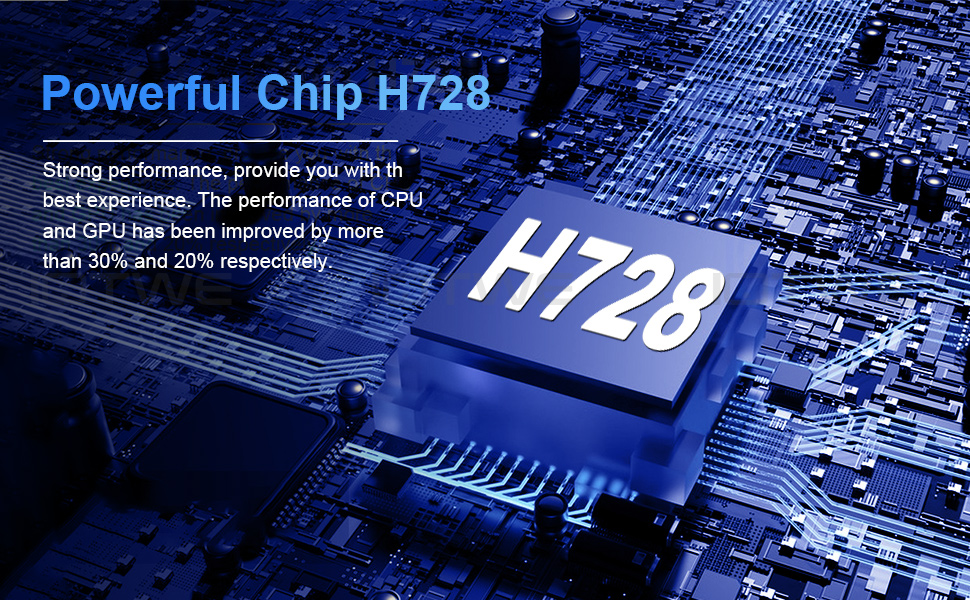
Welcome to the user manual for your xgody R69PLUS / T95PRO Android TV Box. This device is designed to transform your television into a smart entertainment hub, offering access to a wide range of streaming services, games, and applications. Featuring the Android 13.0 operating system, a powerful H618 quad-core processor, and support for up to 8K UHD resolution, your TV box delivers a fast, smooth, and immersive media experience. Please read this manual carefully to ensure proper setup and optimal performance of your device.

2. Package Contents
Please check the box for the following items:
- 1x xgody R69PLUS / T95PRO Android TV Box
- 1x Power Adapter
- 1x HDMI Cable
- 1x Remote Control (batteries not included)
- 1x User Manual
3. Specifications
| Feature | Description |
|---|---|
| Operating System | Android 13.0 |
| CPU | H618 Quad-core Cortex-A53 |
| GPU | Mali G57-MC1 |
| RAM | 4 GB DDR4 |
| Internal Storage (ROM) | 32GB / 64GB / 128GB eMMC (expandable via Micro SD card) |
| Max Output Resolution | 8K @ 60 Hz |
| HDR Standards | HDR10 |
| Video Decoding | H.265/HEVC (reduces buffering, saves 50% bandwidth compared to H.264) |
| Wi-Fi | Dual-band 2.4 GHz / 5 GHz WiFi 6 (802.11.ac technology) |
| Bluetooth | Bluetooth 5.0+ |
| Ethernet | 10/100M |
| Video Output | HDMI-Compatible 2.0 |
| USB Ports | USB 3.0 (high-speed data transfer), USB 2.0 |
| Other Interfaces | Optical, DC/5V Power Input, SD Card Slot, Reset Button |
| Power Source | AC (with inbox adaptor) / DC |
| Weight | 0.4 kg |
| Dimensions (approx.) | 138mm x 98mm x 13mm |
| Supported Internet Services | Prime video, Google TV, Hulu, YouTube, Other |

4. Setup Guide
Follow these steps to set up your xgody Android TV Box:
- Connect to TV: Connect one end of the provided HDMI cable to the HDMI port on your TV Box and the other end to an available HDMI input on your television.
- Connect Power: Plug the power adapter into the DC/5V port on the TV Box, then plug the adapter into a wall outlet.
- Network Connection:
- Wi-Fi: Once the device powers on, navigate to the 'Settings' menu, select 'Network', and choose your Wi-Fi network. Enter the password if prompted.
- Ethernet: For a wired connection, connect an Ethernet cable from your router to the Ethernet port on the TV Box. The device should automatically detect the wired connection.
- Initial Setup: Follow the on-screen instructions to complete the initial setup, including language selection, time zone, and Google account login.

5. Operating Instructions
Your xgody Android TV Box provides a versatile entertainment experience. Here’s how to get started:
5.1 Remote Control
Use the included remote control to navigate the interface. The remote typically includes:
- Power Button: Turns the device on/off or puts it into standby.
- Navigation Buttons (Arrow Keys): Move through menus and selections.
- OK Button: Confirms selections.
- Home Button: Returns to the main home screen.
- Back Button: Goes back to the previous screen.
- Volume Buttons: Adjust audio volume.
- App Button: Accesses installed applications.
- Dedicated Streaming Service Buttons: Quick access to popular apps like YouTube, Netflix, Prime Video, Google Play.
5.2 Media Playback and Streaming
The TV box supports various media formats and streaming services:
- Video Playback: Enjoy 6K HD videos with H.265/HEVC decoding for a sharper resolution and efficient bandwidth usage. The device also supports 3D content for an immersive visual experience (requires compatible 3D TV).
- Streaming Apps: Access pre-installed apps like Prime Video, Google TV, Hulu, and YouTube. You can download more applications from the Google Play Store.
- USB/SD Card Media: Play media directly from USB drives or SD cards connected to the device.

5.3 Connectivity
- Wi-Fi 6: Benefit from faster speeds, lower latency, and a more secure network with dual-band 2.4 GHz / 5 GHz WiFi 6.
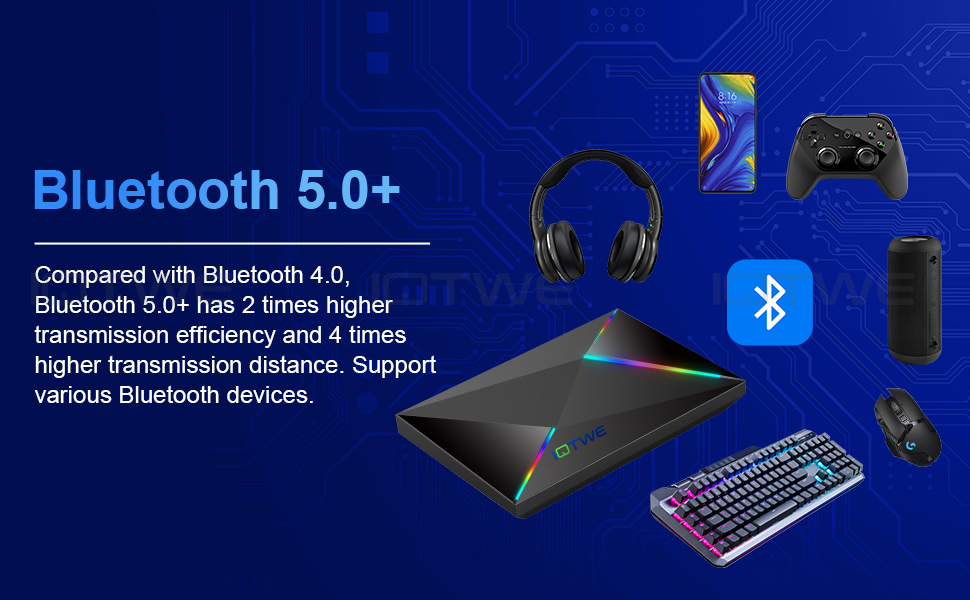
- Bluetooth 5.0+: Connect various Bluetooth devices such as gamepads, headphones, speakers, keyboards, and mice for enhanced control and audio experience. Bluetooth 5.0+ offers 2 times higher transmission efficiency and 4 times higher transmission distance compared to Bluetooth 4.0.
- USB 3.0: Utilize the USB 3.0 port for significantly faster data transfer speeds (up to 5Gbps) compared to USB 2.0, ideal for large files and external storage.
6. Maintenance
- Cleaning: Use a soft, dry cloth to clean the exterior of the TV Box. Do not use liquid cleaners or abrasive materials.
- Ventilation: Ensure the TV Box is placed in a well-ventilated area to prevent overheating. Do not block any ventilation openings.
- Software Updates: The device supports system upgrades. Periodically check for and install system updates via the 'Settings' menu to ensure optimal performance and access to the latest features and security patches.
- Storage Management: Regularly clear cache and unnecessary files to maintain smooth operation, especially if you have a smaller ROM version.
7. Troubleshooting
If you encounter issues with your TV Box, refer to the following common solutions:
- No Power:
- Check if the power adapter is securely connected to the TV Box and the wall outlet.
- Ensure the wall outlet is functioning correctly.
- No Picture/Signal on TV:
- Verify the HDMI cable is securely connected to both the TV Box and the TV.
- Ensure your TV is set to the correct HDMI input source.
- Try a different HDMI cable or HDMI port on your TV.
- Wi-Fi Connection Issues:
- Check if your router is working correctly.
- Restart the TV Box and your router.
- Ensure you have entered the correct Wi-Fi password.
- Move the TV Box closer to your router or use an Ethernet cable for a more stable connection.
- Remote Control Not Responding:
- Replace the batteries in the remote control.
- Ensure there are no obstructions between the remote and the TV Box.
- Buffering or Slow Performance:
- Check your internet speed.
- Close unnecessary background applications.
- Clear the cache of streaming apps.
- Consider using a wired Ethernet connection for better stability.
8. User Tips
- Power Adapter Compatibility: The provided power adapter is designed for specific regions. If you are in a different region (e.g., UK), you may need to use a compatible regional plug adapter or a universal power adapter.
- Expand Storage: For users with 32GB or 64GB ROM models, consider using the Micro SD card slot to expand storage for more apps and media.
- Bluetooth Peripherals: Connect a Bluetooth keyboard and mouse for easier navigation and typing, especially when browsing or using productivity apps.
9. Warranty and Support
For any questions or technical assistance, please contact customer support. We aim to provide a reply within 24 hours.


