1. Introduction
The Hanvon Clear E-reader is a 7-inch device designed for an immersive and comfortable reading experience. Featuring an E-Ink Carta 1200 screen with 300 PPI, it offers a paper-like display with natural light-like soft eye protection. Powered by an 8-core Android 11 system, it supports a wide range of file formats and offers versatile connectivity options.

Figure 1: Hanvon Clear E-reader with its protective case.
2. Specifications
| Feature | Description |
|---|---|
| Screen Size | 7 inches |
| Screen Material | E-Ink |
| Screen Type | E-Ink Electronic Ink Screen, Carta 1200 |
| Resolution | 1680x1264 pixels (300 PPI) |
| Operating System | Android 11 |
| Processor | 4-core 1.8GHz |
| Memory Capacity | 4GB RAM + 64GB Storage |
| Storage Expansion | Not supported |
| Connectivity | WIFI, Bluetooth |
| Product Interface | Type-C (for digital headphones, data transfer, charging) |
| Control Interface | 3 physical buttons |
| Battery Capacity | 2400mAh |
| Dimensions | 155.7 x 135.8 x 3.9mm |
| Weight | 175g |
| Supported Document Formats | TXT, HTXT, PDF, HTML, EPUB, HEB, CHM, MOBI, FB2, DOC, DOCX, PPT, PPTX, AZW, AZW3, XLS, XLSX |
| Supported Image Formats | JPG, BMP, PNG, GIF |
| Supported Audio Formats | AMR, MP3 |
| Additional Features | Built-in light source, Pure screen display, Touch screen, Comic support, Bluetooth, WIFI, Backlight, Supports Recording Function, Speaker, Reading lamp, Gravity induction, OTG |

Figure 2: Detailed specifications of the Hanvon Clear E-reader.
3. Setup
Initial Charge
Before first use, fully charge your Hanvon Clear E-reader using the provided Type-C cable and a compatible power adapter. The charging port is located on the device. A full charge ensures optimal battery performance.

Figure 3: The e-reader features a 2400mAh large battery for extended use.
Power On and Initial Configuration
Press and hold the power button to turn on the device. Follow the on-screen prompts to complete the initial setup, including language selection, Wi-Fi connection, and time zone settings. Ensure you connect to a stable Wi-Fi network for updates and content downloads.
File Transfer
You can transfer e-book files and other documents to your Hanvon Clear E-reader using several methods:
- Wi-Fi: Connect to a Wi-Fi network and use built-in applications or cloud services to download content.
- Bluetooth: Transfer files wirelessly from compatible devices.
- Data Cable (Type-C): Connect the e-reader to your computer using the Type-C cable to transfer files directly.
- Third-party Apps: Utilize supported third-party applications like Baidu Netdisk or WeChat for convenient file sharing.

Figure 4: Multiple convenient file transfer options are available.
4. Operating Instructions
Screen Rotation (Gravity Induction)
The device supports 360° screen rotation via gravity induction. Once enabled, the screen will automatically adjust its orientation (portrait or landscape) based on how you hold the e-reader, providing a seamless reading experience.

Figure 5: Gravity induction allows for automatic 360° screen rotation.
Reading Light Adjustment
The Hanvon Clear features dual-color headlights (warm and cold light) with 30 levels of DC dimming. This allows for natural light-like soft eye protection, adjustable to your environment and preference. Access light settings through the quick settings menu or dedicated buttons.

Figure 6: Adjust warm and cold reading lights for optimal comfort.
Display Modes
- 256-level Gray Scale: The self-developed 16-level gray scale algorithm simulates a 256-level gray scale display, making images and text lifelike.
- Night Mode: For comfortable reading in low-light conditions, activate Night Mode. This provides a high-contrast display with dark background and light text, reducing eye strain.

Figure 7: The 256-level gray scale display enhances visual quality.

Figure 8: Night Mode provides a high-contrast display for comfortable reading in the dark.
AI Voice Feature
The built-in high-quality listening module supports 5 AI voices, offering an immersive listening experience. You can choose a timing mode to have the device read to you, which can be helpful for falling asleep or hands-free listening.

Figure 9: Select from various AI voices for an immersive listening experience.
Document Management and Reading
- PDF Document Rearrangement: When reading PDF files, you can freely choose between original and rearranged layout methods. This includes options for screen width, full page, paper-like display, split page turning, scaling, and font blackening to optimize readability on a small screen.
- EPUB Display and Format: The device offers various display and formatting options for EPUB files, allowing customization of font, line spacing, and image display.
- Deep Optimization: The self-developed parsing core deeply optimizes the reading performance of multi-format documents, accurately presenting the original content and layout style.
- Regal Technology: In normal reading mode, Regal technology automatically eliminates ghosting, ensuring a clean, crisp, and clear reading experience.
- Bookmark Redirection: Easily add bookmarks to your current page. The bookmark ID will be displayed in the upper-left corner. Click on a bookmark in the list to quickly navigate to the corresponding page.

Figure 10: PDF document rearrangement options for enhanced readability.

Figure 11: EPUB display and formatting options.

Figure 12: Regal Technology ensures a ghosting-free reading experience.

Figure 13: Bookmark redirection for easy navigation.
Customizable Physical Buttons
The e-reader features three physical buttons on the side, arranged vertically. These buttons are customizable and can be assigned various functions such as returning to the previous page, taking a screenshot, opening recently used applications, full brush mode, or invoking the system menu. This allows for quick and efficient operation.
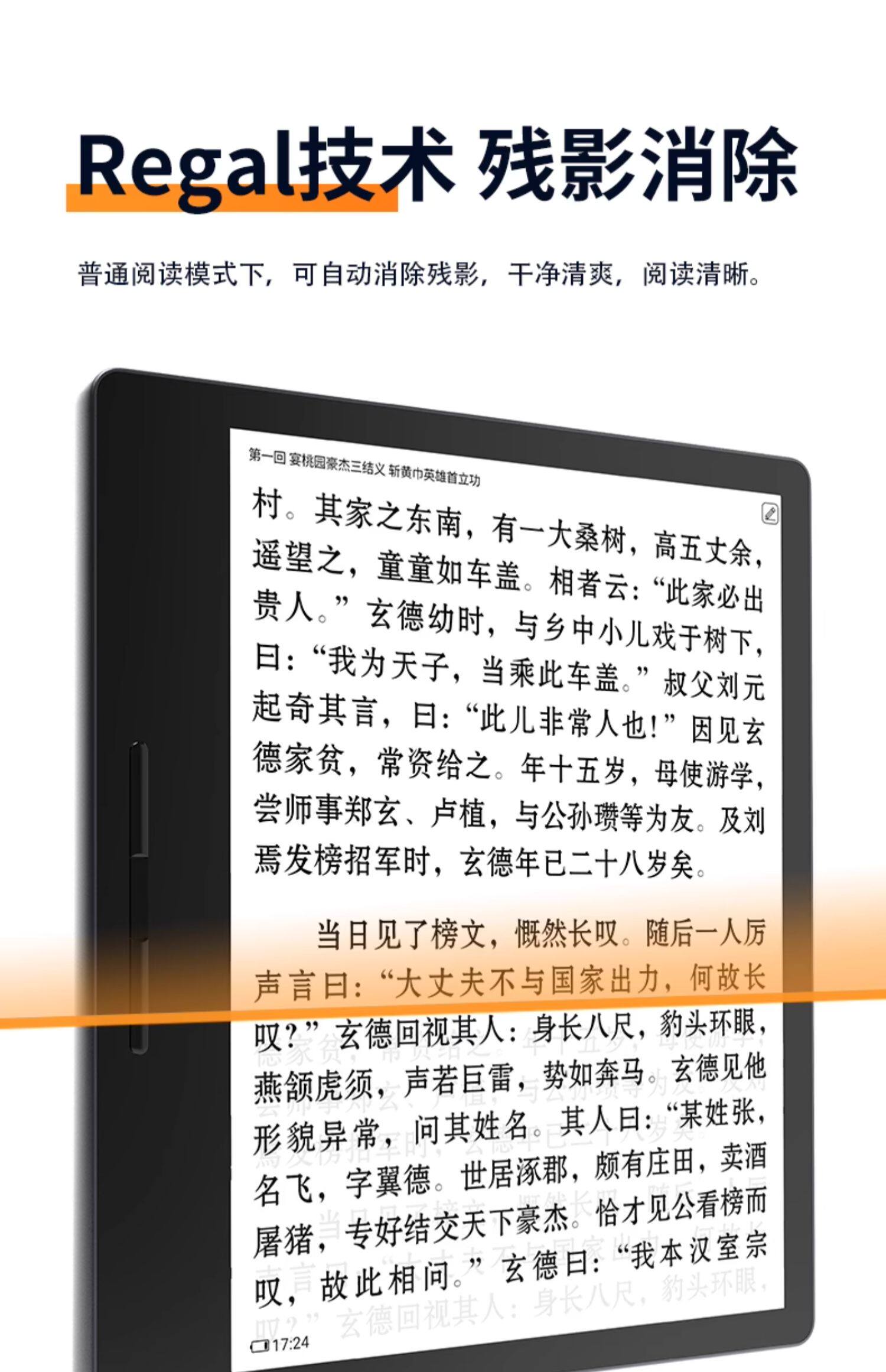
Figure 14: Customizable three-section solid keys for personalized control.
Open System and App Downloads
The built-in app market allows you to download and install various third-party applications, including reading apps, news aggregators, browsers, and learning tools, to suit different usage scenarios.

Figure 15: The open system allows for downloading various applications.
5. Maintenance
Battery Care
The Hanvon Clear E-reader is equipped with a 2400mAh large-capacity battery, offering ultra-low power consumption and up to 40 days of standby time. To prolong battery life:
- Avoid extreme temperatures.
- Do not let the battery completely drain frequently.
- Charge the device regularly, even if not in constant use.
Screen Care
The Carta 1200 ink screen provides a paper-like display with real eye protection. To maintain its quality:
- Clean the screen gently with a soft, lint-free cloth.
- Avoid using harsh chemicals or abrasive materials.
- Protect the screen from sharp objects and excessive pressure.
General Cleaning
Wipe the exterior of the device with a soft, slightly damp cloth. Ensure no moisture enters the ports or openings.
6. Troubleshooting
Device Not Turning On
Ensure the device is sufficiently charged. Connect it to a power source and wait a few minutes before attempting to power it on again. If the issue persists, try a different charging cable or adapter.
Screen Not Responding
If the touch screen is unresponsive, try restarting the device. If a restart doesn't resolve the issue, perform a hard reset (refer to the device's specific hard reset instructions, usually involving holding the power button for an extended period).
Files Not Transferring
Check your connection (Wi-Fi, Bluetooth, or USB cable). Ensure the e-reader is recognized by your computer if using a cable. For Wi-Fi transfers, verify network connectivity. For third-party apps, ensure they are properly installed and configured.
Ghosting on Screen
The Hanvon Clear E-reader features Regal Technology to minimize ghosting. If you notice persistent ghosting, try refreshing the screen manually (if an option is available in settings) or restarting the device. Ensure you are using the device in normal reading mode.
7. User Tips
- Optimize Battery Life: While the device has a long standby time, turning off Wi-Fi and Bluetooth when not in use can further extend battery life.
- Experiment with Light Settings: Utilize the dual-color headlights and 30 levels of dimming to find the most comfortable setting for different lighting conditions, especially for prolonged reading sessions.
- Customize Buttons: Take advantage of the customizable physical buttons to assign frequently used functions for quicker access and a more personalized reading experience.
- Explore App Market: Don't limit yourself to pre-installed apps. Explore the built-in app market for additional reading platforms, news apps, or productivity tools that enhance your e-reader's functionality.
8. Warranty and Support
For warranty information, technical support, or service inquiries, please refer to the documentation included with your purchase or contact the seller directly. Keep your proof of purchase for any warranty claims.
9. Product Video
Video 1: Overview of Hanvon Clear E-reader features, including screen clarity, physical buttons, and night mode.


